The writing inspector
Open a chapter or scene and the inspector on the right stops being a static summary — it becomes eight tabs, each answering a different question about the section you're writing.
The tab bar is icon-only; the caption beneath it names whichever tab is selected. In order: Synopsis, In Scene, Notes, Metadata, Snapshots, Readability, Grammar, Style.
Synopsis
A free-text Synopsis field — your own summary of the section, not derived from anything else. A scene adds two more fields here: Purpose (why this scene exists in the book) and Scene Goal (what the point-of-view character is trying to get out of it).
In Scene
Everything Sgeulai currently knows appears in this section — the cast, in effect. It's built from the record's own fields (POV character, characters present, primary location, and any events, plot items or arcs it advances) plus every entity mentioned by a wikilink in the prose, each labelled with its role: POV, Present, Location, Event, Plot, Arc, or simply Linked. Click a name and its record opens here in the inspector, beside the prose — see Looking up a record below.
Empty here means exactly what it says: nothing is set in Metadata and nothing is wikilinked yet. This tab is read-only in itself — it reflects Metadata and your prose rather than editing anything directly.
Looking up a record
The Look Up a Record field above the tab bar reads any Story Bible record beside the prose, including ones the scene doesn't mention. Picking a type in the binder would do that too, but it swaps the scene out of the centre pane for that type's browser; this leaves the scene where it is.
Type a few letters of a name — they only have to appear in order, so "eld" finds "Elena Delacroix" — and the tabs give way to matching records of every type. Records this scene already mentions come first, with the same role labels as In Scene. Scenes, chapters and anything in the Trash are not listed. Click a name, or press Return for the top one; clear the field with its ⓧ button or Esc to get the tabs back.
The record opens as its summary: its filled-in fields, grouped and editable in place, with Open Full Editor for when the column is too narrow. The bar above it reads Back to and the scene's name, and Back returns to the scene's inspector on the tab you left. The centre pane never moves, whether the record came from this field, from In Scene or from clicking a wikilink in the prose.
Pinning a record
The pin at the right-hand end of that bar keeps the record in the inspector while you move from scene to scene. Unpinned, it closes as soon as you pick something else in the binder.
| You do this | The pinned record |
|---|---|
| Pick another scene, or anything else, in the binder | Stays. |
| Press Back | Closes, and the pin comes off. |
| Open Full Editor on that same record | Closes, since it would otherwise be on screen twice. |
| Open a different record in the full editor | Stays. |
Notes
The same Author Notes field every Story Bible record has, scoped to this one chapter or scene. Not a separate "chapter notes" concept — just this record's own notes, the way you'd write them for a character or location.
Metadata
What's here depends on what you're looking at:
| Node | Fields |
|---|---|
| Scene | Status, word count with an editable target and progress bar, POV character, characters present, primary location. |
| Chapter | Chapter number, part/act name, word count. |
| Either | Keywords, shown as chips when the record has any. |
Setting the POV character, cast and location here is what feeds the In Scene tab and the cast-detection several analysis tools depend on — it is worth filling in even when you'd rather just write.
Snapshots
Take Snapshot captures this section's prose exactly as it stands, labelled and timestamped. The list below it holds every snapshot, newest first, each with Preview (a side-by-side compare) and Restore. Restoring always takes one more snapshot first — "before a restore" — so undoing a restore is itself just another restore.
Sgeulai also takes snapshots on its own, automatically, immediately before letting something rewrite a section's prose in bulk — a Find & Replace pass, an AI re-analysis, a scene split. See The Tools menu for Compact Document…, which is how old automatic snapshots get cleared out once you don't need them anymore; a snapshot you took yourself is never touched by it.
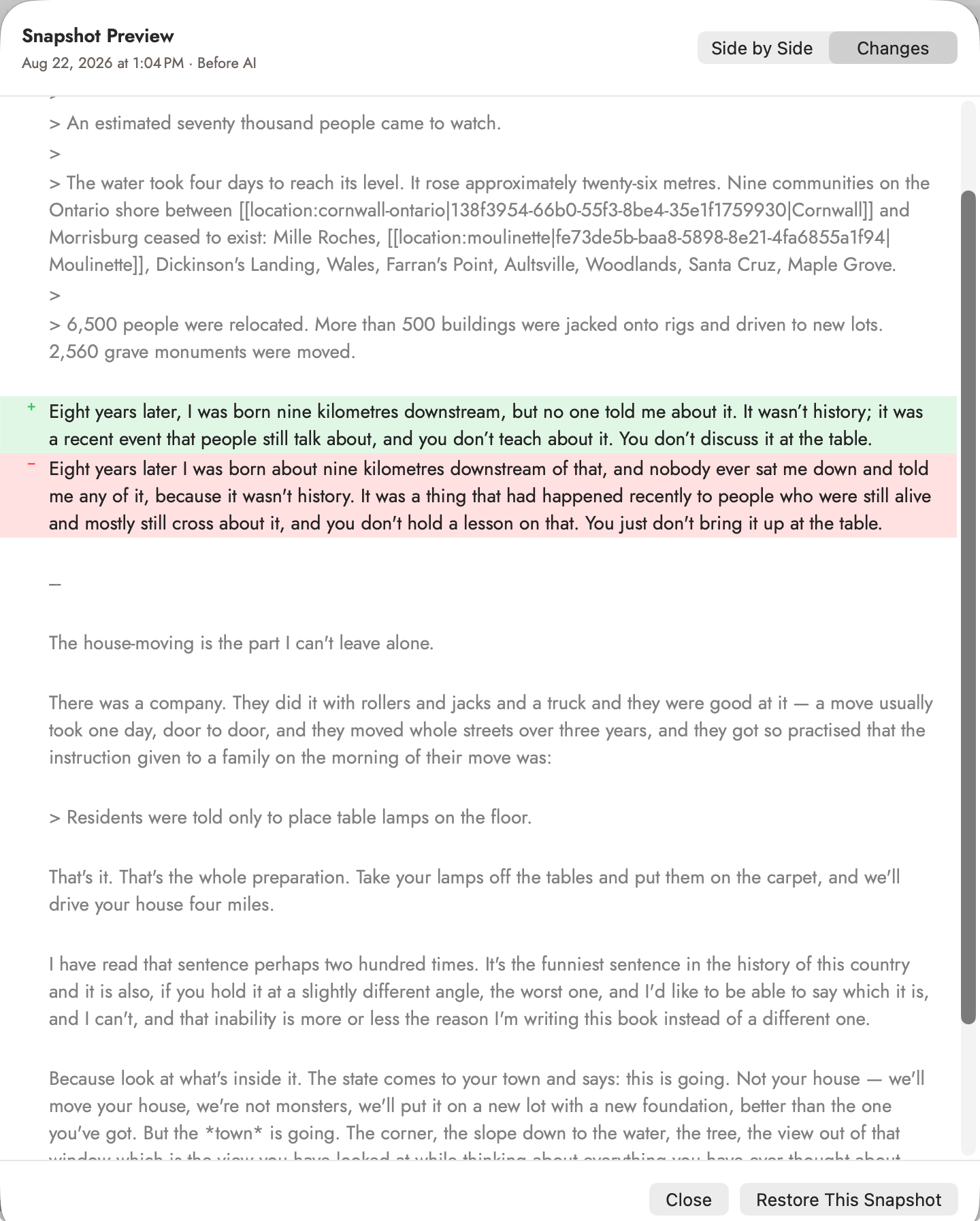 The Changes view, on an automatic "Before AI"
snapshot. Green is what is there now; red is what it replaced.
The Changes view, on an automatic "Before AI"
snapshot. Green is what is there now; red is what it replaced.
Readability
A statistical read on the prose, not a judgment of it. Every number on this tab comes from Sgeulai counting words, sentences and syllables in your own text as you type — nothing is sent anywhere, nothing is compared against anyone else's writing, and no AI is involved at any point. It's the same kind of insight a copy editor's rule of thumb gives you, just computed instead of eyeballed: not "is this good," but "here is what this passage is actually doing, structurally, right now."
It needs a running start — type at least 30 words and the panels appear; below that there simply isn't enough text yet for a sentence-length average or a syllable count to mean anything.
 Green means inside the aim range printed beside it,
orange means outside — 1.39 syllables per word against an aim of 1.5–2, and
12.5 words per sentence against an aim of 15–20. Neither is a fault; both
are worth knowing.
Green means inside the aim range printed beside it,
orange means outside — 1.39 syllables per word against an aim of 1.5–2, and
12.5 words per sentence against an aim of 15–20. Neither is a fault; both
are worth knowing.
Select a manuscript's title or a Part in the binder and the tab measures the whole of it, with one more section under Reading Ease: By Chapter. A bar per chapter shows its reading ease against a dashed line for the whole, followed by the hardest and easiest chapters and a list of every chapter's score and grade level. Chapters under thirty words are listed as too short.
Reading it as a whole
| Panel | What it measures | What it's telling you |
|---|---|---|
| Reading Ease | The Flesch Reading Ease score, 0–100, from average sentence length and syllables per word. | Higher means easier to parse at a glance. Shown alongside an estimated reading time, based on a fixed 238 words a minute. |
| At a Glance | Word, sentence and paragraph counts. | The plain scale of what you've written — no interpretation, just the totals. |
| Word Length | Average syllables and letters per word, plus a distribution of word lengths across the whole passage. | A passage built from short, plain words reads very differently from one leaning on long or technical ones, even at the same sentence length — this is where that shows up. |
| Syllable Distribution | The share of "complex" words — three or more syllables — and a chart of syllable counts across the passage, broken out one, two, three, four, five and six-or-more syllables rather than lumping everything past three together. | A rising share of complex words is usually what makes a Reading Ease score drop, so this is the "why" behind that number — and the finer break is the difference between a passage leaning on plain four-syllable words and one reaching for real tongue-twisters. |
| Complex Word Density | The average number of complex words per sentence, and a chart of how that count is distributed across every sentence. | The share above says how much complexity there is; this says whether it's spread evenly or piled into a handful of sentences — a passage can sit comfortably under the complex-word aim overall while a few sentences carry four or five of them each, which reads as heavy going right there even though the aggregate number never flags it. |
| Sentence Rhythm | Average sentence length, and the split between short, medium and long sentences. | A passage that's all one length reads as monotone even when every sentence, alone, is fine. This is the fastest way to spot that without rereading the whole thing aloud. |
| Paragraph Density | Sentences and words per paragraph, each as an average and as a chart of how it's actually distributed across every paragraph. | Dense paragraphs slow a reader down on the page before they've read a word of one — useful to know if a section is meant to feel breathless or unhurried. The distribution catches what the average alone can't: a chapter of even three-sentence paragraphs reads very differently from one alternating one-sentence beats with six-sentence blocks, even if both average out the same. |
| Grade Level | Flesch-Kincaid Grade and Gunning Fog — two independent estimates of the US school grade a reader would need to follow the passage on a first read. | The two rarely agree exactly; where they do agree is a stronger signal than either alone. Neither is a judgment of the writing's quality. |
| Top Repeated Words | Your own most frequent words in this passage (ordinary stopwords like "the" and "and" excluded). | Catches the tics you can't hear in your own head — a "just" or "suddenly" that crept into every third paragraph is much easier to spot in a list than in the prose itself. |
Section, part, or whole manuscript
Open a chapter or scene and this tab is scoped to just that section's prose, recalculating on every change you make — there's no separate "run the analysis" step. Click a manuscript or part title in the binder instead of a chapter or scene, and the same panel appears scoped to everything underneath it, rebuilt each time you switch which manuscript or part is selected rather than on every keystroke elsewhere in the book.
Readability is about how a passage reads, sentence by sentence — it says nothing about how long a chapter runs compared to the rest of the book. That's a separate question, answered by the Pacing tool instead; see The analysis tools.
Grammar
Harper's findings for this section, listed rather than only underlined in the prose: spelling, sentences that have run long, punctuation it can put right for you — each with the offending phrase quoted and, where there is one, a suggested replacement to click. Adding a word to the dictionary is offered inline.
Style
The style check's findings for this section: repeated words, sticky sentences, dull verbs, filler, hedging, clichés and the rest, grouped by kind, each quoted with a line on why. Click a finding to select those words in the prose, and hover an underline in the editor to read it there. Where Grammar asks whether a sentence is correct, Style asks whether it could be stronger — and neither calls anything over a network.
Above the list: how many findings there are, the rate per 1,000 words, and a line counting adverbs, adjectives and dialogue. Settings opens the strictness of each kind and the Word Lists… sheet; anything you chose to ignore is listed under it, ready to restore. The style check page has the details.
The comments panel
Not a tab on this inspector — a separate toggle in the editor's own toolbar (the speech-bubble icon, with a badge counting open comments). See Writing aids in the editor for what a comment can hold and how it links back to the Story Bible.