The Web Clipper
Research Highlights knows about books you have annotated in Apple Books. The Web Clipper answers the other half of the same question — the article, the archive page, the local-history site — and it lands in the same place: a Source record you can cite, with the passage you selected kept as a quote beside it.
It is a bookmark, not an extension
Open Settings ▸ Web Clipper ▸ Show Install Instructions… and a page opens with a Clip to Sgeulai button on it. Drag that button to your browser’s bookmarks bar — do not click it. That is the whole installation. There is nothing to enable in Safari’s Extensions pane afterwards, nothing to keep updated, and it works the same way in Chrome or anything else.
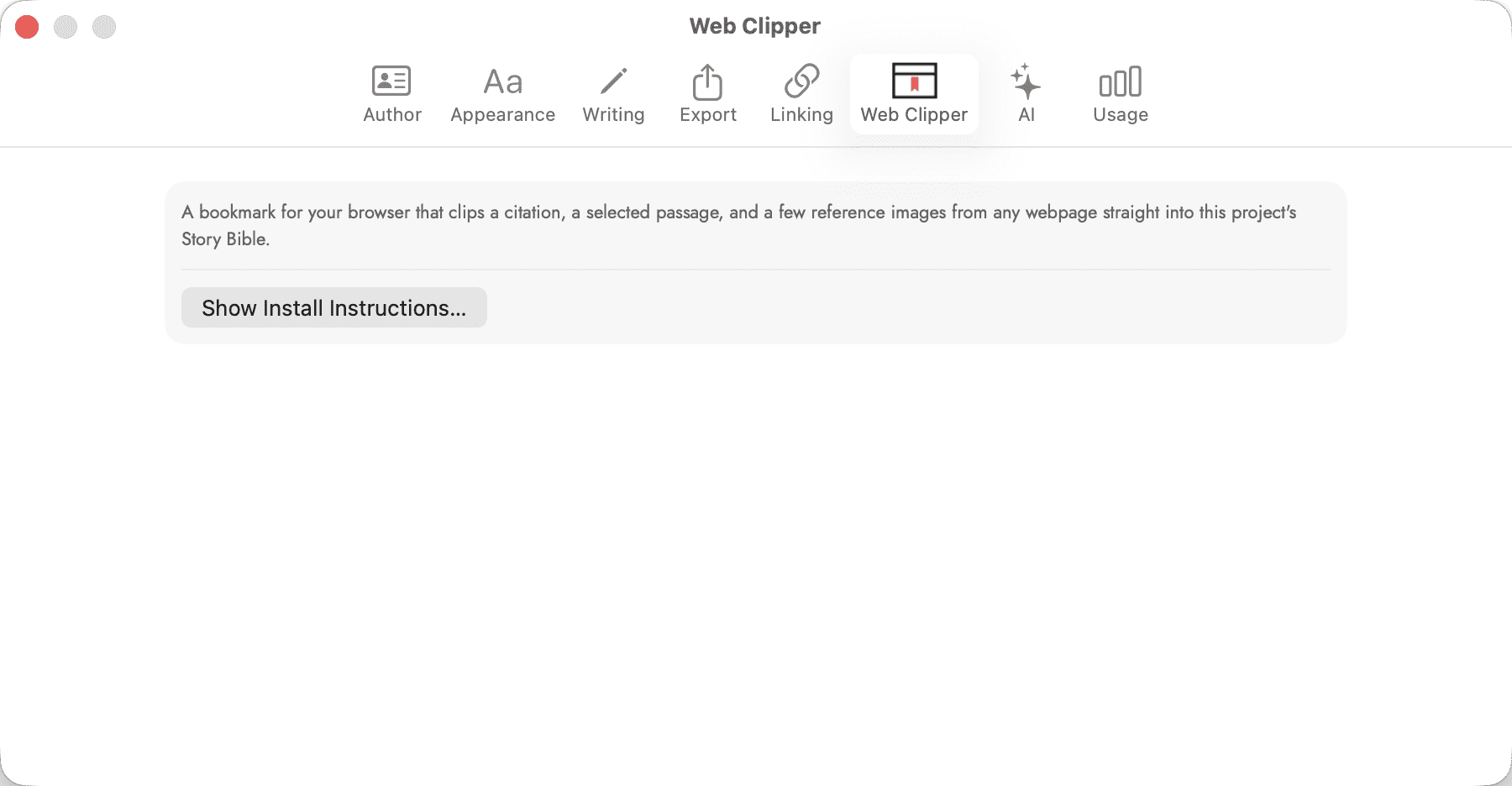 The whole tab is one button. Nothing here switches
the clipper on or off, because there is nothing to switch: the bookmarklet
either sits in your browser or it does not.
The whole tab is one button. Nothing here switches
the clipper on or off, because there is nothing to switch: the bookmarklet
either sits in your browser or it does not.
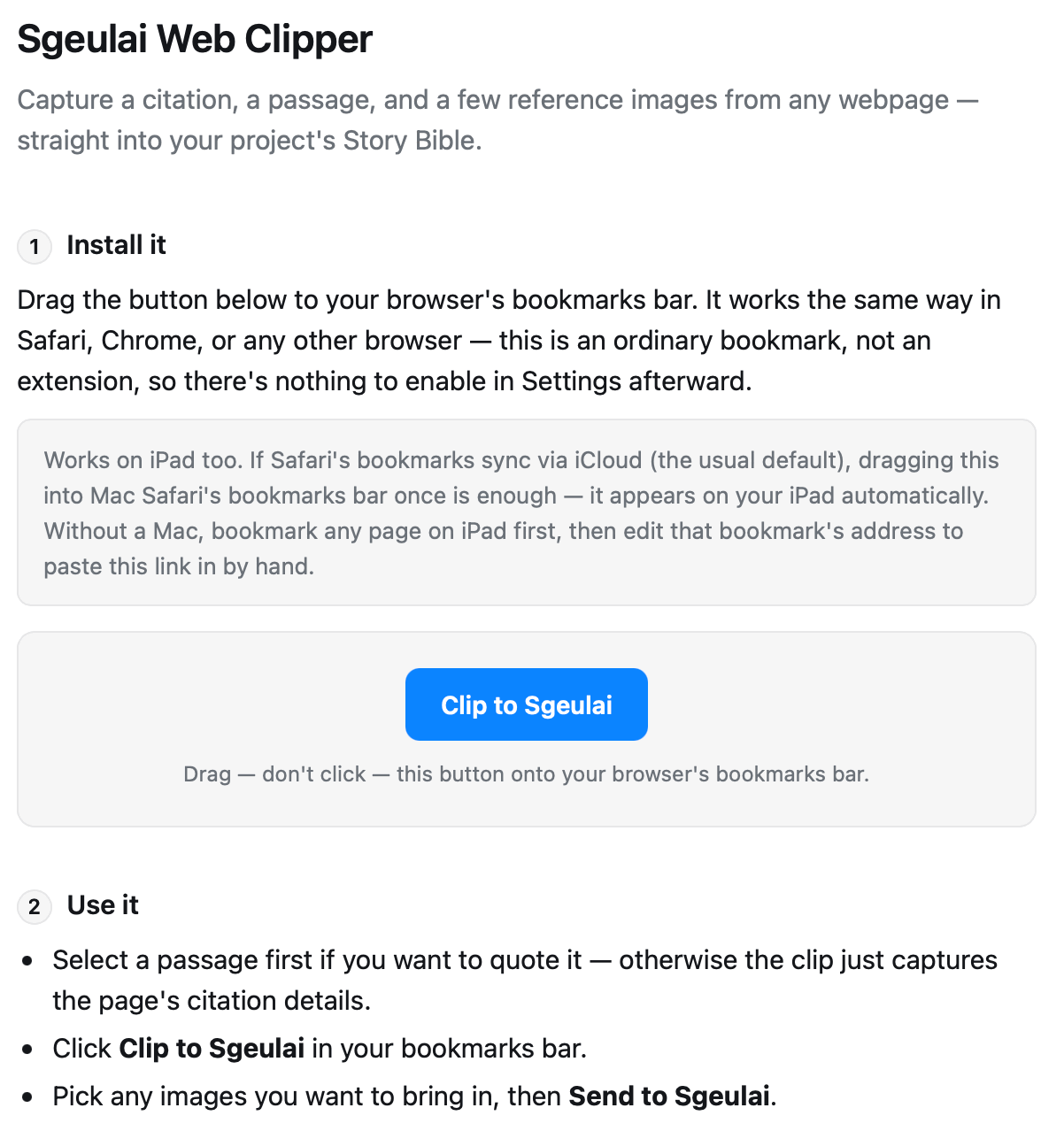 The blue button is not a control. It is the bookmark
itself, which is why the page says drag rather than click — nothing on
this page installs anything, the drag is the installation.
The blue button is not a control. It is the bookmark
itself, which is why the page says drag rather than click — nothing on
this page installs anything, the drag is the installation.
Clipping a page
Select the passage you want to quote first, if you want one, then click Clip to Sgeulai in the bookmarks bar. A small panel opens over the page showing any pictures it found, so you can tick the ones worth keeping, and then Send to Sgeulai. The first time, the browser asks once whether to let the page open Sgeulai; it does not ask again on later clips.
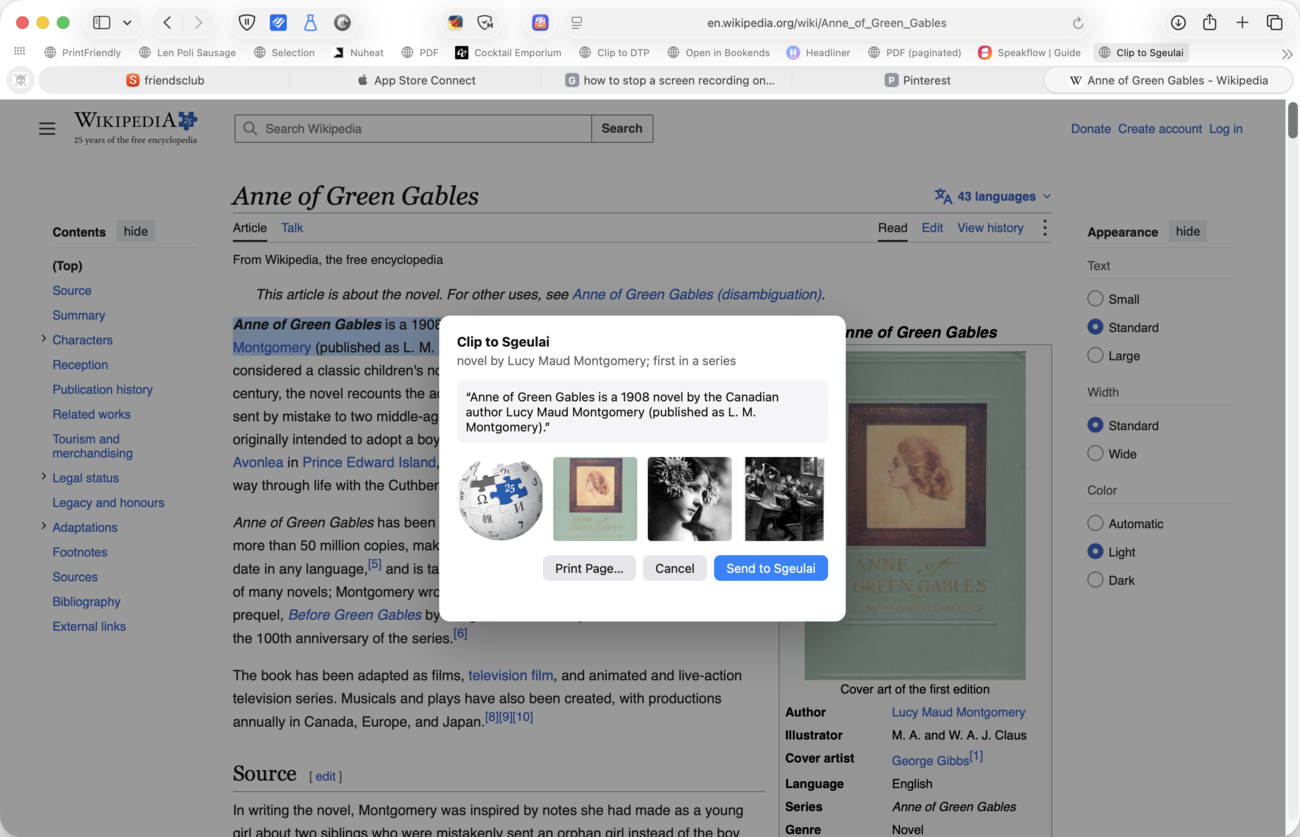 An ordinary bookmarklet in an ordinary browser, which
is the whole of its installation and the reason it behaves the same in
Safari, Chrome or anything else.
An ordinary bookmarklet in an ordinary browser, which
is the whole of its installation and the reason it behaves the same in
Safari, Chrome or anything else.
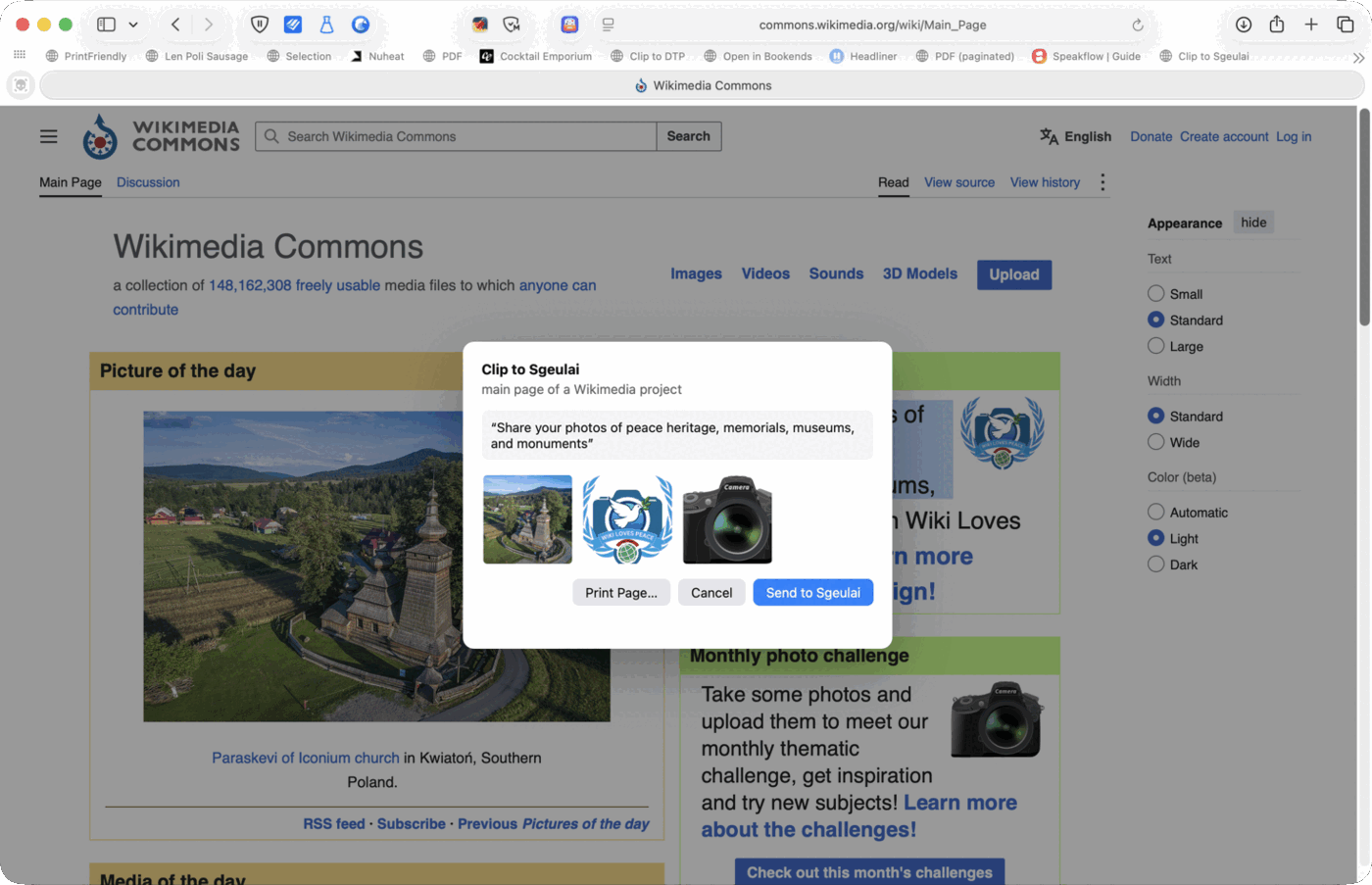 The quote box holds whatever you selected before
clicking. Every picture found on the page is offered; only the ticked ones
are downloaded.
The quote box holds whatever you selected before
clicking. Every picture found on the page is offered; only the ticked ones
are downloaded.
What a clip actually creates
Three things rather than one:
- A Source record, of type
webpage, carrying the title, author, site name and publication year the bookmarklet scraped, today’s date as its Accessed date, and an Open Original Page external link back to where it came from. - A Note record, but only if you had text selected — the passage itself, as a quote, with a wikilink to the Source at the top of it. The passage becomes its own record rather than text buried on the Source, which is what makes it linkable from your prose like anything else in the Story Bible.
- The pictures you ticked, downloaded and attached to the Source.
Clip the same page twice and you get one Source, not two. The matching is by URL first and title second — a URL being close to unique where an article title often is not — so a second clip of a page you already have adds to the record you already made. A download that fails, whether a dead image link or a server that refuses, is skipped quietly rather than failing the whole clip; the citation still lands.
Where the clip goes
The clip files itself into whichever project was open, and scopes the new records to whichever manuscript you had selected in the binder at the moment you clicked — not whichever one was selected when you opened the window.
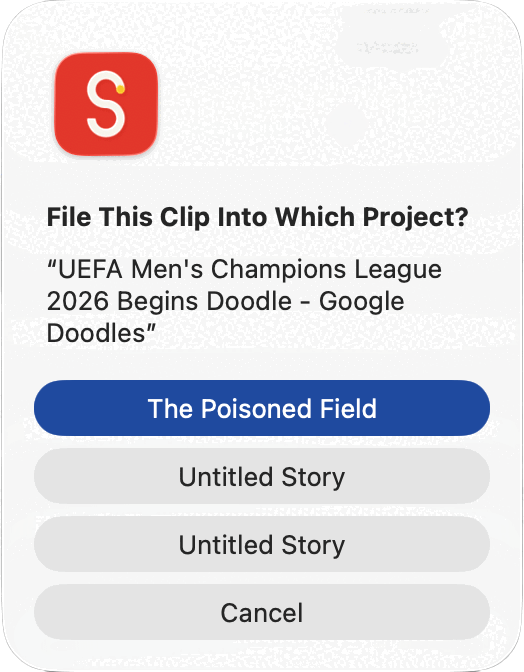 With more than one project open, Sgeulai asks rather
than guessing. The clip has to land in one Story Bible, and the browser has
no way of knowing which.
With more than one project open, Sgeulai asks rather
than guessing. The clip has to land in one Story Bible, and the browser has
no way of knowing which.
Saving the whole page is deliberately manual
The clip panel’s Print Page… opens the ordinary print dialog, where you would choose Save as PDF. Nothing tells Sgeulai where you saved that file, so it cannot attach itself. Once you have it, attach it yourself from the Source record’s Connections tab, under Add External Link….