Settings reference
Settings is eight tabs, not a flat list. Most controls explain themselves in place — this page is for finding which tab something lives on, and for the handful whose name alone doesn't tell you what they actually do.
| Tab | What lives there |
|---|---|
| Author | Your name and credits, and your usual imprint's details — fills new export title and copyright pages. |
| Appearance | Light/dark, and how a Story Bible record's own screen is styled. |
| Writing | The editor's on-screen display, writing aids, footnotes, citations, Harper, and picture import size. |
| Export | Trim size, margins, table of contents and layout defaults for PDF/DOCX/RTF export. |
| Linking | Whether linking a name auto-links every other mention of it, and an optional API key for book metadata lookups. |
| Web Clipper | One button, which opens the install page for the Web Clipper bookmarklet. Nothing here switches it on or off. |
| AI | Turns the AI features on, your API key, model choice and Wikipedia lookups. Hidden until AI analysis is switched on. |
| Usage | Running totals of AI tokens and estimated spend. Hidden with the AI tab. |
Author
You holds your author name, website and biography. Usual Imprint holds your publisher, city, "printed in" line and logo. Credits — editor, cover designer, interior designer — is easy to miss since nothing else on this tab hints it's there, but it feeds the same copyright page the imprint fields do.
Appearance
Interface theme (light, dark, or follow the system) and manuscript typeface are single pickers. The rest of the tab is about a Story Bible record's own screen, not the manuscript: separate font and size choices for Record Headings and for Field Labels & Values, a label column width slider, and a toggle to tint that column. The "Preview" section underneath is not a manuscript preview — it's a live sample record, rendered with whatever you've just chosen, so you can see the effect before leaving the tab. Two buttons — Use the Sgeulai pairing and Back to the System Font — set every font choice on the tab at once.
Writing
Six sections, and the first is the one worth calling out by name:
The Page
This is the live editor's on-screen display — line length ("measure": Narrow, Comfortable, Wide, or the full window), typewriter scrolling, and dimming every paragraph but the one you're in. It has nothing to do with export. Typeface, size, line spacing and margins for the manuscript itself are set from Tools ▸ Prose Formatting… instead — see The Tools menu.
Writing Aids
Over-used-word highlighting; part-of-speech colour-coding, with its own checklist for which parts of speech count (nouns, verbs, adjectives, adverbs); and every toggle behind how AI-edited text gets detected and marked — see Writing aids in the editor for what each one actually does. Two of these toggles only matter once their parent is on: detecting bulk replacements as AI needs AI-edit highlighting on first, and asking about unattributed pastes needs AI-paste detection on first — both are simply disabled until then.
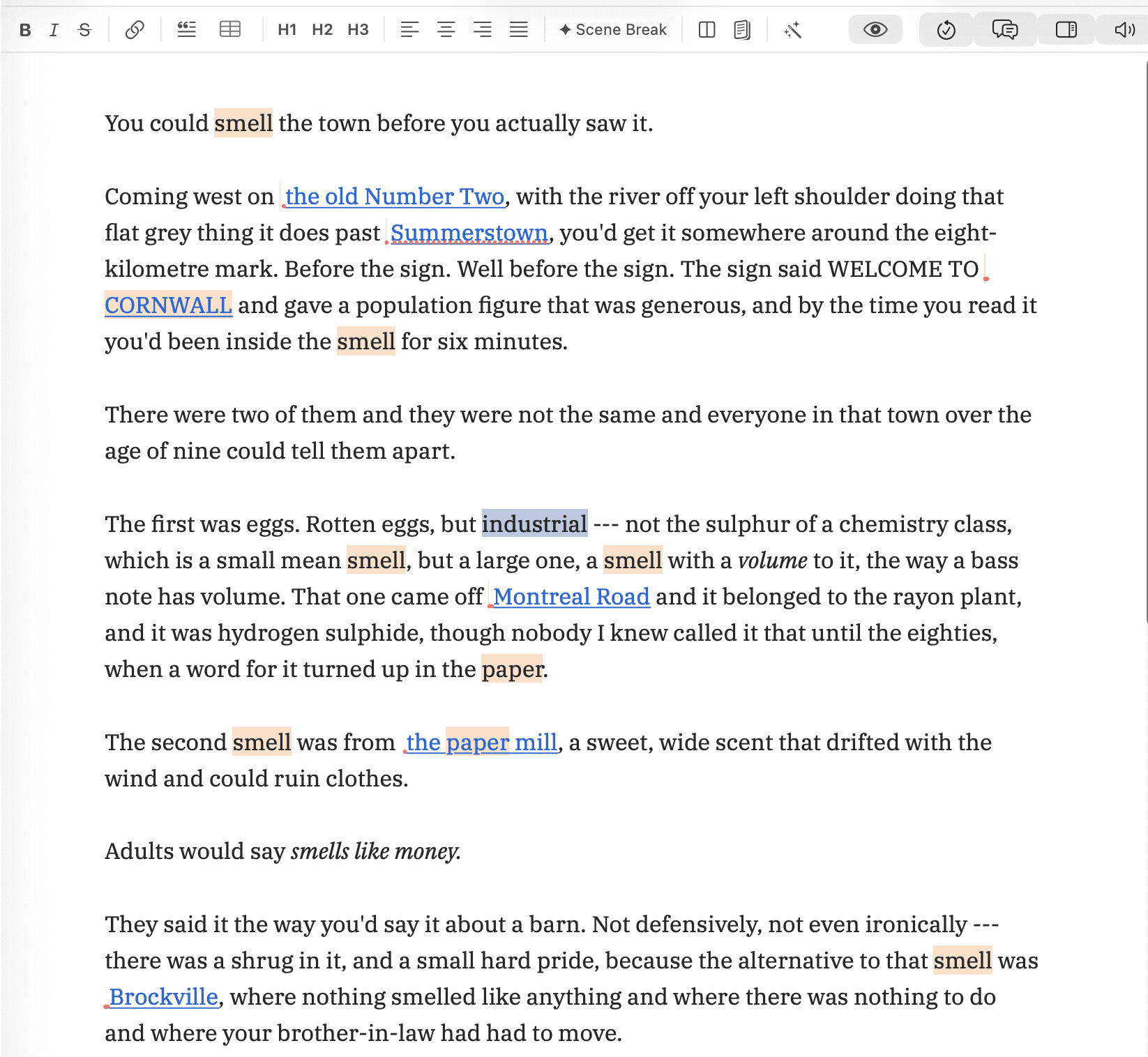 Over-used-word highlighting is counting, not judging:
six “smell”s inside one screen is what it exists to make
visible. The shading sits underneath the wikilinks rather than replacing
them, so a repeated word that is also a link shows both.
Over-used-word highlighting is counting, not judging:
six “smell”s inside one screen is what it exists to make
visible. The shading sits underneath the wikilinks rather than replacing
them, so a repeated word that is also a link shows both.
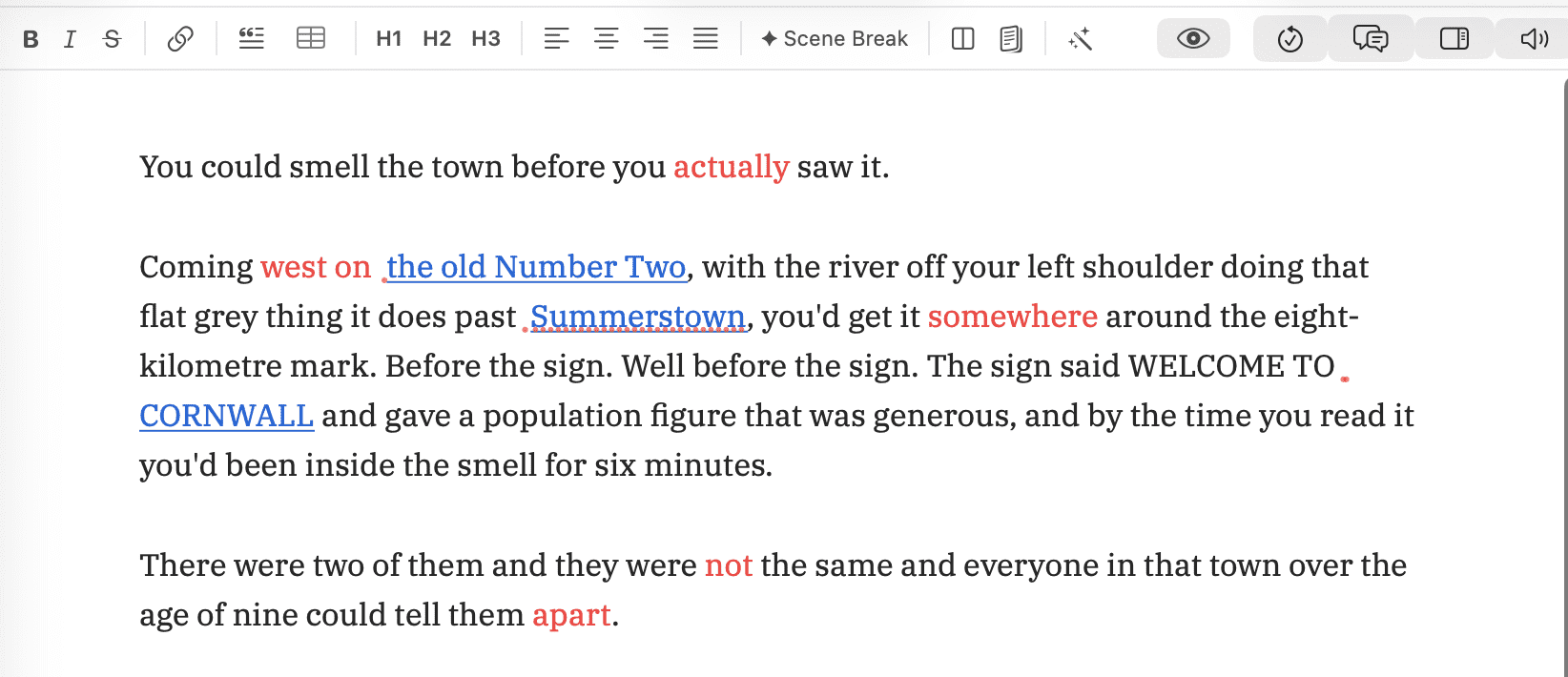 The per-part-of-speech checklist is what makes the
colour-coding usable: adverbs alone gives you six red words you can act on,
where all four categories at once tints most of the page. Note that it means
the grammatical class — “west”, “on” and
“not” are adverbs too, not just the -ly words.
The per-part-of-speech checklist is what makes the
colour-coding usable: adverbs alone gives you six red words you can act on,
where all four categories at once tints most of the page. Note that it means
the grammatical class — “west”, “on” and
“not” are adverbs too, not just the -ly words.
Footnotes and Citations
Where footnotes and endnotes go, how they're numbered, the citation style
for [@citekey] references, and whether Word exports keep
citations live for Zotero are saved with each project: open it and choose
Export ▸ Notes & Citations… See
Notes & citations.
Zotero
A Zotero Web API key, for reaching your Zotero library when Zotero isn't running on this Mac. On a Mac with Zotero open, Sgeulai finds the library by itself — as long as Zotero's own Settings ▸ Advanced allows other applications to talk to it. See Notes & citations.
Grammar & Style
Turns on Harper, picks your English dialect, and lists which categories of finding it's allowed to flag — Spelling, Grammar, Style, Punctuation, Repetition, Suggestion — so you can silence one kind (Style nags while drafting, say) without losing the rest. See Writing aids in the editor for how a finding actually gets fixed once Harper flags it.
Pictures
One toggle and one picker: whether a large picture gets scaled down on import, and to what longest edge (1024, 2048 — the recommended default — or 4096 pixels). This is about file size, not where a picture sits on the page; placement is a right-click option on the picture itself, in the editor.
Export
Page (PDF) sets trim size, margin and gutter.
Contents & Page Numbers (PDF) adds a table of contents,
page numbers, and PDF bookmarks. Manuscript Layout covers
part headers, scene titles, and the text marking a scene break (default
"# # #" — leaving it blank reverts to that default rather than
exporting no marker at all).
Linking
One toggle, and its name undersells what it does: Link every mention automatically is not a display preference — turning it on means that the moment you link one occurrence of a name to a Story Bible entity, Sgeulai rewrites every other occurrence of that name across every chapter and scene in the project into a wikilink as well. It edits your manuscript text. See Wikilinks and backlinks for what a link actually does once it's there, and The Tools menu for running the same sweep manually, on demand, instead of leaving it automatic.
Google Books API key is unrelated to the toggle above — it's what a highlight's Source entry uses to look up a publisher, publication date and description online, by ISBN or by title and author. Entirely optional: that lookup already works with no key at all, against Google's shared anonymous quota, which is easy to exhaust on a library-sized import and returns nothing until it resets. A free key from Google Cloud Console raises that ceiling to your own. Stored in your Mac's Keychain, the same as the Claude key on the AI tab. See Extended book details for what this lookup actually fills in and where.
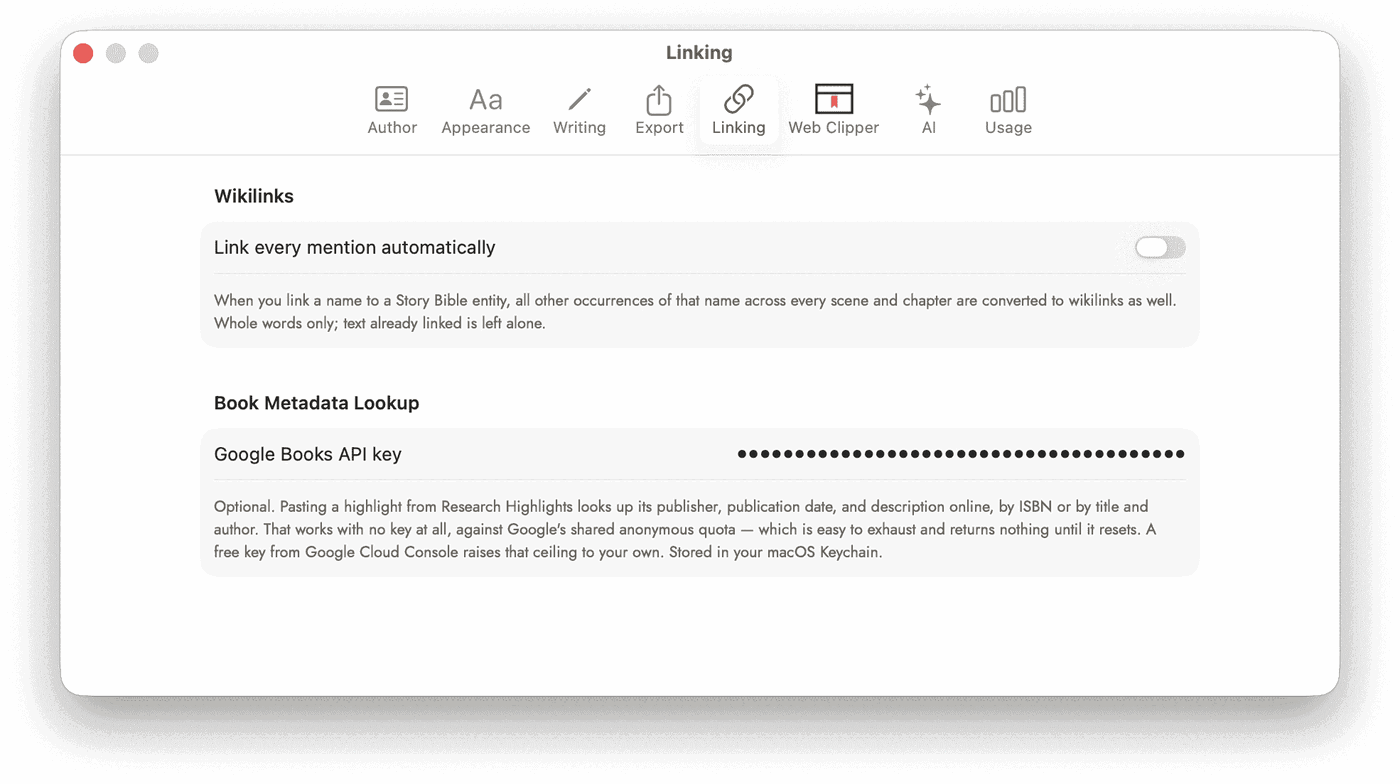 Two rows, both opt-in, and both about scale rather
than capability — automatic linking is off by default because it
rewrites text you never pointed at, and the key buys headroom on a lookup
that already works without one.
Two rows, both opt-in, and both about scale rather
than capability — automatic linking is off by default because it
rewrites text you never pointed at, and the key buys headroom on a lookup
that already works without one.
AI
Hidden until AI analysis is turned on anywhere in the app. The tab's own top switch — Read manuscripts with AI — is that on/off control: this is the one place manuscript prose can leave your Mac, and nothing downstream of it runs until it's on.
Below that: your Claude API key (kept in the macOS Keychain, not the project file) and a read-out of which engine is currently active — Claude or the on-device Apple Intelligence fallback.
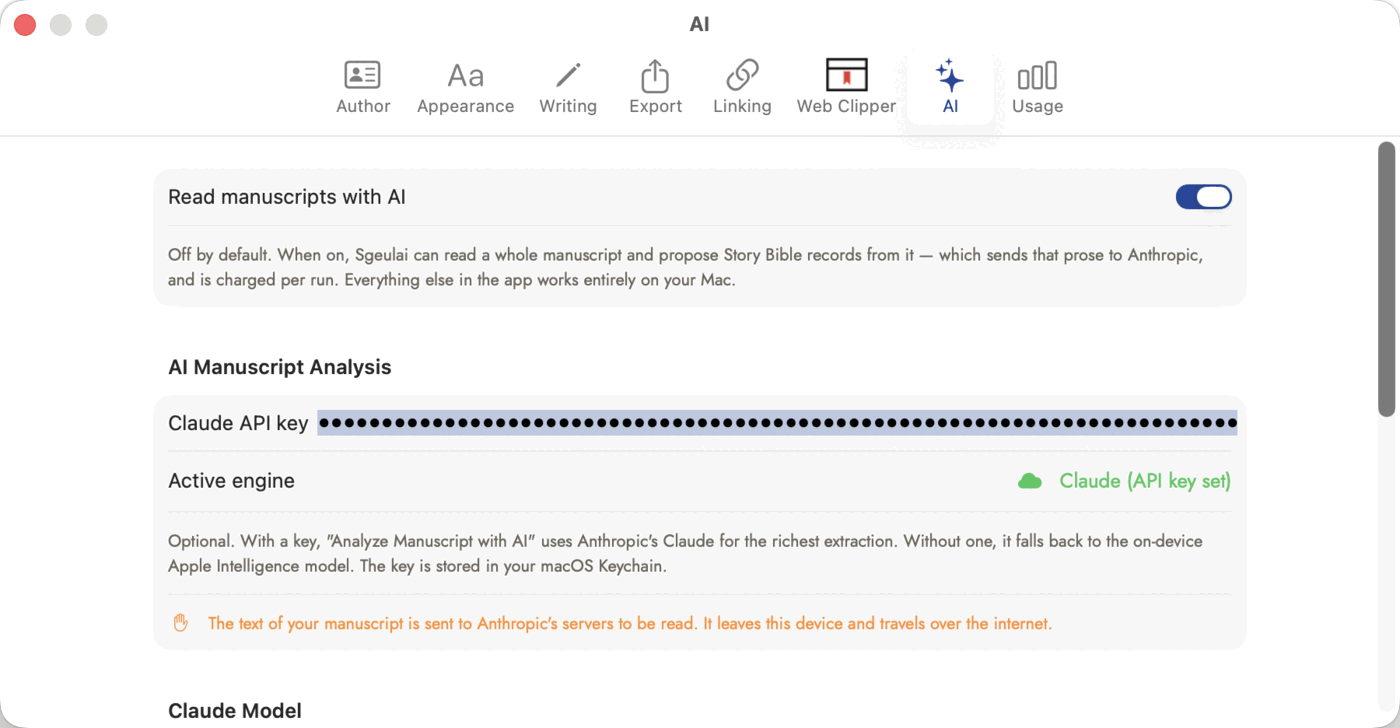 The top switch gates everything below it — with it
off, this whole tab is hidden rather than shown empty. The key field never
reads the key back to you; "Active engine" is how you confirm it took. See
Getting a Claude API key for where the key
comes from.
The top switch gates everything below it — with it
off, this whole tab is hidden rather than shown empty. The key field never
reads the key back to you; "Active engine" is how you confirm it took. See
Getting a Claude API key for where the key
comes from.
Claude Model
Automatic mode follows the newest model in whichever tier you've chosen, so a premium release Anthropic ships later never silently raises your bill without you having picked it. Pin a specific model by hand instead, and automatic mode stays within that model's own tier from then on. "Check Now" refreshes the model list on demand.
A full manuscript analysis run is three stages, not one: a fast, cheap pass indexes the cast, your chosen model reads each chapter, and a third pass draws the whole-book picture from those summaries. Picking Haiku keeps every stage on Haiku — the cheapest, fastest combination, at the cost of the richest reading.
Wikipedia Facts
Which model does the extracting when a Wikipedia lookup fills in a record's fields — Haiku (the recommended default) or Sonnet.
Usage
Hidden with the AI tab. AI Usage & Cost shows tokens and estimated dollars for the last run and the running total, with a Reset Usage Totals button — this clears the running count for good, with nothing to restore it from, so treat it as a deliberate reset rather than a routine click.
Spending Limit stops a Claude run before its estimated cost passes a figure you set: Stop a run before it passes a limit, on by default, and Limit per run, $15 unless you change it. One command is one run — an analysis and the field fill after it share the limit — and a run that reaches it sends nothing more and keeps what it has already written. It's checked before each request, so a run can end slightly over when requests are already under way. The same figure is quoted in the price shown before every run; see What a run costs.
Claude Credits is a place to log what you've actually topped up, so "Estimated remaining" means something: a button out to Anthropic's own billing page, a field to record a top-up amount, and a history of what you've logged, each removable. Removing a logged top-up is immediate and changes the remaining-balance math right away — it deletes the record of the top-up, not any actual credit.