Thread Map
The book as a storyline chart: threads as routes, chapters as stops. Each line is a story arc or a character, running left to right across the chapters a beat of theirs is placed on — where two or more lines share a chapter, they bend together to the same point and drift back apart after, rather than a note beside them saying who was together.
Getting there
Find it under Analysis in the binder sidebar, or in the Analysis menu. It used to carry the experimental label and sit under Labs; it no longer does — see The analysis tools for what that label means and which tool still has it. It needs at least one manuscript imported before it opens; the "Working on" scope in the main toolbar can stay set to All Manuscripts — Thread Map draws from whichever scope that's set to, the same as every other analysis tool.
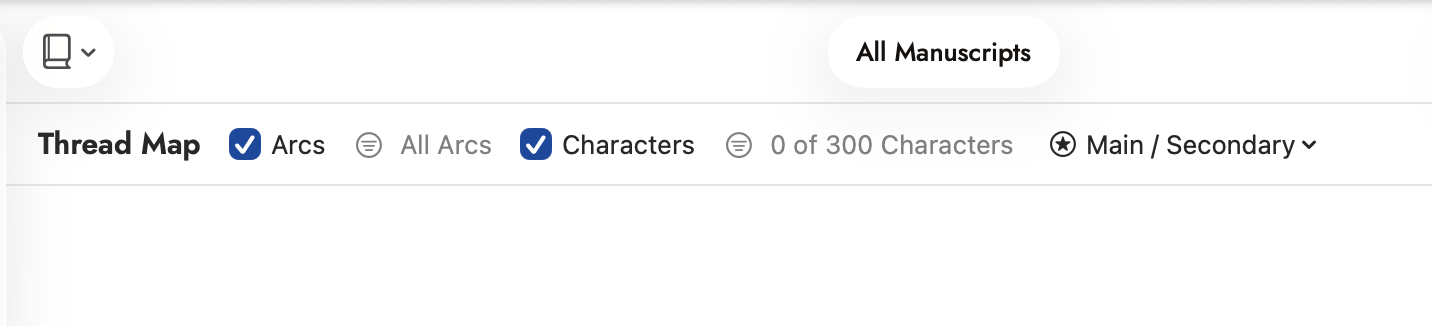 The toolbar with nothing selected yet — an empty chart underneath.
Reading the chart
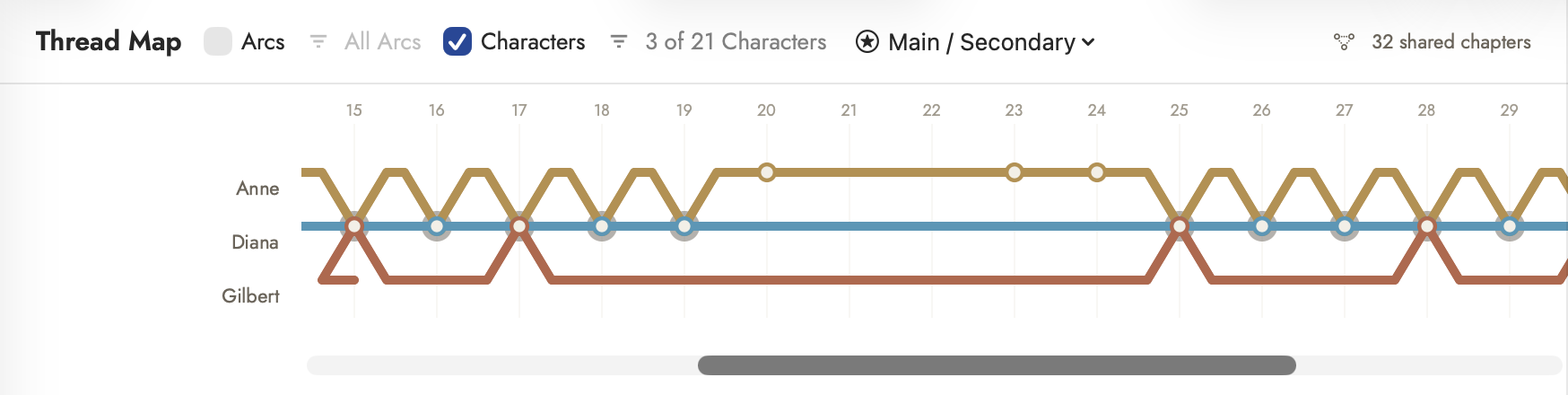 Three character routes, narrowed from twenty-one — each ringed dot is a chapter two of them share, and a route that runs straight past another is a chapter they spend apart.
Route names sit in their own column at the left and stay put while the chapters scroll underneath them. A hollow dot marks a chapter that route actually calls at — where its own beat, scene or chapter placement puts it. The chart opens pan-only, pre-scrolled to the busiest stretch rather than chapter one, and there's no zoom — just drag to pan further along it, the same as scrolling any other list.
Read the gaps rather than the dots — a long stretch of unbroken line between stations is a thread the book has forgotten, and two routes whose lines never bend together are two threads that never meet.
Three different things respond to a click, and they open three different records:
- A dot opens the chapter it marks — the same record inspector every other tool opens on the right, with the chapter's identity, chronology, structure and classification fields, and a Still Blank section for whatever it's missing. Clicking the bare line between two dots does nothing; only an actual station answers.
- A route's own name, in the left-hand column, opens that arc or character's own record — not the chapter, and nothing about the line itself changes. It's a shortcut to the record behind the route, not a way to isolate or highlight it on the chart.
Choosing what's on it
Arcs and Characters are two independent checkboxes — turn either off to hide that whole category of lines, or both off to see nothing at all (the chart says so plainly rather than looking broken). Each has its own narrowing filter beside it, greyed out until its checkbox is on:
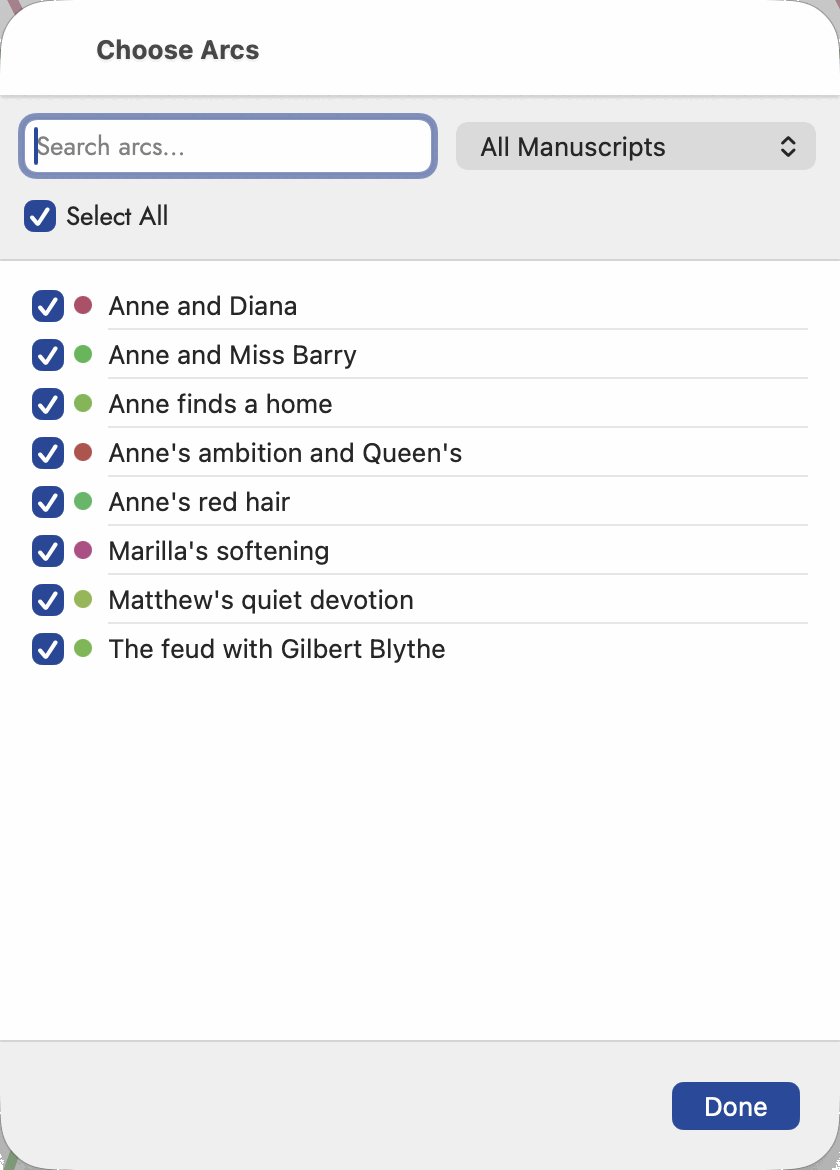 Choose Arcs — every arc is on until you narrow it.
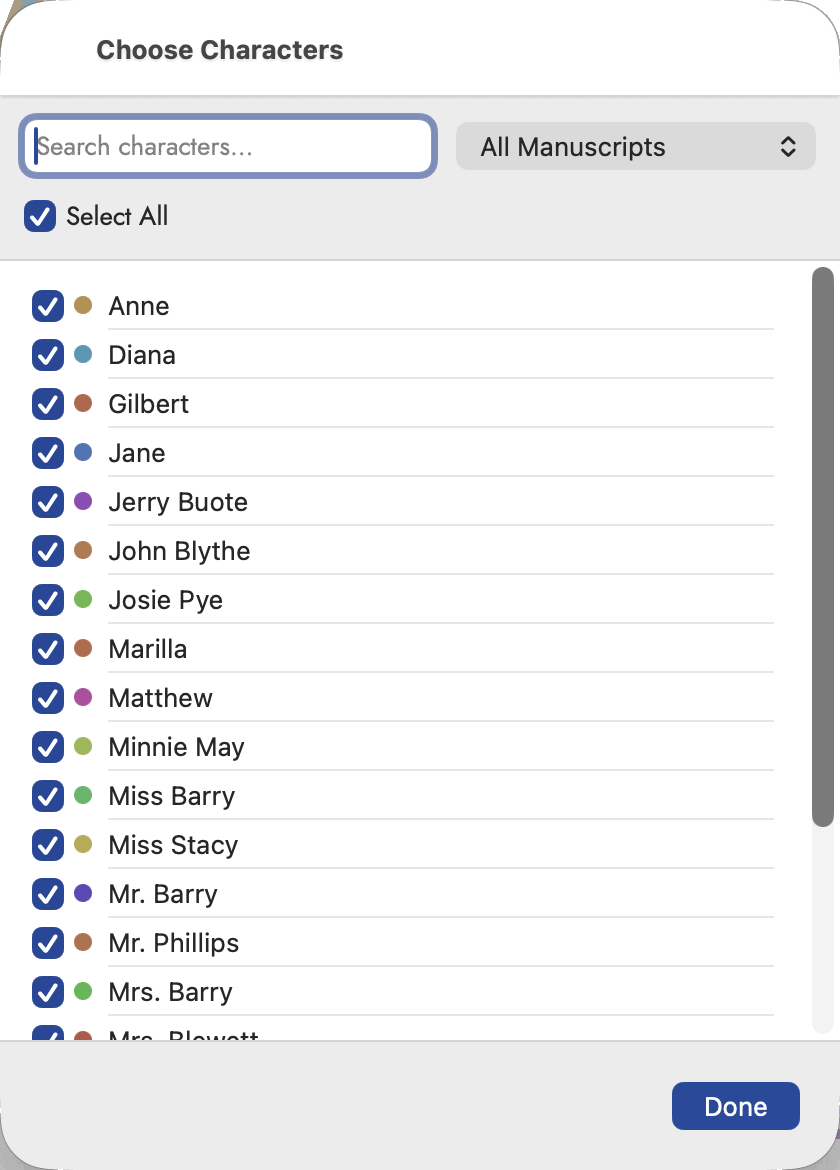 Choose Characters — structured identically to Choose Arcs, and like it, every character is on until you narrow it.
All Arcs means exactly that — no filter, every arc in scope draws. Click it to open Choose Arcs… and narrow that down; the button's own label then switches to "N of M Arcs," where M is every pickable arc in the project, not just the ones currently drawn. Characters works the same way through Choose Characters…, and starts with none selected — a large cast draws nothing until you pick some, rather than opening on three hundred crossing lines.
Main / Secondary, at the end of the toolbar, is a separate menu filtering characters by their own Importance field — Main covers Major and Critical, Secondary covers Supporting and anything below (a character with no importance set at all counts as Secondary). Choosing from this menu replaces whatever you picked in Choose Characters, rather than combining with it.
On the far right, N shared chapters counts every place in the current manuscript scope where two or more routes meet — arcs and characters together, regardless of which checkboxes or filters are currently narrowing the chart. It's a fact about the manuscript, not about what's on screen, and it isn't a button.
Getting characters onto the map
A character only gets a route once something ties them to a specific, placed chapter — a story-arc beat with a chapter set, that also names who's in it. Nothing sets that second half on its own: either tick a character into a beat by hand on the Plot Board, or click Fill In Characters — offered only when Characters is on and no character routes exist yet — to have Sgeulai read each beat's own chapter or scene for names and wikilinks instead.