Idea Tools
Five ways to think a record through without writing prose first — each a different question asked of whichever character, place, event or thread you're stuck on. None of them use AI, need an API key, or send anything off this Mac: every one is a local, manual tool that reads or writes fields already on the record, the same fields the record's own Full view shows.
| Tool | Prompts you to work out | Applies to |
|---|---|---|
| Context Map | What this record is, defined against the context around it. | Any record |
| Description Web | The qualities that describe it, filled in as a set of adjectives. | Any record |
| Compare & Contrast | What it shares with another record, and what tells the two apart. | Any record |
| Cause & Effect | What caused this event, and what followed from it. | Events only |
| Scene Builder | What the scene is fighting over, then the six beats it runs on. | Scenes only |
Reaching a tool
There isn't one door — the same five tools turn up in several places, and which ones are offered depends on where you are:
- The menu bar's Idea Tools menu. Acts on whatever record is currently shown in the inspector — nothing to select first beyond having glanced at a record.
- A record's own ··· menu. Open any record's sheet, click the ellipsis in its own toolbar (tooltip: Record Actions), and Idea Tools is a submenu inside it — the same five items, acting on the record you're already looking at.
- The Story Bible browser, right-click a row or card. In either Table or Gallery view, right-clicking a record offers the same Idea Tools submenu. Right-click a scene specifically and Scene Builder… also appears as its own item above the submenu — the same tool, just one click closer for the one type most likely to need it.
- The Story Bible browser's Compare… button. Select exactly one record, in Table or Gallery view, and a Compare… button appears in the toolbar — the fastest way into Compare & Contrast specifically, skipping the submenu.
- The binder, right-click a scene. A chapter's own row offers no Idea Tool at all, but a scene filed under it offers Scene Builder… directly — the only one of the five reachable from the binder, and only for scenes.
- Built into a record's own tabs, with no sheet or menu at all. Description Web sits directly inside a Character's Qualities tab or a Location's Setting tab, already open, no click required to summon it. Cause & Effect sits the same way inside an Event's own Cause & Effect tab. A Scene's Beats section carries its own Open the Scene Builder button. These three are the record itself, not a separate tool laid over it.
- Creating a brand-new record. The Story Bible browser opens a new record straight into Context Map, before the full record sheet even appears — the map is the first screen a fresh record gets.
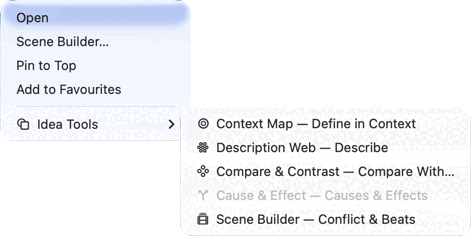 The submenu as it appears from a right-click or a
record's own ··· menu — Cause & Effect greyed out
because this row isn't an Event.
The submenu as it appears from a right-click or a
record's own ··· menu — Cause & Effect greyed out
because this row isn't an Event.
Why some are greyed out
Wherever the full five-item Idea Tools submenu appears — the menu bar, a record's own ··· menu, or the browser's right-click menu — every item stays visible even when it doesn't apply, rather than disappearing: a menu whose contents change per record type is harder to learn than one that's sometimes disabled. Two rules decide what's enabled:
- Nothing inspected. The menu bar version needs a record currently shown in the inspector; with nothing selected, all five are disabled there. The others already have a record to act on by construction — they're opened from that record's own row or sheet.
- Wrong type. Cause & Effect only applies to Events, and Scene Builder only to Scenes. Context Map, Description Web and Compare & Contrast work on any record type — literally any of the twelve, not just the obvious ones.
The standalone Scene Builder… items — in the browser's row menu and the binder's scene row — behave differently: they don't grey out, they simply aren't offered at all unless the row is a scene. Choosing an enabled submenu item opens that tool as a sheet over the record it was opened from — except Description Web and Cause & Effect reached through a record's own tabs (above), which were never a sheet to begin with.
What each one actually does
This is the part worth knowing before you open one: three of the five write straight onto the record's real fields the moment you type, exactly as if you'd opened the Full view instead — there's no separate draft that needs saving or discarding. The other two don't take input at all.
Context Map
Its Inner Ring binds directly to the record's own name, summary, work membership and reveal point — the same fields Full view edits — and its Notes ring writes straight onto the record's own notes field. Nothing here is a copy.
Description Web
Every bubble is a live view onto one catalog field, not a scratch copy of it — type an adjective into a bubble and you've written it directly onto the record. There's nothing separate to save; closing the map just closes the view.
A Location's web draws on two groups of fields together: the five physical senses, and the "character of the place" fields — climate, architecture, era, population, primary language, danger level — that otherwise only show up on the record's own Profile tab. A Location can be anything from a room to a continent, and no single set of bubbles fits both ends of that range on its own: a room has a smell but no population worth naming, a province has a population but nothing worth calling its taste. Whichever half doesn't apply to a given record is just left dashed — toggle Show unanswered off to see only what's actually been filled in.
Every other record type draws on whichever of its own fields are short enough for a bubble and hold their own answer directly rather than pointing at another record: an Object's material, colour, size and condition; an Organization's member count, founding and dissolution; a Plot Item's weight, actual truth, and what the reader is meant to believe instead; a Story Arc's central question and conflicts alongside its full initial state through aftermath progression — enough fields that a Story Arc's map often shows more than one ring can hold, with the rest counted on the "N more on the Profile" line the same way an over-full Character or Location does. A Theme's map covers its statement plus how it's introduced, develops and resolves.
Compare & Contrast
Read-only. It lines up two records' already-filled-in fields and shows where they agree and where they don't — there is nothing to type into it, and closing it changes neither record. It's for telling two similar characters or places apart, not for filling either one in; do that in Full view or Description Web first.
Both sides get their own manuscript menu above the record picker, in a project with more than one — narrow to a manuscript first, then choose the record from just that book, rather than hunting one alphabetical list of every record in the project. Either side can be swapped from inside the tool, including the one it opened on, so comparing two scenes from different manuscripts is a matter of picking a manuscript for each, not a prerequisite for opening the tool at all.
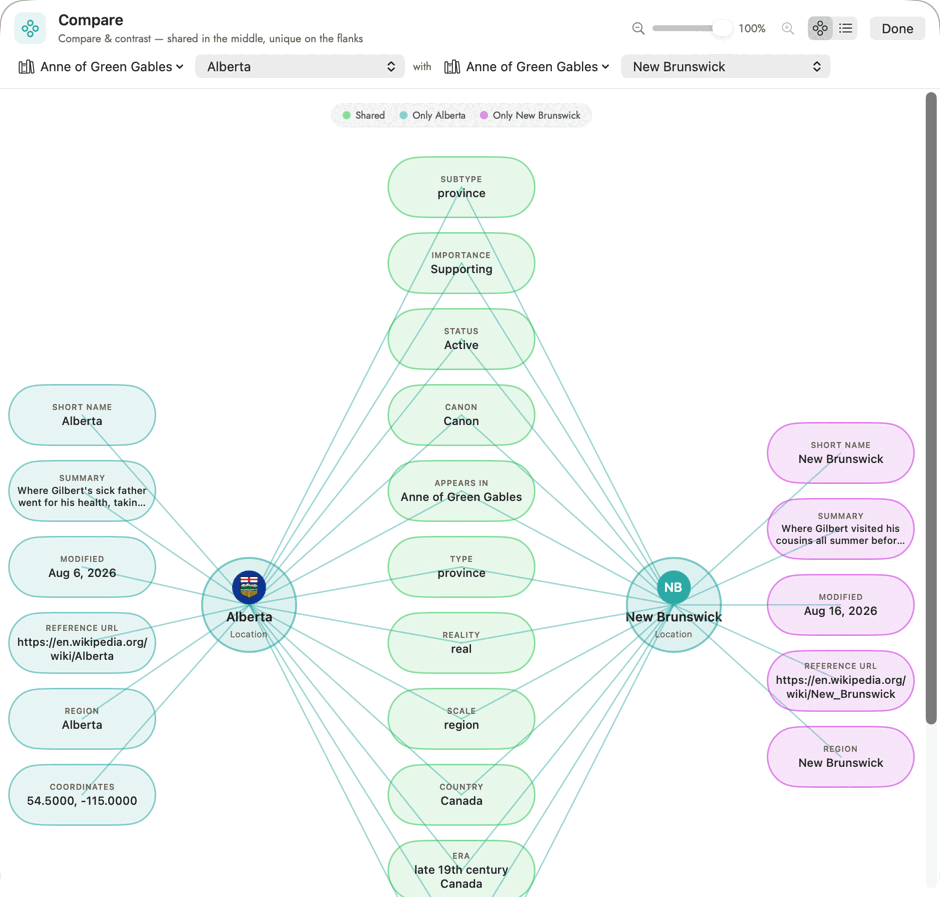 Shared fields sit in green between the two hubs; each
side's own flank holds what only it has.
Shared fields sit in green between the two hubs; each
side's own flank holds what only it has.
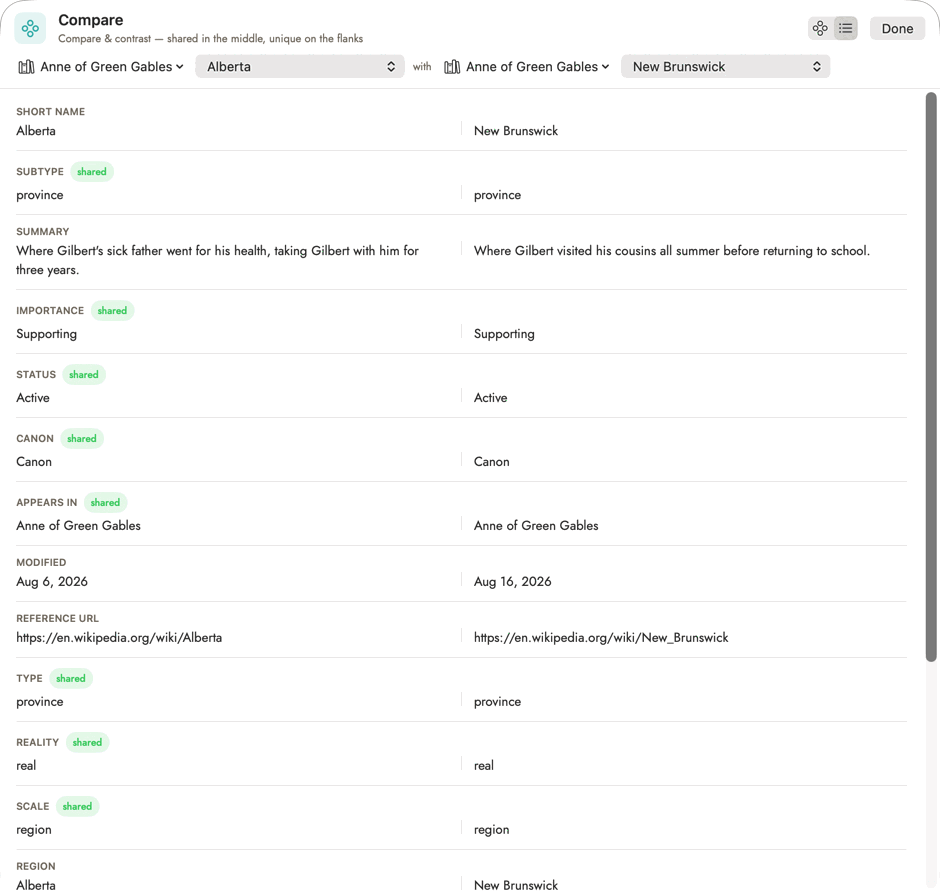 The list view, from the toggle beside the manuscript
pickers — the same diff, easier to read when a record has a lot of shared
fields to scroll through.
The list view, from the toggle beside the manuscript
pickers — the same diff, easier to read when a record has a lot of shared
fields to scroll through.
Cause & Effect
Also read-only — a diagram of links already recorded in the Event's own Cause & Effect section elsewhere on the record. An empty map isn't broken, it's asking you to fill in that section on the record itself; the map only ever draws what's already there.
Scene Builder
Writes directly onto the scene's Goal, Stakes, Conflict and Crisis Choice, then its six narrative beats (Hook, Setup, Trigger, Argument, Action, Climax) — the identical fields the scene's own Beats section shows inline. Working through the builder is filling in the scene; there's no draft layer sitting apart from it. The want/need panel it shows alongside is read-only on purpose, reading the viewpoint character's own external goal and internal need rather than offering a second place to edit them, which would only give the two a chance to disagree.