Getting started
Sgeulai holds one project at a time. A project can contain several manuscripts — a trilogy, a series, a novel and the novella beside it — and one Story Bible shared between them.
The three panes
The window is divided the way the work is:
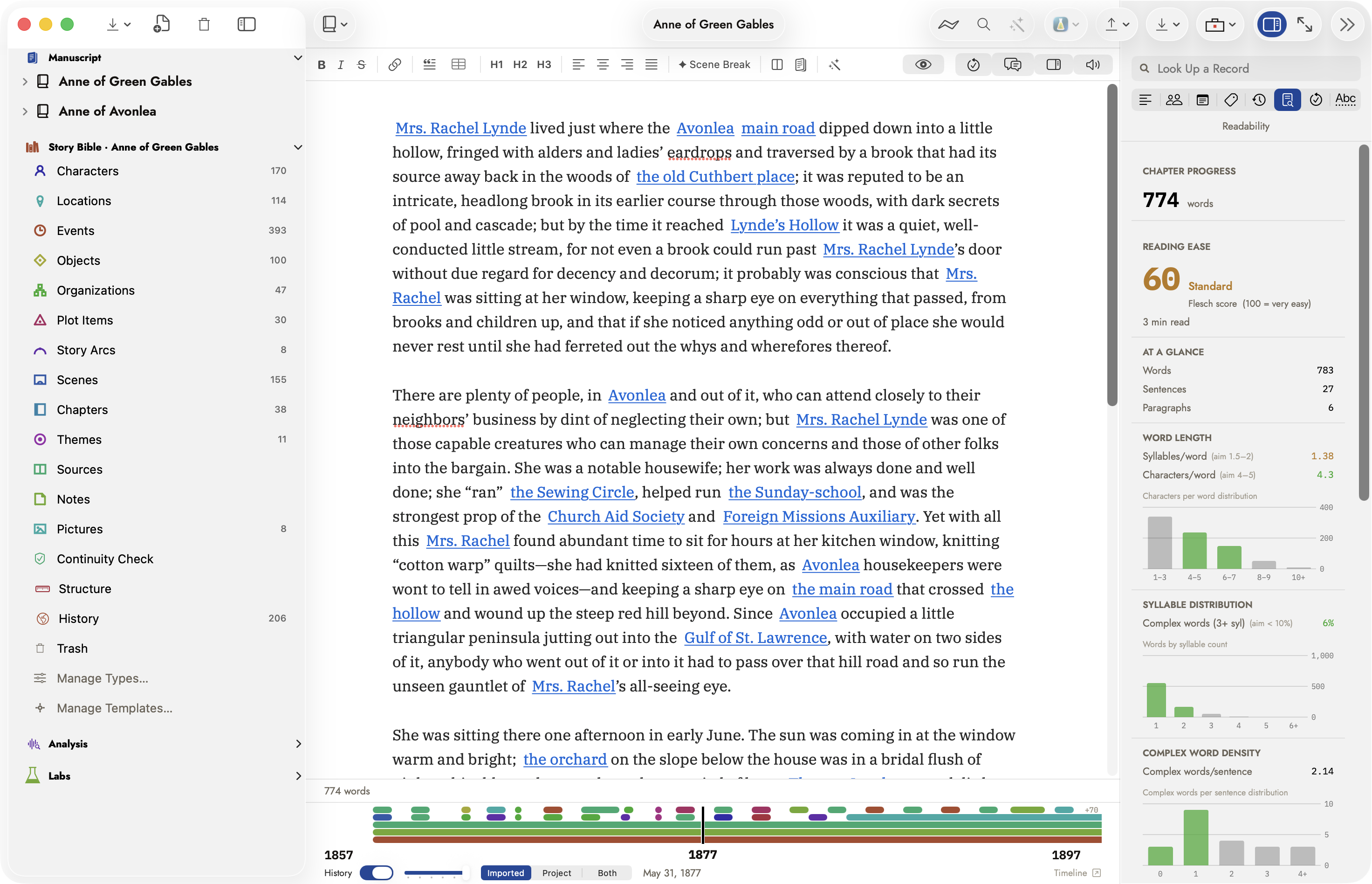 Left is the shape of the book, middle is the writing,
right is what the app can tell you about it. Every page in this manual is
about one of those three.
Left is the shape of the book, middle is the writing,
right is what the app can tell you about it. Every page in this manual is
about one of those three.
| Pane | What lives there |
|---|---|
| Binder, on the left | Your manuscripts, broken into parts, chapters and scenes; and the Story Bible beneath them. |
| Editor, in the middle | Whatever you selected — a chapter's prose, a character's record, or one of the analysis tools. |
| Inspector, on the right | What the middle pane is and how to read it. When an analysis tool is open, this is where its explanation lives. |
The inspector is worth the habit. Every analysis tool explains itself there in three parts — what it is, how to read it, and what to do about what it says — so a tool you have never opened is never a mystery for long.
Starting from the demo
The welcome window's third offer, Open Demo Project, opens Anne of Green Gables and its sequel as one series project with a Story Bible already filled in — two public-domain books, hundreds of records, and every tool with something real to show. It is the fastest way to see what the app does before your own manuscript is in it.
It is your copy, and you keep it. The demo inside the app is never opened directly; a copy is made the first time you ask, in the app's own Documents folder, and choosing Open Demo Project again opens that copy rather than making another. Rearrange it, write in it, delete half of it — it is yours, and it will be waiting as you left it.
To start again from a clean one, hold Option while choosing Open Demo Project. That makes a fresh copy alongside the one you have, without touching it.
Starting from a manuscript you already have
Most people arrive with something already written. Sgeulai reads it rather than asking you to retype it:
- From Scrivener — Import Scrivener Project… brings the binder structure across along with the text.
- From an EPUB — Import EPUB Manuscript… splits the book back into chapters.
- From Plottr — Import Plottr File… reconstructs the manuscript along with the plot lines you had planned.
All three are in the manuscript's own menu in the editor toolbar. See Importing and exporting for the full list.
Starting from nothing
Add a manuscript, then add chapters to it from the binder. Nothing else is required — the Story Bible fills itself in as you go, either because you write records by hand or because you ask Sgeulai to read the manuscript and propose them.
The welcome window
Choose Welcome to Sgeulai from the Help menu at any time. It can be switched off at launch from the window itself, and this menu item is how you get back to it.