The Claude API key
Nearly everything in Sgeulai runs on your Mac with nothing to set up. A handful of AI-reading commands are the exception — some work either with a key or with Apple Intelligence, two need a key specifically. This page is the whole path: why, where to get one, what it costs, where it goes, and how not to lose it.
Do you need one at all?
| Command | Needs |
|---|---|
| Analyze Manuscript with AI… | Claude, or Apple Intelligence |
| Re-analyze, Replacing Previous AI Results… | Claude, or Apple Intelligence |
| Extract Facts from Article (AI) (a record's own Wikipedia section) | Claude, or Apple Intelligence |
| Re-analyze, Inserting New AI Results… | Claude only — no fallback |
| Propose Scene Splits… | Claude only — no fallback |
| Look Up Wikipedia References (bulk, Tools menu) | Neither — a plain Wikipedia lookup |
| Import Facts from Wikipedia (a record's own section) | Neither — a plain Wikipedia lookup |
| Draft Here… (Format menu) | Claude, or Apple Intelligence without a key |
| Continuity Check… | Neither — local rules only |
| Scan Manuscripts for Entity Links | Neither — local text matching |
| Export AI Provenance Report… | Neither — reports on AI already used, doesn't call it |
Everything else — the binder, the Story Bible, wikilinks, comments, Harper, and every one of the analysis tools not listed above — never touches this at all.
Turning AI features on
AI reading is off by default, and in a released build the Settings tab that holds the key field is hidden until it's turned on — which is normally done from inside that same tab, so the first time through needs one Terminal command instead:
defaults write com.BMI.ePub.Sgeulai showManuscriptAIAnalysis -bool YES
Quit and reopen Sgeulai afterward. Settings now has an AI tab and a Usage tab, and the toolbar's Tools menu gains its AI Analysis section. From here on, the toggle at the top of the AI tab — Read manuscripts with AI — is the normal, in-app way to turn the whole feature back off (or on again), on any Mac the project is opened on.
Getting a key
The whole round trip happens on Anthropic's site, in four steps, then one more back in Sgeulai to paste the result in. The screens below show the shape of each step — Anthropic can and does adjust exact wording and layout over time, but these four steps haven't changed.
- Go to platform.claude.com and sign in, or create an account.
- Open Settings ▸ API Keys.
- Click Create Key and give it a name — anything you'll recognize later, like "Sgeulai."
- Copy the key immediately. It's shown in full exactly once, starts with
sk-ant-, and Anthropic will not show it to you again — losing it before you've copied it means creating a new one.
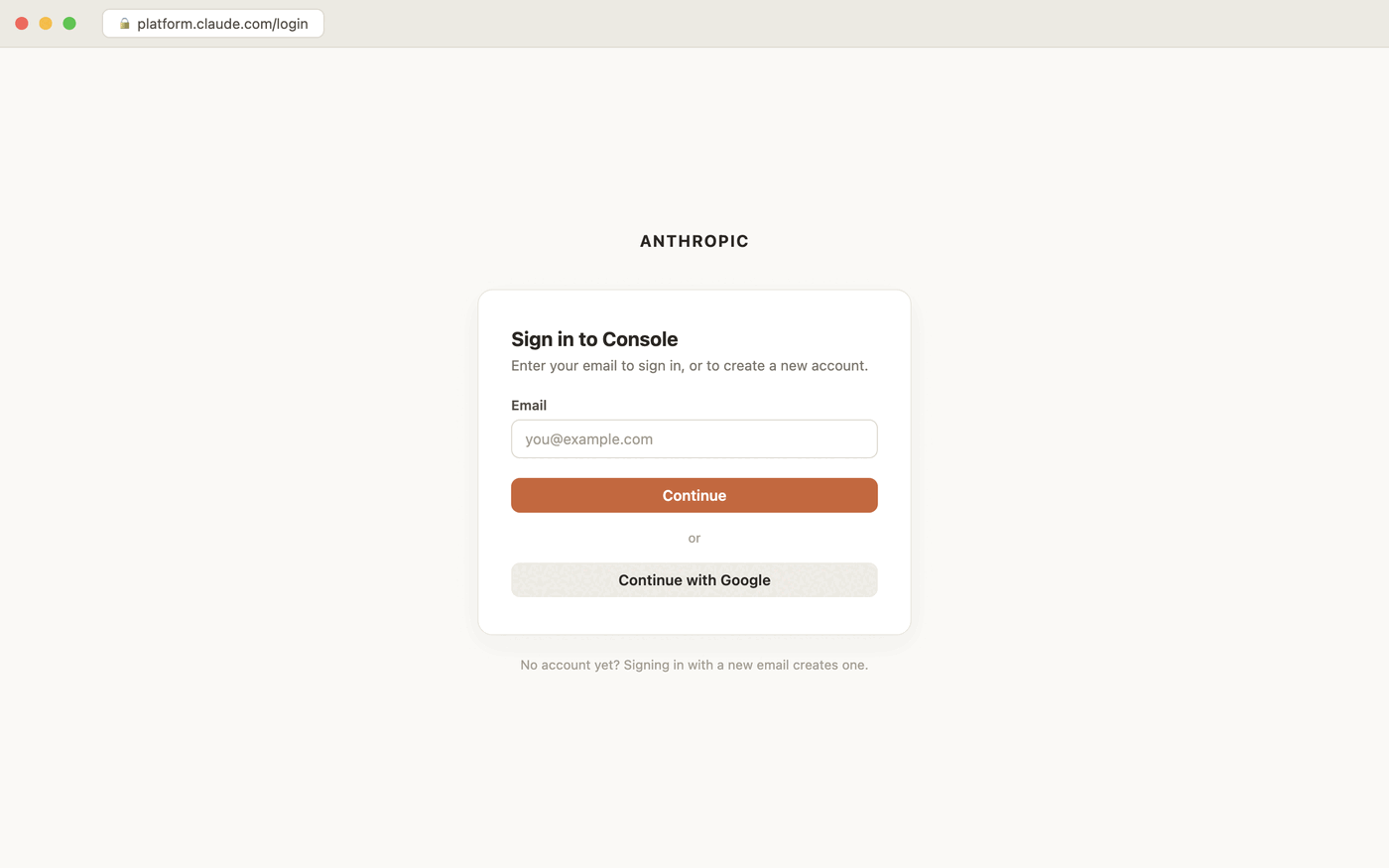 Step 1 — no separate "create account" flow. Signing in with an email nobody's used before is how the account gets created.
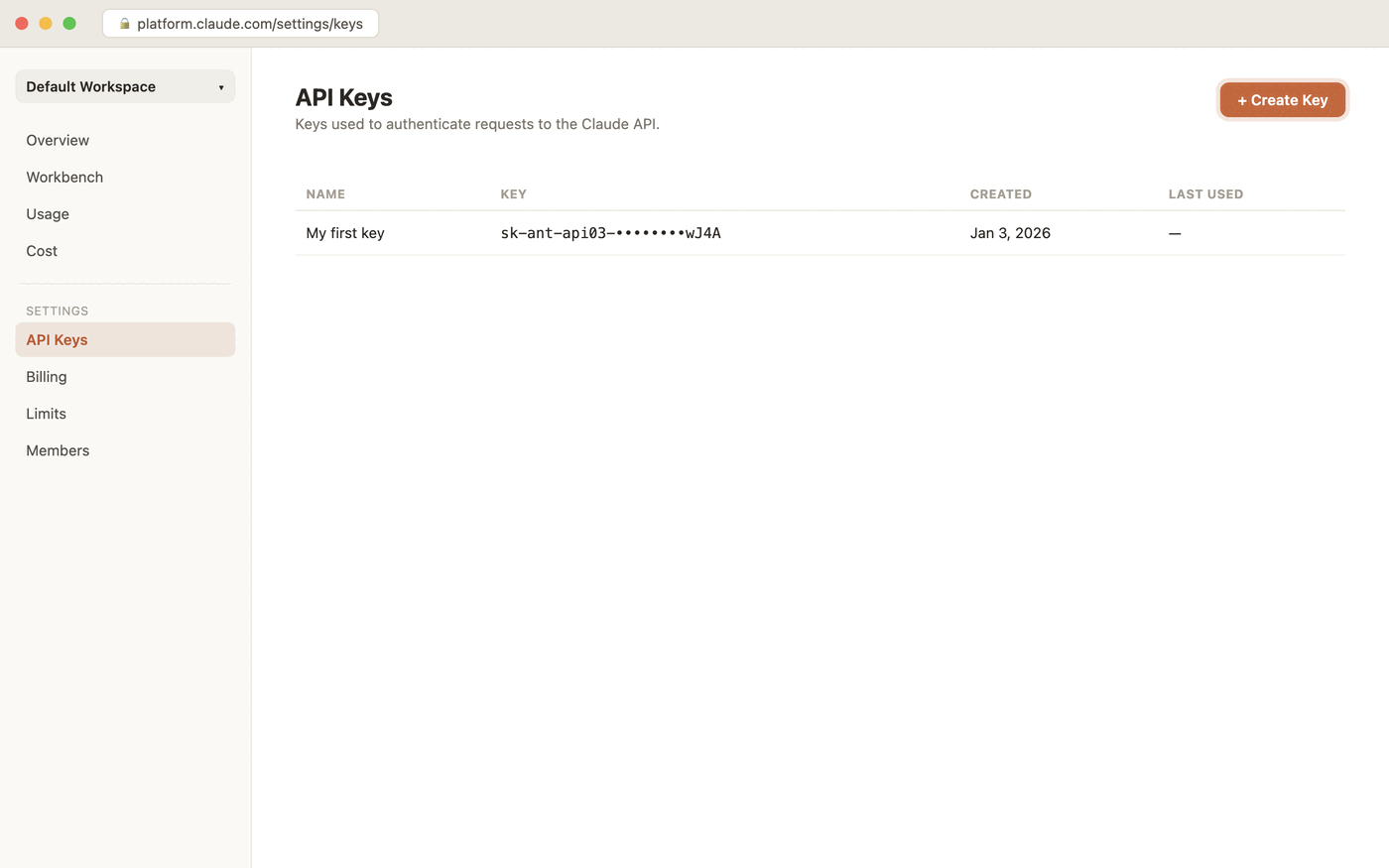 Step 2 — Settings ▸ API Keys. Every key already created for this account lists here, each with its name, a redacted value, and when it was made.
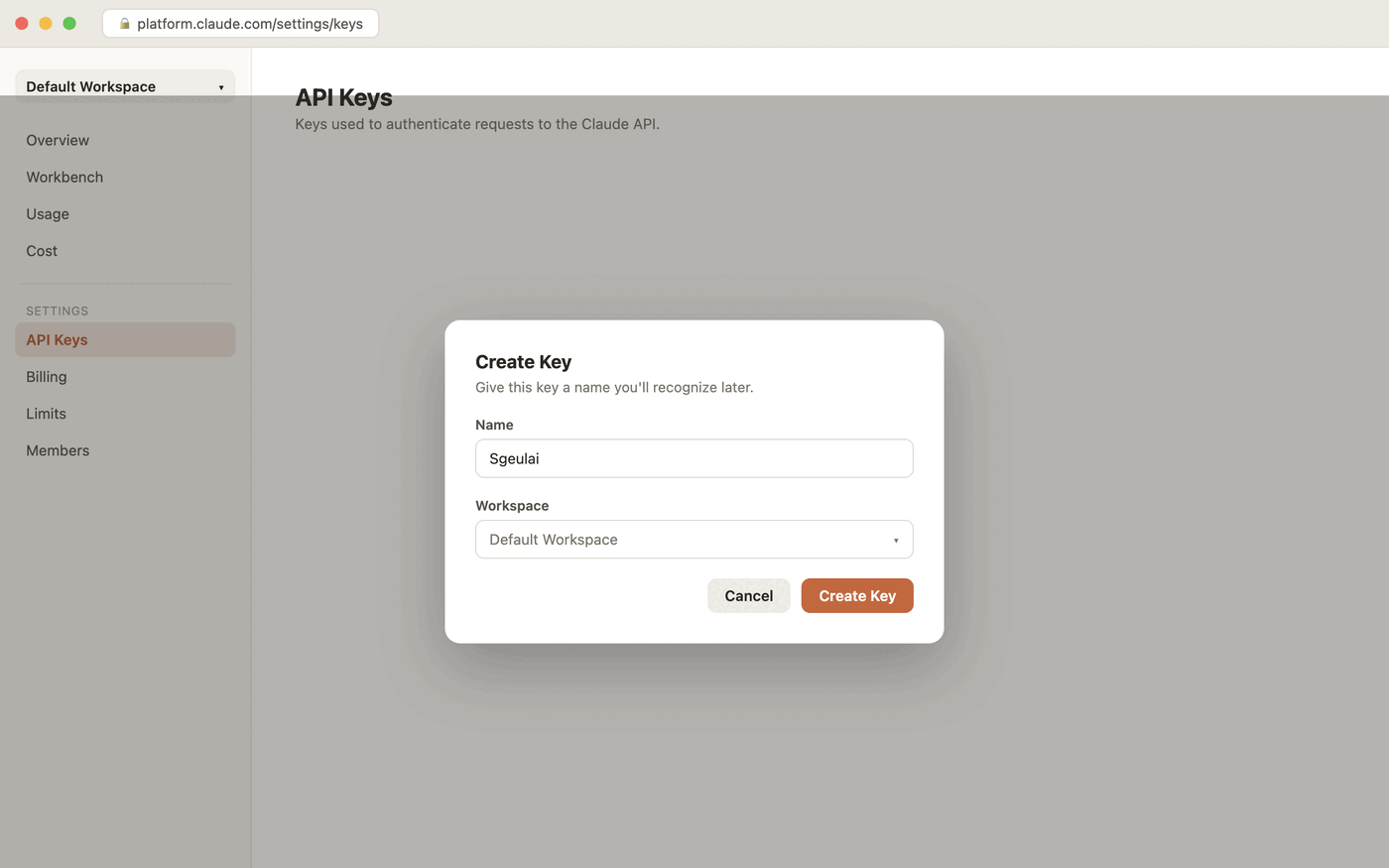 Step 3 — name it something you'll recognize on the list later. The name is just a label; it doesn't have to say "Sgeulai" specifically.
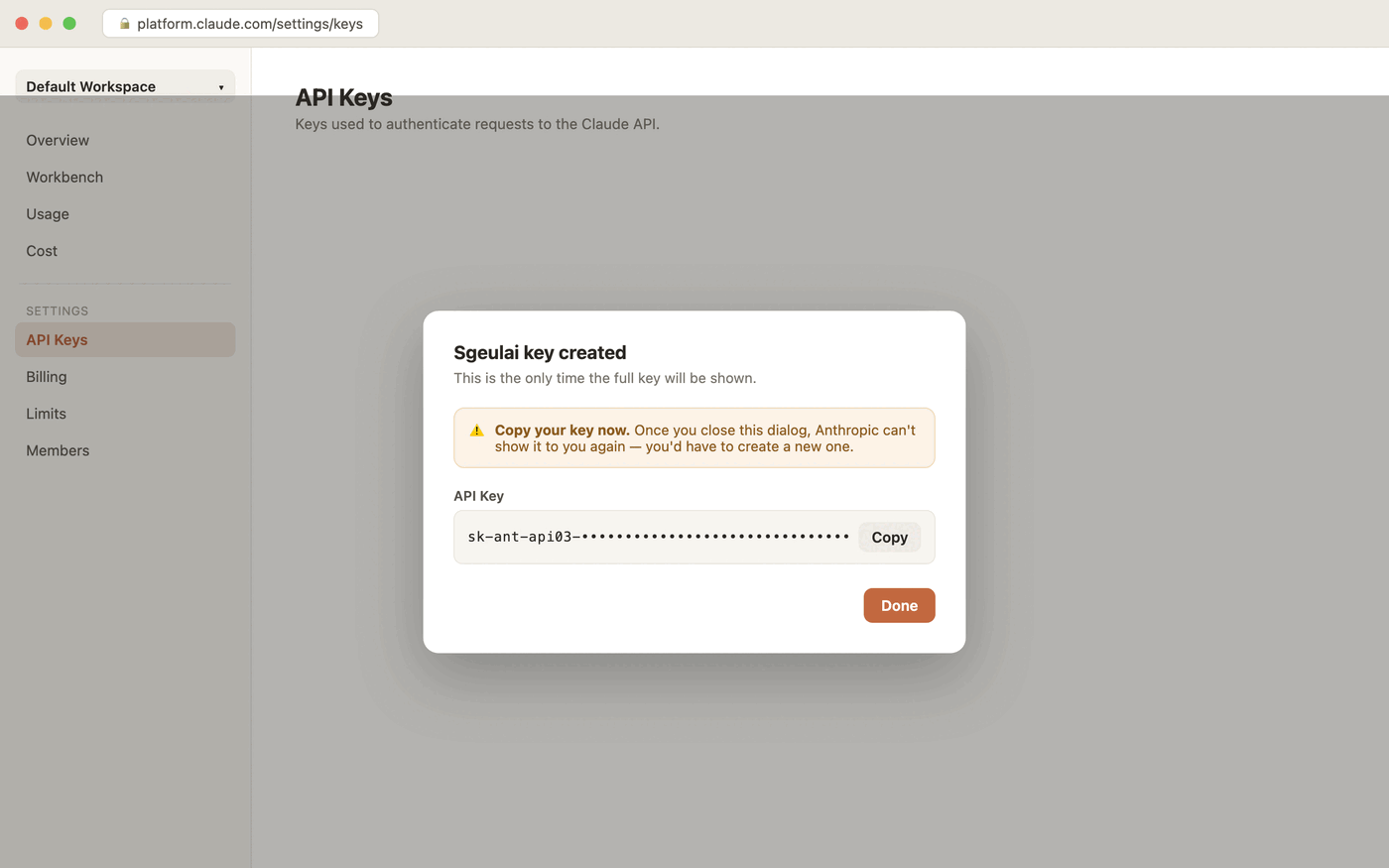 Step 4 — this is the one screen you can't come back to. Click Copy before clicking Done.
Buying credits
A key by itself has no money behind it — creating one and adding credits are two separate steps. As of this writing, Anthropic's minimum initial purchase is $20. Add credits from platform.claude.com/settings/billing, or from inside Sgeulai: Settings ▸ Usage ▸ Claude Credits ▸ Add Credits at platform.claude.com opens the same page.
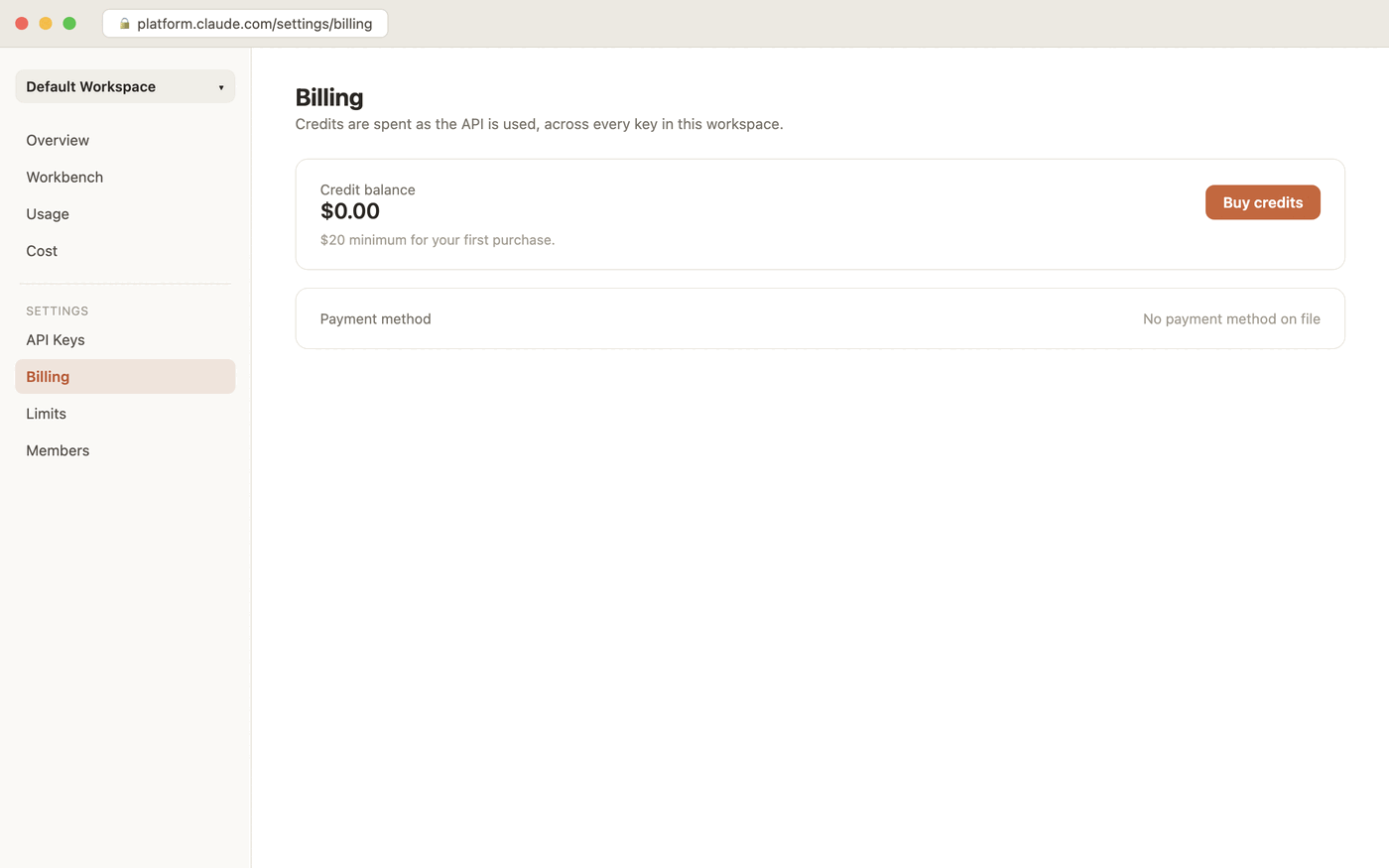 Same site, Settings ▸ Billing. A brand-new key has a real balance of exactly zero until credits are added here.
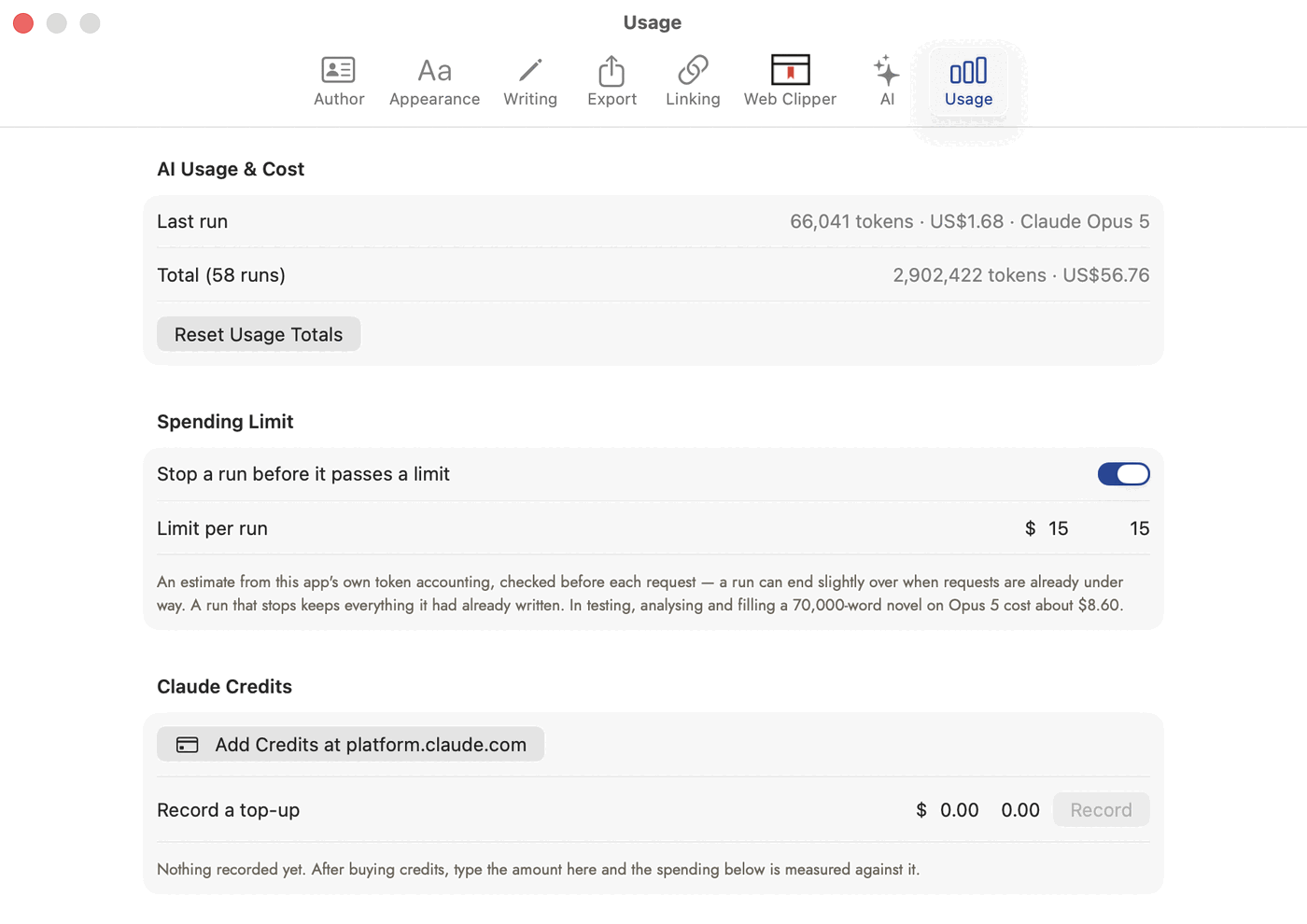 Sgeulai's side of the ledger — this is what tracks spending against whatever was actually topped up on the Billing page above.
Putting the key into Sgeulai
Settings ▸ AI ▸ (with Read manuscripts with AI on) ▸ Claude API key. Paste it in — that's the whole step. The field's own caption states the two things worth knowing right there:
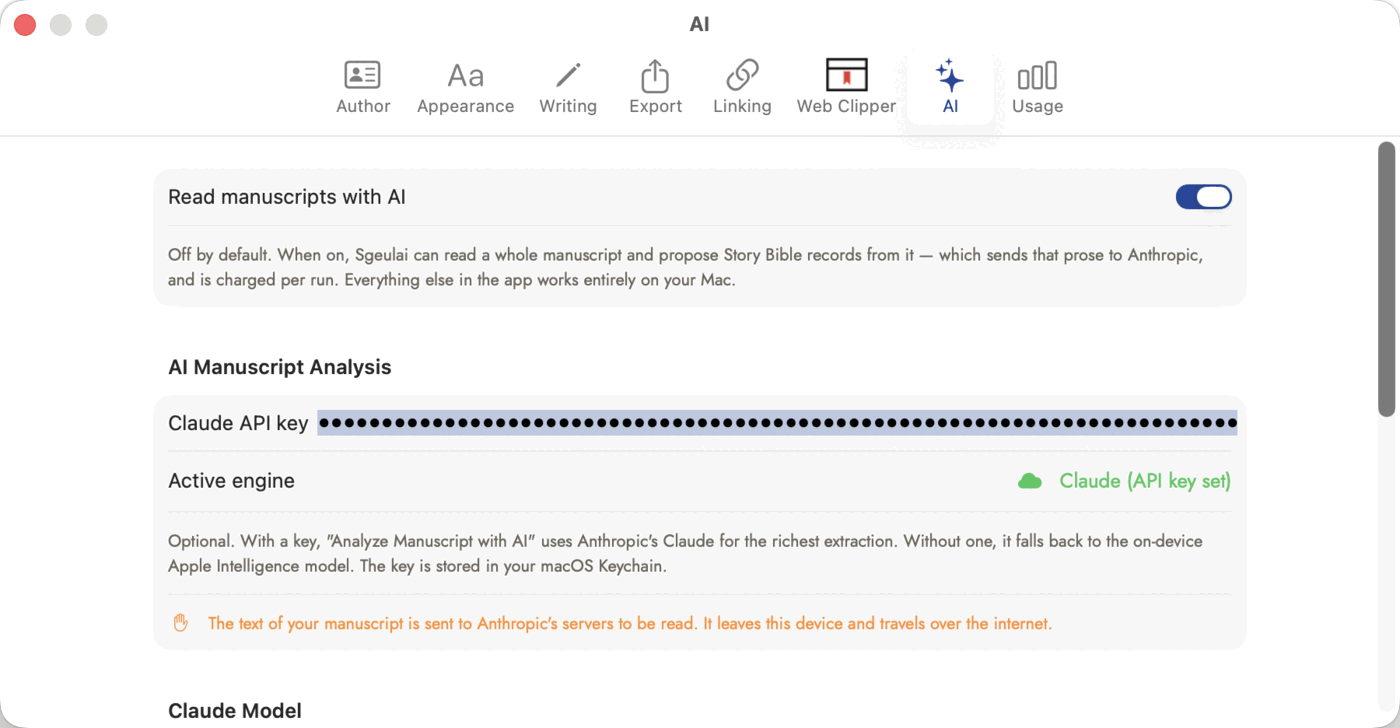 Settings ▸ AI, with a key already pasted in. The field never shows the key back to you, even after it's set — "Active engine" further down is how you confirm it took.
How not to lose it
- Copy it the moment you create it. Anthropic shows the full key exactly once. A password manager is the obvious place — Sgeulai's own field is a secure, write-only box, so it never displays the key back to you either, even after you've entered it.
- It lives in this Mac's Keychain, not in the project
file. A
.sgeulaiopened on a different Mac doesn't carry the key with it — that Mac needs its own key entered in its own Settings. - To check whether one's set without seeing it, look at the "Active engine" line in Settings ▸ AI, or the Engine: … line under AI Analysis in the Tools menu.
What Sgeulai tells you before it sends anything
The first time an AI-reading run would actually put your manuscript on Anthropic's servers, Sgeulai stops and asks, rather than sending it silently:
This is how the AI reading works, and it is the only part of Sgeulai that sends your writing anywhere. Remove the API key in Settings → AI to use the on-device model instead, which never does.
You will not be asked about this again."
That notice is shown once on this Mac, whichever project or menu the run starts from. The price is shown every time: every run billed to your key first says what it's likely to cost and where your spending limit will stop it — see What a run costs. Removing the key from Settings is the way back to on-device-only at any time.
If nothing is available
Trying an AI-reading command with no key and no Apple Intelligence available shows a plain alert: "No analysis engine available. Set a Claude API key in Settings, or run on a device that supports Apple Intelligence." Nothing is sent anywhere when this happens — it's a message, not a failed attempt.