The Story Bible
Everything you know about the book that is not the prose itself. One Story Bible serves every manuscript in the project, so a character who appears in three books is one record, not three.
The record types
| Type | What it is for |
|---|---|
| Character | Anyone the book has an opinion about. Carries the psychology fields the analysis reads — fear, desire, wound, false belief, the truth to learn. |
| Location | Places, at any scale from a room to a continent. |
| Event | Something that happens, with a time in the story's own terms and the scenes that depict it. |
| Plot Item | A thread: a question raised, a gun on the mantel. Records where it was introduced and where it pays off. |
| Story Arc | A change over the length of the book, broken into ordered beats. |
| Chapter / Scene | The manuscript's own structure, which is also part of the bible — a scene record holds its goal, conflict and outcome. |
| Object | Things that matter: an heirloom, a weapon, a letter. Records who owns, made and originated it. |
| Organization | Institutions, families, factions. |
| Theme | What the book is about underneath what happens in it. |
| Source | Research and citations. |
| Note | Anything that does not fit the others. |
Note is deliberately the thinnest record type here — a name, a summary, notes and whatever custom fields you add, and nothing more type-specific than that. There's no hidden structure underneath it worth documenting. Theme and Source each have their own type-specific fields, covered below.
Which book the Story Bible shows
The toolbar's Working on picker — the closed-book icon — narrows more than the analysis tools. With one manuscript chosen:
- every Story Bible type's page shows only the records that appear in that book, and the binder's counts follow;
- AI Readings, in Labs, shows only what is waiting for that book;
- Pictures shows that book's pictures and the ones that belong to no book.
All Manuscripts takes the narrowing away everywhere. Clicking a chapter or scene in the binder also sets the picker, to the book that chapter belongs to.
Each type's page, and AI Readings, has its own manuscript menu in its filter bar, set to Active Manuscript — "whatever the picker says" — by default. Choose a specific book or All Manuscripts there, or press Clear, and that page stops following the picker and stays where you put it. Choosing from the Working on picker itself lifts those choices, and every page follows it again; clicking in the binder never does.
The record's own header
Every record — whichever type — opens with the same header before its type-specific fields begin, and most of what's in it is a control, not just a label.
The avatar carries a small camera-icon badge for Character, Location, Event, Object and Organization only — click it to add a picture from disk, or right-click for Add Picture… / Change Picture…, Generate Picture… (offered only when Apple Intelligence is actually available on this Mac), and Remove Picture. Theme, Note, Plot Item, Story Arc, Chapter and Scene carry no picture at all, so there's no camera badge on those.
Beside the type pill (a plain label) sits a second pill named after whichever detail mode is on right now — Full, Compact, Necessities or Worksheet. It's a button, not a display: each click advances one step through those four, wrapping back to Full after Worksheet — its tooltip names what the next click switches to, since the label already says what's on screen now. This is the same setting the toolbar button, the ⌃⌘E shortcut and the menu item all read and write — four doors onto one setting, never four settings to keep in sync. See Full, Compact and Necessities for what each mode actually shows.
The star rating on the same row is a read-out, not a control — clicking it does nothing. Importance is set from the Overview tab's Classification section instead.
The name and the one-line summary, underneath, are both real text fields — type directly into either one; there's no separate rename step.
Character, Location, Event, Object and Organization — the same five types that carry a picture — also carry a pseudonym line: a theatre-masks icon, a text field for the name this record goes by in the manuscript, and a lock icon beside it. The lock is its own flag, independent of whether a pseudonym is actually filled in — click it to mark the record privacy protected (filled, orange) or not (open, grey). Marking it doesn't rewrite anything by itself; Tools ▸ Apply Pseudonyms to Prose… and Restore Real Names in Prose… are what actually swap names in the manuscript text, from the mapping the Name Registry keeps — see The Tools menu and The analysis tools.
The line beneath the name — role, subtype, or occupation, whichever is filled in first — is coloured to match the record's type, which makes it look clickable. It isn't. Edit it through the Role or Subtype field on the record's own Classification section, not by clicking the line.
The chips along the bottom are all read-only, each one a window onto a field set elsewhere on the Overview tab: how many manuscripts the record appears in (from Appears In), how many scenes a Character is tagged present in, its Canon status, its Active/status chip (green only when Active), and — only when set — a Sensitive chip and a reader-knowledge chip. That last one compares the book a record is first revealed in (Overview ▸ Classification ▸ First revealed in) against whichever book is currently being written, by series order: Reader knows in green once the active book has reached that point, Future knowledge in purple while it hasn't yet. The same field is what Export Spoiler-Safe Canon… reads to build a whole filtered Story Bible PDF for a beta reader or collaborator — see Importing and exporting.
What each record actually holds
The table above is the quick version. Some types carry real, type-specific structure worth knowing about — either because there's more to fill in than "summary and notes," or because a field feeds a specific analysis tool in a way that isn't obvious from the record alone.
Character
Anyone the book has an opinion about, and the type with the most to say for itself. Beyond the free-text biography, physical description and voice notes, dedicated fields carry the psychology the analysis tools actually read: external goal, internal need, primary fear and desire, a false belief and the truth that corrects it, a starting state and an ending state. A biographical group (occupation, nationality, languages, socioeconomic status) and two personality-framework fields (MBTI type, Enneagram type) sit alongside — useful for your own reference, read by nothing.
Three things live under a character's own record rather than in it, each in its own section: States, snapshots of how the character looked, where they lived, or what they knew at a point in the story's own timeline; Knowledge, what a character knows and when they learned it — the raw material Continuity Check… reads to catch someone reacting to news they haven't heard yet (see The Tools menu); and trait ratings, checked off either from the record's own Worksheet view or cast-wide from Character Balance… in the Characters browser — the same data either way, kept in sync (see The analysis tools).
Writing memoir or autofiction, a character can also carry a real name kept separate from the one used in the manuscript — Name Registry and Apply Pseudonyms to Prose… are what actually swap between them (see The analysis tools).
Location
Places, at any scale from a room to a continent, described one sense at a time — sight, sound, smell, touch and taste are each their own field, not one description doing all the work. A Hierarchy section sets a location's parent (a room contained in a house, a house in a city) and shows the reverse — everything it contains — as a breadcrumb and a list; that one section is the only place in the app that builds or shows this structure.
Like a character, a location can carry a real name kept separate from the one used in the manuscript, for the same memoir/pseudonym workflow.
A location's completeness ring never gets a coloured "read by an analysis tool" mark, whatever fields are empty — nothing in the app currently reads a location's fields the way it reads a character's or a scene's. See Full, Compact and Necessities.
Event
Something that happens, described twice over: when it happened, in the story's own loose terms ("the summer after the funeral"), and — separately — a sortable date and a narrative-sequence number that place it on the two clocks the Timeline tool draws: story time and reading order. Where the two disagree, that's a flashback (see The analysis tools).
Participants records who was there and in what role. Who and what role is what Continuity Check… reads to flag a character in two places at once, or travelling somewhere impossible in the time available, and what the Relationship Graph reads to draw a line between a character and the event. The richer per-participant fields — emotional state before and after, what they learned, how it turned out for them — are yours to fill in for your own reference; nothing currently reads them back.
An event is also where a Source record attaches a citation — see Source, below, and Evidence Board in The analysis tools.
Plot Item
A thread — a question, a secret, a promise, a gun on the mantel — typed as one of sixteen kinds, with notes at each stage: introduction, development, resolution, aftermath. Where it's introduced and resolved, given as a position in the book rather than a chapter link, is what Loose Ends and Spine Report both read, each asking a different question of the same two numbers — a plot item with no position set is invisible to Spine Report even though Loose Ends still flags it. See The analysis tools.
Story Arc
A change over the length of the book, broken into ordered beats — and an arc's real complexity lives in how those beats get used elsewhere, not in the arc record itself. Each beat carries an intensity rating that becomes a point on the Plot Board's tension curve, and can be linked to an event, a scene, a location and any number of characters. Drag a beat onto a chapter in the Plot Board, and that placement is what Spine Report reads as the beat "arriving" in that chapter — a beat linked only through its scene, never actually dropped on a column, won't show up there. See The analysis tools for Plot Board and Spine Report, and the separate Structure tool (reachable from this sidebar's own section, though its documentation still lives on that page), which measures the whole book against a different, template-driven kind of beat entirely — not this one.
Theme
What the book is about underneath what happens in it, stated as a claim rather than a one-word label — "power corrupts those who seek it for its own sake," not just "power" — plus notes on how it's introduced, develops and resolves across the book. Its own Description Web (see Idea Tools) draws on exactly those fields.
Chapter
Mostly bookkeeping — its number, which part it's filed under, a word count and target — but the bookkeeping is load-bearing: a chapter's scenes, point-of-view characters, arcs and plot items are what Structure and Spine Report actually measure against. See The binder for how chapter numbering and part filing work.
Scene
The largest record type in the app, and worth being precise about because it uses the word "beat" three different ways across three different tools. A scene's own goal, conflict, turning point, crisis choice and outcome are the fields Five C's and Scene Shape both read. A separate set of six narrative beats — Hook, Setup, Trigger, Argument, Action, Climax — is what Spine Report counts as missing or filled. Neither of those is an arc beat, which belongs to a Story Arc record instead (above) and is placed on the Plot Board. See The analysis tools.
A scene also tracks its own value shift, in the Emotional Arc section: an emotional value before and after in your own words, plus the same shift as a number from -2 to +2 — this is what Scene Shape's charts actually draw. A separate Story Value section holds the identical pair for the plot's own line rather than the character's, since a scene can win the argument and lose the person and the two are worth tracking apart. Beyond value, a scene tracks two chronological positions: where it falls in story order versus where it falls in reading order, for a manuscript that doesn't tell its story straight through.
Both a chapter and a scene also carry an In-Story Date field — when it happens in the book's own time, in your own words, the same way an event's date is written. It's what places that chapter or scene on the History footer strip while you're writing it (see History), and Find Only What's Missing… can fill it in from the manuscript's prose for a chapter or scene that doesn't have one yet — see Reading the manuscript with AI.
Object
Things that matter physically — an heirloom, a weapon, a letter — typed from a list of sixteen kinds (weapon, vehicle, document, treasure, and so on), with fields for who owns it, who made it, and where it came from, plus separate notes for what makes it special, why it matters to the story, and how it was acquired.
Organization
Institutions, families, factions — typed (government, criminal, guild, cult, and others) with a status of its own (active, disbanded, underground, fractured). Its most useful field may be the least obvious: a public reputation field kept deliberately separate from its true nature, for the organizations whose face and substance don't match.
Source
Research and citations, held as a proper bibliographic record — author,
title, publisher, year, DOI, ISBN — the same shape a citation manager like
Zotero or Bookends uses, and importable from either. Every source gets a
citekey; typing [@citekey] in your prose or
notes is how you cite it inline, and Insert Citation… puts
one in for you — see Notes &
citations.
Title, publisher, year, ISBN, language, and a plain-text abstract and keyword list sit right on the record's own Overview tab — the same fields a Research Highlights lookup already fills in behind the scenes (see Research Highlights), now visible and editable in place rather than only ever read by citations and exports. A cover picture, when the lookup finds one, downloads into the record's own picture the same way — nothing to click, it just catches up.
Attaching a source to an event — with a page or timestamp, an extract, and a reliability rating — is what Evidence Board reads to show which claims in a memoir or history project are backed by a source and which are thin or unsourced. See The analysis tools.
Connecting records to each other
The section above is about tying a record to your prose. This one is about tying two records together — Ada is Tom's mother, this organization employs that character — which is what the Relationship Graph and the Family Tree are both drawn from. Add Connection, on either record's own Connections tab, is where every one of them is made.
The sheet asks four things, top to bottom:
- Target Entity. Search, or pick from the candidate list. From a Family Tree slot the list also offers Add an unknown relative…, for a person you know exists but have not named.
- Relationship Type, grouped by category — the family ones (is parent of, is sibling of, is spouse of) are what the Family Tree reads; everything else shows on the graph. Manage Types is right there if none of them fits.
- Labels, pre-filled from the type and editable. A forward label and a reverse label, plus a Directional relationship toggle — with a swap button beside the two names, for when you are adding "is parent of" from the child's own profile and need it the other way round.
- Scope — see below.
A spouse connection, and only a spouse connection, grows a fifth section: a Marriage Date field, which accepts a real date or a phrase like "autumn 1849." It is there because the Family Tree draws that date on the connector between the two of them. No other relationship kind has anywhere to show one, so no other kind offers the field.
Canonical, or true in one book only
Applies to defaults to All works (canonical), which is almost always what you want: the relationship holds everywhere in the project, in every book. Scope it to a single manuscript instead for something that is only true there — "estranged" in one book of a series, a marriage that has not happened yet in the earlier volume.
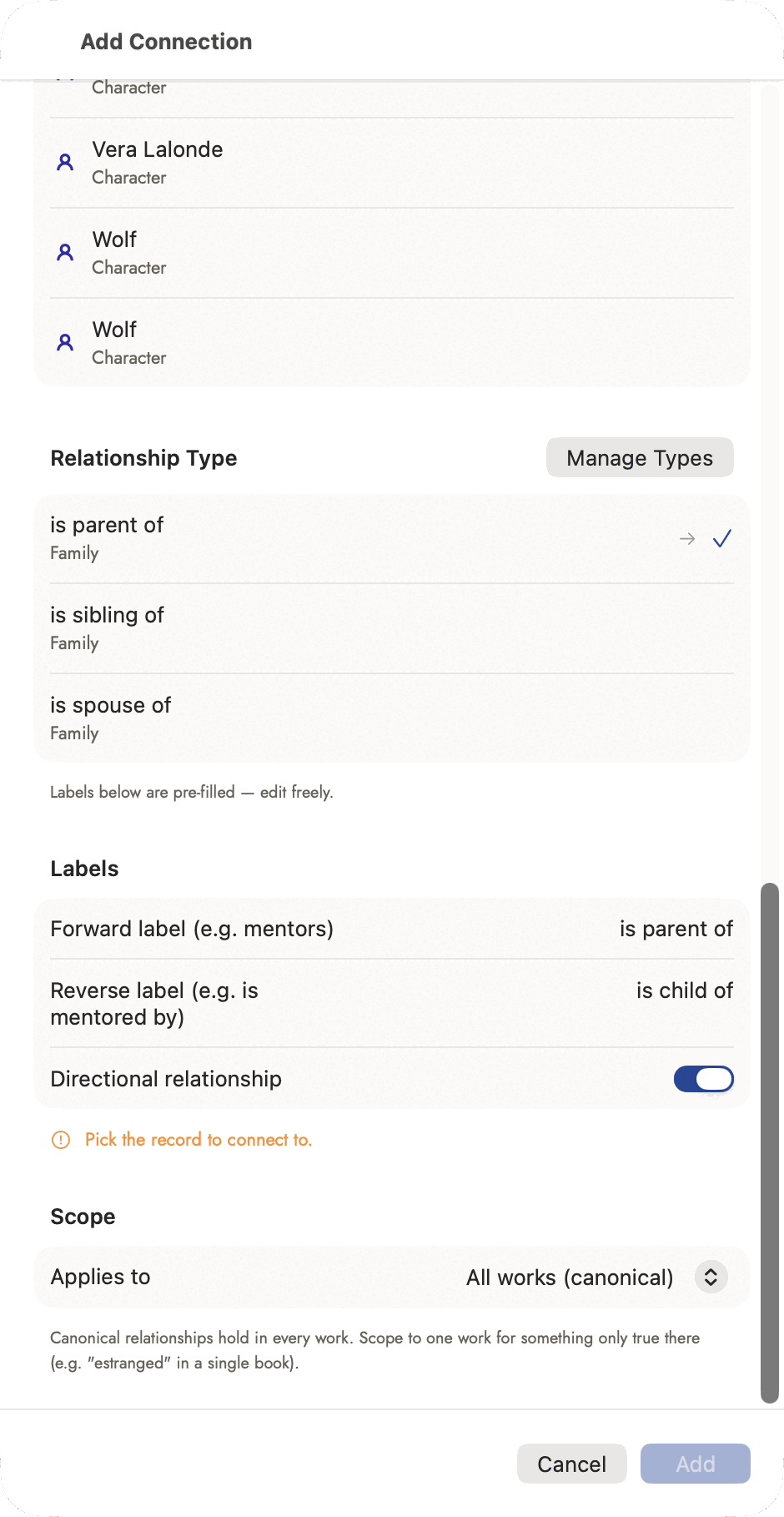 Unset means canonical — the same "blank applies
everywhere" convention a Character State's Book field uses.
Unset means canonical — the same "blank applies
everywhere" convention a Character State's Book field uses.
Connecting records to the prose
Three different things build the connections the analysis tools read, and they cost you different amounts of effort:
- Wikilinks. Type
[[Ada Marsh]]in your prose and the mention is a link. This is the cheapest way to tell Sgeulai who is in a scene, because you do it while writing rather than afterwards. - Fields on the record. A scene's point-of-view character, an event's location, an object's owner. These are pickers on the record.
- Detected from the text. Detect Appearances on the Character Arc tool reads each section for character names and wikilinks and fills in who appears where. Detect Dates on the Timeline does the same for dates.
Completeness
Each record shows a ring counting how many of its essential fields are filled. It is a prompt rather than a score: a location with an empty climate field is not a worse location, and nothing in the app behaves differently because the ring is not full.
What does change behaviour is a blank field that an analysis tool reads — and those are marked separately, in a different colour, for exactly that reason. See Full, Compact and Necessities.
Bible Templates
Every starting-shape picker a new record opens into — Character's Protagonist/Antagonist/Mentor and the rest, Location's Home/Public Place/Threshold, Event's Turning Point/Backstory Event, Organization's Institution/Family — draws from one project-owned, fully editable catalogue of 38 built-in templates. Object doesn't get any: nothing about an object varies enough by kind to be worth a starting shape.
Applying a template is previewable and additive, never destructive: it shows every field the template has a suggestion for, split into what it would fill and what it's leaving alone because you've already answered it, and only writes the fields you tick from the fillable side. Run it more than once on the same record and it never touches an already-answered field — safe at any point in a record's life, not just while it's still blank.
Beyond the picker a new record opens into, any existing record's completeness section carries two more ways in:
- Template… opens the same preview-and-tick flow on a record you're already partway through, whenever a starting shape would help.
- Save as Template… turns a record you've already filled in into a new template — name it, tick which of its filled fields to carry over, and it joins the catalogue for every other record of that type in this project.
Manage Templates…, in the binder sidebar's Story Bible section, is the project-wide list: edit any template's fields, duplicate one as a starting point for a variant, or delete a writer-made one. A built-in template can be edited and duplicated like any other, but not deleted — it would simply reappear next time the project opens, the same mechanism that hands an older project any new built-ins it's missing. An edit to a built-in's own fields sticks; only a genuinely missing template gets re-added.
Deleting records and the Trash
Deleting a record moves it to the Trash, at the bottom of the binder's Story Bible section. Move to Trash is on a record's right-click menu, in the bar that appears when records are selected (⌘⌫), and in the record's own Actions menu. It doesn't ask first, because nothing is lost yet.
A record in the Trash is hidden everywhere else: shelves, counts, pickers, analysis tools and exports. Links to it are kept, so a restored record comes back connected. In the Trash, Restore puts one back. Delete Permanently… (right-click) and Empty Trash… ask first, save a backup, clear every reference to the record, and remove its relationships. That part can't be undone.
The Trash is separate from Archive. An archived record is one you've set aside on purpose; it's hidden the same way but never appears in the Trash, and emptying the Trash leaves it alone. Bulk commands such as Remove All Story Bible Data… and merges still delete permanently, after a backup.
Merging duplicates
A long manuscript read in sections can produce the same person, place or organization twice under two names — and this is exactly what AI-read results are worth checking for, since the manuscript's own varying phrasing is the usual cause; see Reading the manuscript with AI. Records offer a Merge action for this, which keeps one record and repoints everything that referred to the other.
Merge works on Character, Location, Event, Object and Organization records. Plot Items and Story Arcs aren't mergeable yet; chapters and scenes never are, since combining two of those is an editing decision, not a bookkeeping one.
It's non-destructive on purpose: the absorbed records' own names stay on the survivor as aliases rather than disappearing, so a wikilink or a Name Registry entry written against "Tom the Florist" still resolves after merging into a record named plain "Tom." Nothing depends on having picked the "right" name to keep.
Select two or more records first, then right-click one to reach it — and do that from Table view. Gallery only ever keeps one card selected at a time, so Merge never has the second record it needs to appear there. The context-menu item reads its own count into its label — "Merge 3 Character Records…" — so you can confirm the selection before it even opens.
The sheet that opens lists every selected record, each row tappable to choose it as the survivor — the one whose name and id persist, with everything else absorbed into it. Sgeulai pre-selects one for you: whichever record has the most essential fields already filled in, ties broken by the oldest creation date. A blue KEEP pill marks the current choice; click any other row to change it. Each row also shows an AI tag if that record came from an AI reading, a summary, and a stat line — filled-essentials count, alternate-name count, creation date.
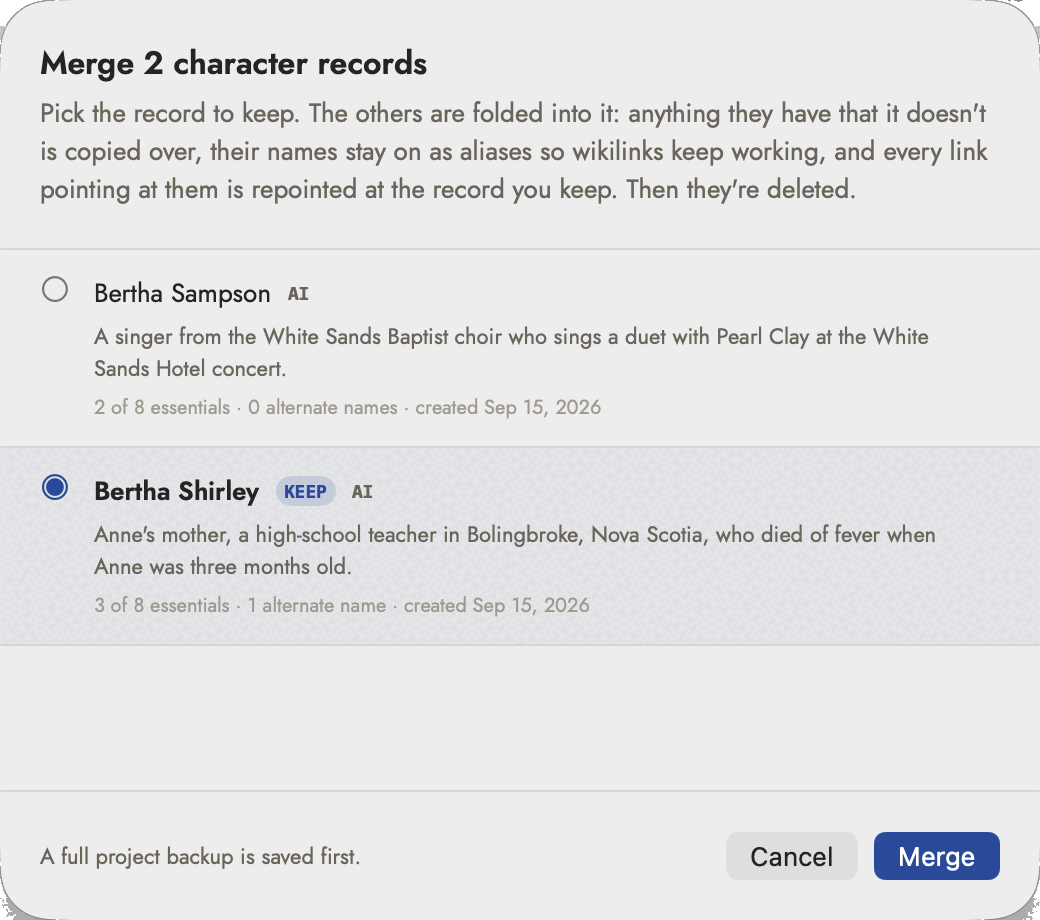 The pre-selected survivor is the fuller record, not
the older one — three essentials against two here. Click the other row if
you want it the other way.
The pre-selected survivor is the fuller record, not
the older one — three essentials against two here. Click the other row if
you want it the other way.
There's no separate confirmation dialog beyond this sheet; its own "pick who survives" framing and Merge button are the confirmation, and the footer states that a full project backup is saved first.
A result alert afterward reports what happened — records merged, links repointed, sub-records moved, names kept as aliases — and selection jumps to the survivor. If the merge can't save, a separate alert says so and recommends quitting and relaunching before trying again, rather than retrying immediately in place.
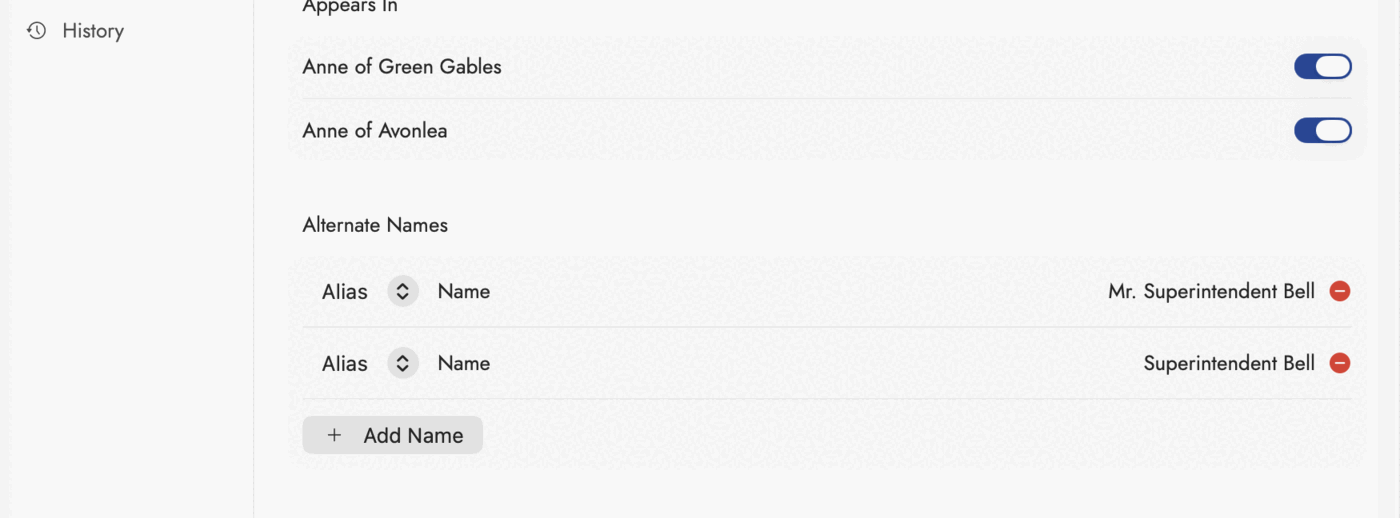 What the absorbed names look like afterwards — and
what any alias looks like, however it got here. Nothing that ever pointed at
"Superintendent Bell" is broken: the alias resolves to the record that
survived.
What the absorbed names look like afterwards — and
what any alias looks like, however it got here. Nothing that ever pointed at
"Superintendent Bell" is broken: the alias resolves to the record that
survived.