The Tools menu
The wrench icon in the editor toolbar, top to bottom. Analysis and import/export already have their own pages — this one covers the rest, including three commands that reset the Story Bible and are easy to mix up.
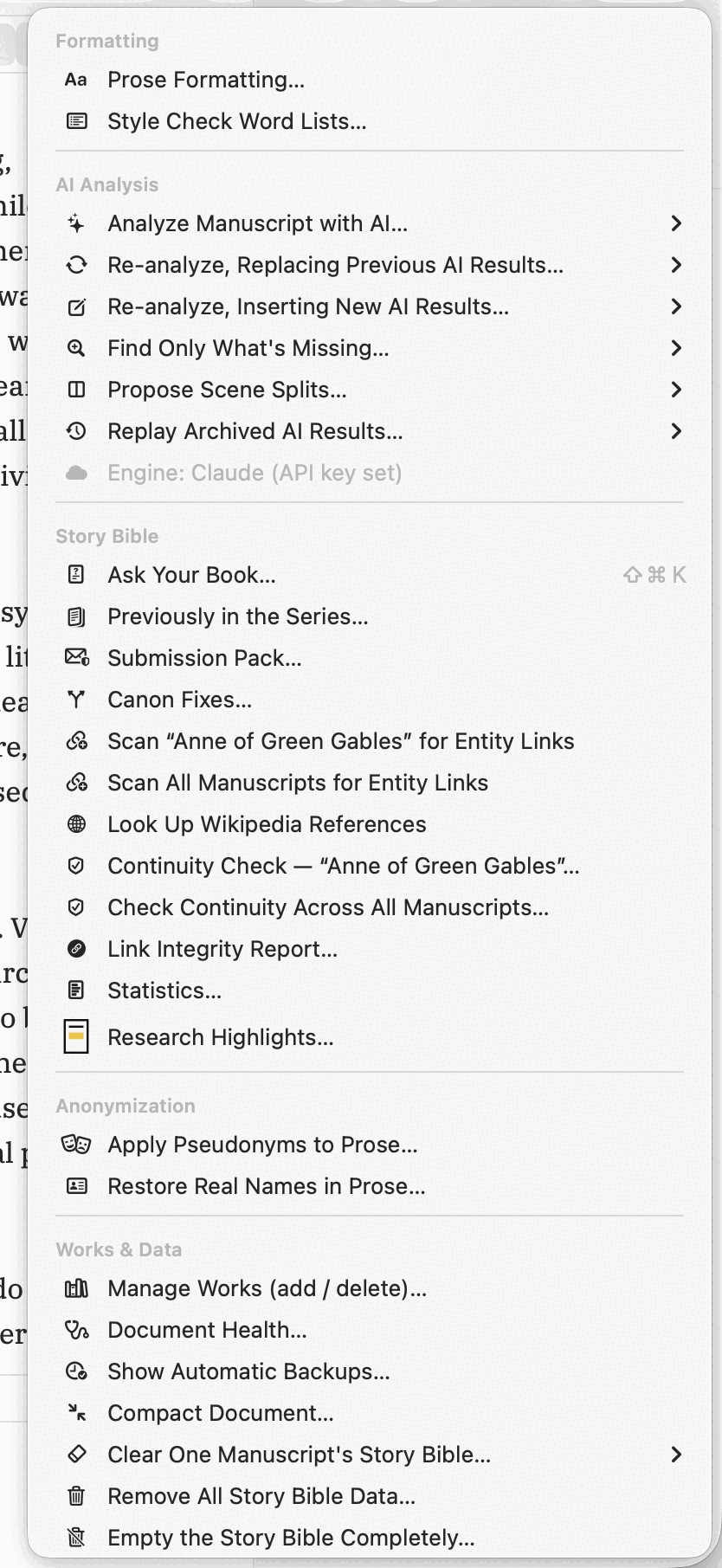 Every heading in this menu is a section on this page,
in the same order. Two commands name the manuscript you are working on —
they are scoped to it, not to the project.
Every heading in this menu is a section on this page,
in the same order. Two commands name the manuscript you are working on —
they are scoped to it, not to the project.
Formatting
Prose Formatting…
Opens the style editor — fonts, sizes, line spacing, margins and colour for both body text and headings, with a live preview beside the controls. This is what the manuscript preview and PDF/EPUB exports actually use; nothing here touches your prose, only how it is typeset.
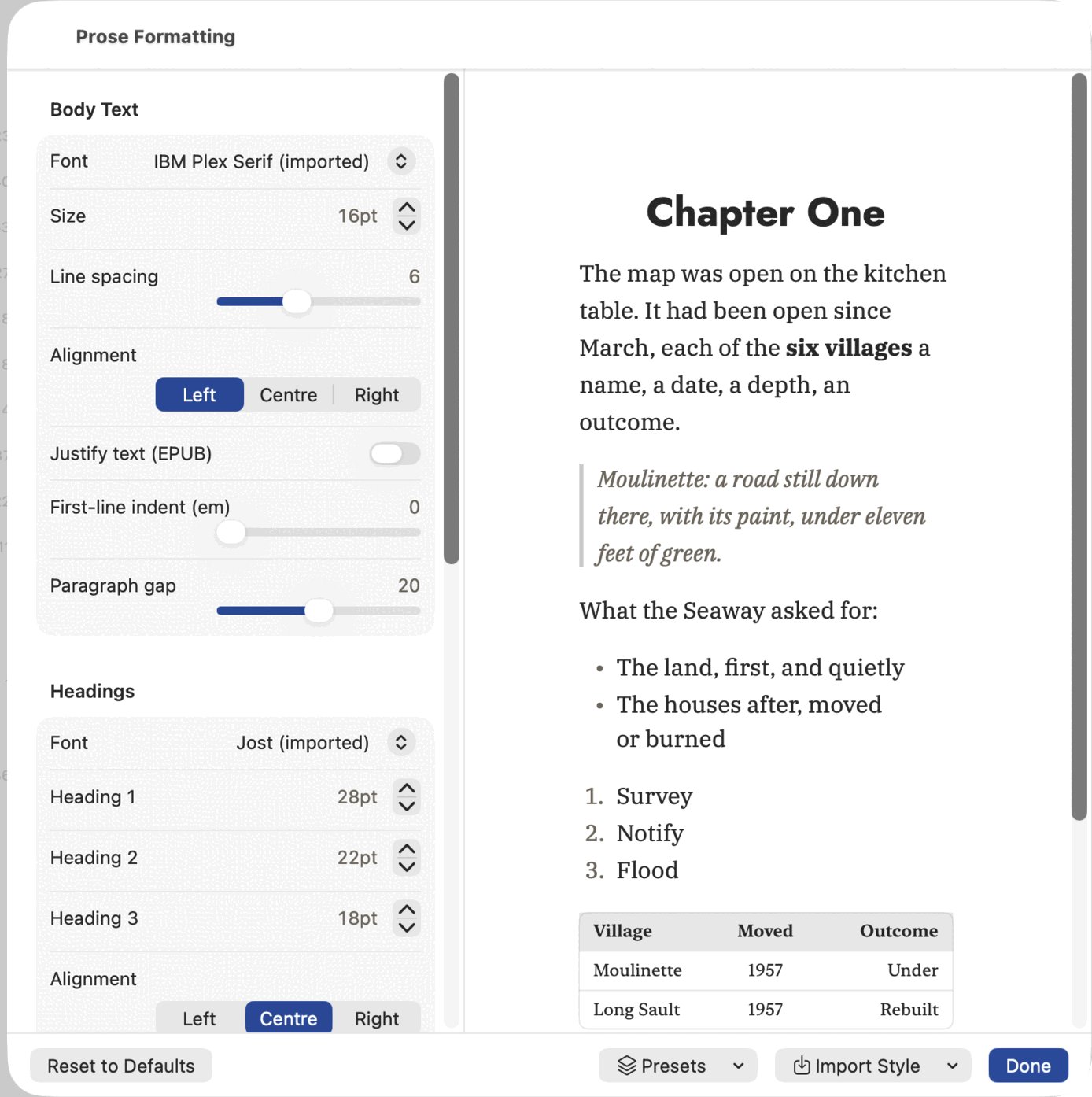 Every control redraws the preview beside it, so the
sheet answers what a setting does before you keep it. The preview is a
fixed sample chosen to exercise the awkward cases — a quote, two kinds of
list, and a table — not your own prose.
Every control redraws the preview beside it, so the
sheet answers what a setting does before you keep it. The preview is a
fixed sample chosen to exercise the awkward cases — a quote, two kinds of
list, and a table — not your own prose.
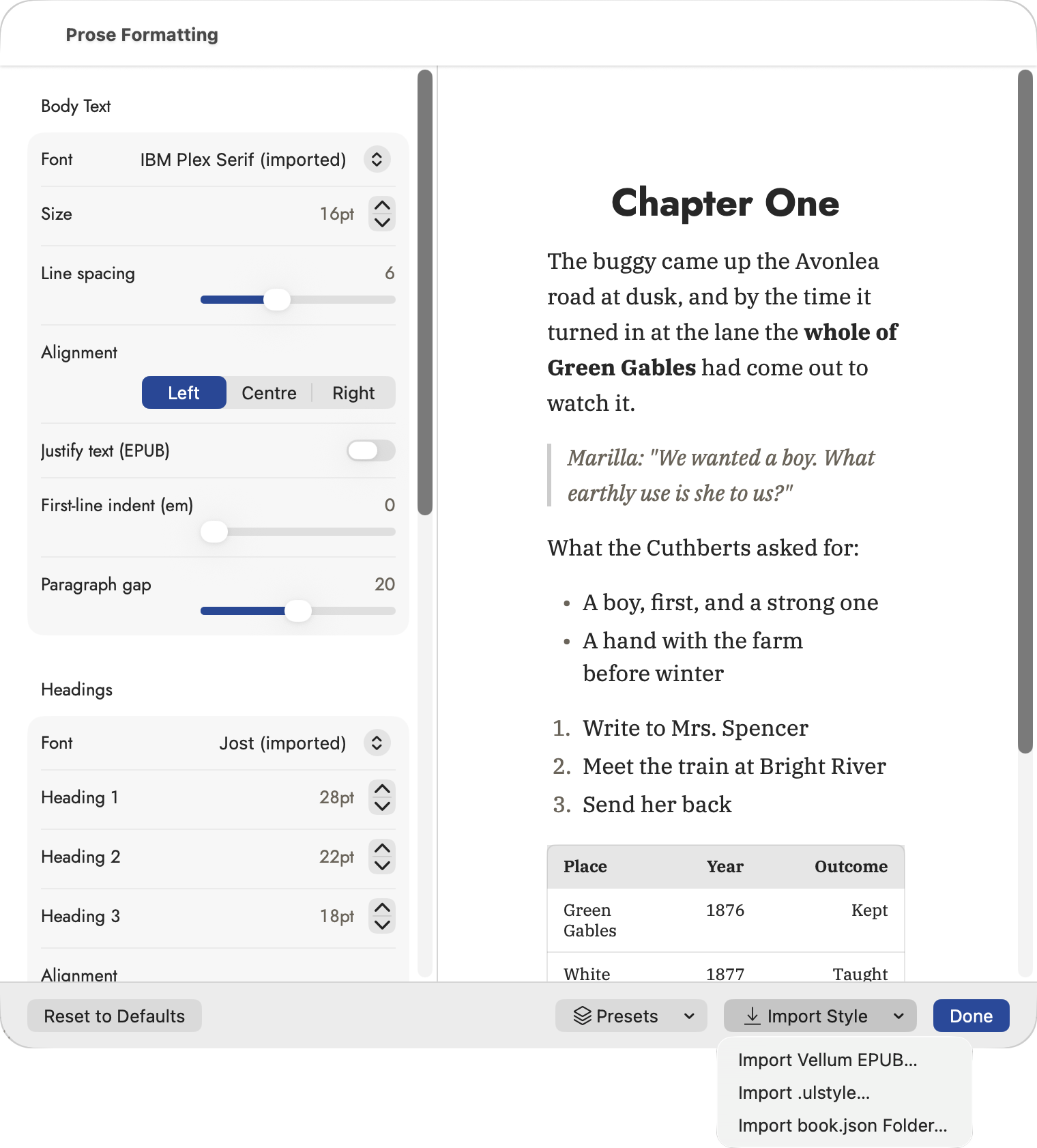 Import Style reads a look you already
have rather than making you rebuild it: a Vellum EPUB, an Ulysses
Import Style reads a look you already
have rather than making you rebuild it: a Vellum EPUB, an Ulysses
.ulstyle, or a book.json folder.
A Presets menu holds "Standard Manuscript Format" plus any
you save yourself, and an Import Style menu can pull a look
from elsewhere: a Vellum EPUB, a .ulstyle file from Ulysses, or a
book.json folder. Every import lands as a new named preset rather
than overwriting your current style, so trying one out costs nothing.
Style Check Word Lists…
Adds your own words and phrases to the style check's lists from a CSV file, one list at a time, and resets any list back to the built-in words. The same sheet opens from Word Lists… in the inspector's Style tab. See Your own word lists.
AI Analysis
Analyze Manuscript with AI…, the two re-analyze commands, and Propose Scene Splits… have their own page — see Reading the manuscript with AI. The Engine: line beneath them is not a command; it names whichever of Claude or on-device Apple Intelligence is about to do the reading.
Story Bible
Ask Your Book…
A question in your own words, answered from the Story Bible and the manuscript — what colour are Mara's eyes, and where did I say so? Each part of the answer is carried by a quotation, and each quotation opens the scene with those words selected. Nothing that can't be traced to your own book is shown: a quotation that isn't in the source it was attributed to is thrown away, and an answer left with none isn't shown at all. Full description under Working with AI. Needs Sgeulai Pro.
Previously in the Series…
Only on a project with more than one book. Pick the book you're returning to and it writes what happened in each book before it: what happened, threads opened, threads closed, and where each character stood at the end — all of it your own summaries, with no model involved.
It shows only what a reader who has finished every earlier book has met. Anything whose First revealed in is this book or later is held back, and the footer counts what was left out. Which book something happened in is read from the scenes that show it rather than from the books it is tagged to, so a thread running across a trilogy is listed where it opens and again where it closes, not in every book at once. Copy as Markdown and Save as Markdown… leave the footer out, for pasting into front matter. Needs Sgeulai Pro.
Submission Pack…
Writes the three documents a literary agent asks for — the pitch paragraph, the synopsis (the whole plot, ending included) and the series bible — from your Story Bible and your own scene and chapter summaries. Your prose is never sent.
Each document is then run through the continuity rules that guard the manuscript, and one that contradicts the book is written again with the contradiction pointed out. What is checked: an appearance the Story Bible doesn't give, a real name behind a manuscript name, and a name that is in neither the Story Bible nor the prose — the characteristic failure of a generated synopsis. A document that still doesn't check clean arrives with the problem printed above it. Full description under Working with AI. Needs Sgeulai Pro.
Canon Fixes…
Lists the attribute changes you have made to Story Bible records — eye colour, hair colour, occupation, role, height, gender, pronouns, address, region, country — and, for the one you pick, every passage of the manuscript that still says the old thing.
It proposes; it never sweeps. Each hit is shown in its own sentence with the old words struck through and the new ones beside them, and nothing is written until you tick it. Hits where the old value is describing the attribute itself — "her green eyes" — arrive ticked; hits where the word merely sits near the record's name arrive unticked under their own heading, because a door painted green is not an eye colour and the app cannot tell. A project backup and a prose snapshot of every scene touched are written before anything changes, and a passage edited since the scan is skipped rather than overwritten. Renames are not offered here: changing a name already offers a sweep through Find & Replace. Needs Sgeulai Pro.
Scan Manuscripts for Entity Links
A retroactive sweep, not a preview. It reads every chapter and scene in the active manuscript (or, when a project has more than one, an additional Scan All Manuscripts for Entity Links covers every book at once) for plain-text mentions of names already in the Story Bible, and rewrites each free-standing one into a real link — the same link the wikilink autocomplete would have made if you had typed it. A summary reports how many mentions were linked.
Look Up Wikipedia References
The bulk sibling of the "Import from Wikipedia" option on a single record. This one walks every character, location, event, object and organization in the project that does not already have a reference and searches for each in turn. An exact-title match is linked automatically; a genuinely ambiguous search is left for you, and the summary afterward tells you how many need a decision — open each in its own inspector to choose among the candidates.
Continuity Check…
Reads for eleven kinds of inconsistency: plot items set up but never paid off (and the reverse), a character appearing in a scene before the event where they should have learned something, participation in an event dated outside a character's own lifespan, a character double-booked in two overlapping events, physically impossible travel between two dated locations, conflicting birth or death dates, a stub entity linked from the manuscript but never filled in, prose describing a character's eyes or hair in a colour that contradicts their record, and — in a series, once a Character State is tagged to a specific book — a character recorded dead at the end of one book and alive again at the start of the next.
That last one — the alive-again rule — only fires once a Character State's Book field is set — left unset, a state applies everywhere and nothing compares against it. It reads each book's own boundary state (last recorded in one, first in the next) and flags only the hard-edged case: deceased, then alive again, across that seam. Softer differences — occupation, address, condition — are common and legitimate across a series, so they're left for your own eye; see Series Continuity in The analysis tools for a side-by-side view built for exactly that reading.
Scoped to whichever manuscript the toolbar's "Working on" picker names, the same as Scan for Entity Links above — a check on one book's plot structure doesn't need every other manuscript in the project pulled in to answer it. With more than one manuscript open, a second command appears to check every one of them at once, and a third — Compare Specific Manuscripts… — lets you pick two or more by hand: useful for catching a character double-booked, or a date that contradicts, between book one and book three of a trilogy while skipping the volume in between. The results sheet's title names whichever manuscripts were actually checked, and each conflict is labelled with its own manuscript when comparing more than one.
The sheet this command opens lists every open issue it found — a setup with no payoff and vice versa, a stub entity, a date or timeline conflict — alongside every date on file, sorted chronologically. Each issue also appears on the entity's own record, in its Continuity Issues section, which is where Resolve and Ignore actually live. Re-running the check does not raise an issue twice — an ignored one stays ignored until the thing that caused it changes.
Link Integrity Report…
A different kind of broken from Continuity Check. That tool compares the Story Bible against the manuscript and reports disagreements. This one never reads your prose at all — it walks the project's own cross-references, every field on a record that points at another record, and reports the ones that no longer hold up.
Three things count as broken:
- The target is gone. A field still points at a record that was deleted or merged away. "linked record no longer exists."
- The target is the wrong kind. The record is there, but it is not a type this field accepts — an owner field pointing at a Location. "linked to a Location; expects Character or Organization."
- A containment is recorded on one side only. A location claims a parent that does not list it as a child, or the reverse.
A clean project reports No broken links found under a checkmark seal. One with issues gets a title that counts them — Link Integrity (N) — and a row per issue explaining what broke and what the field expected instead.
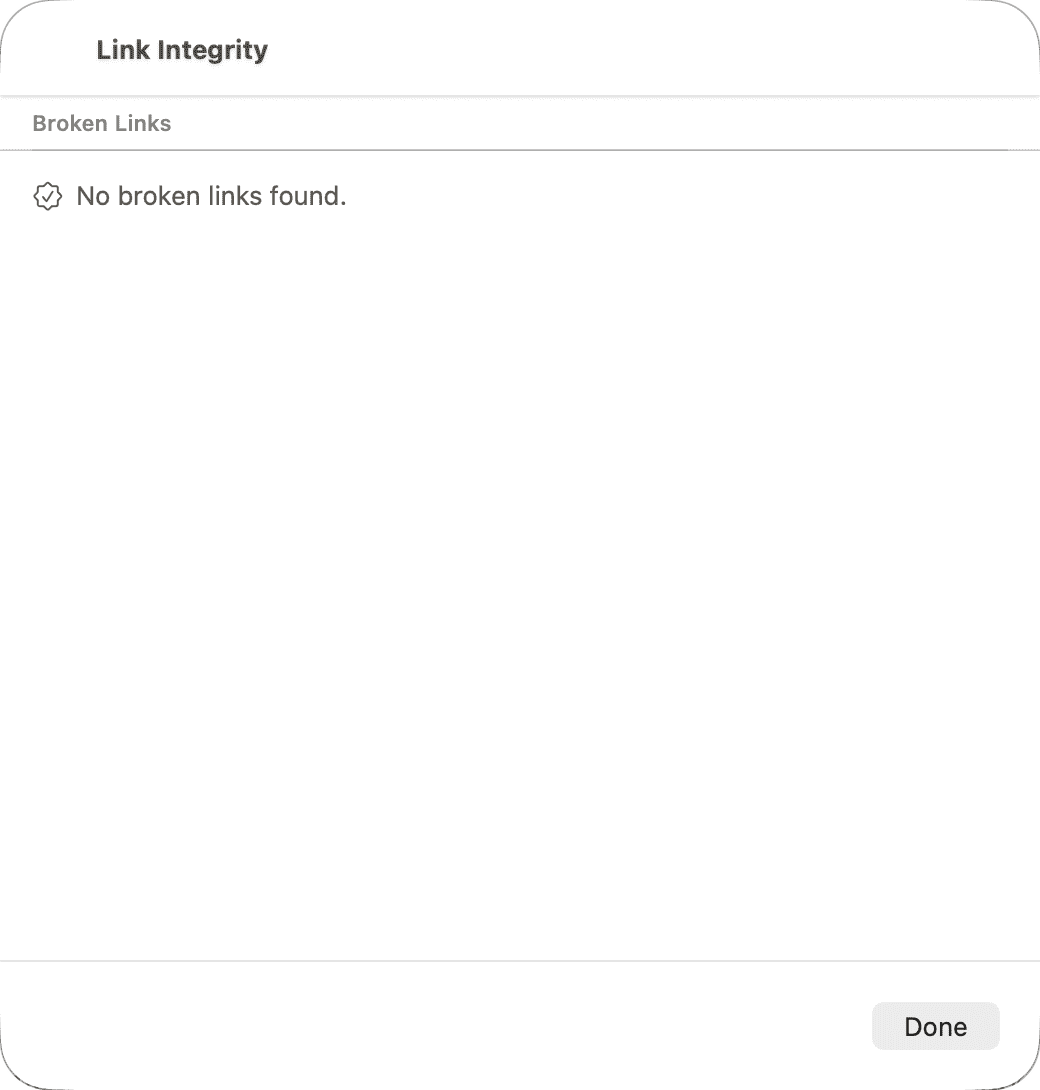 The clean state. The title carries no count, which is
itself the report.
The clean state. The title carries no count, which is
itself the report.
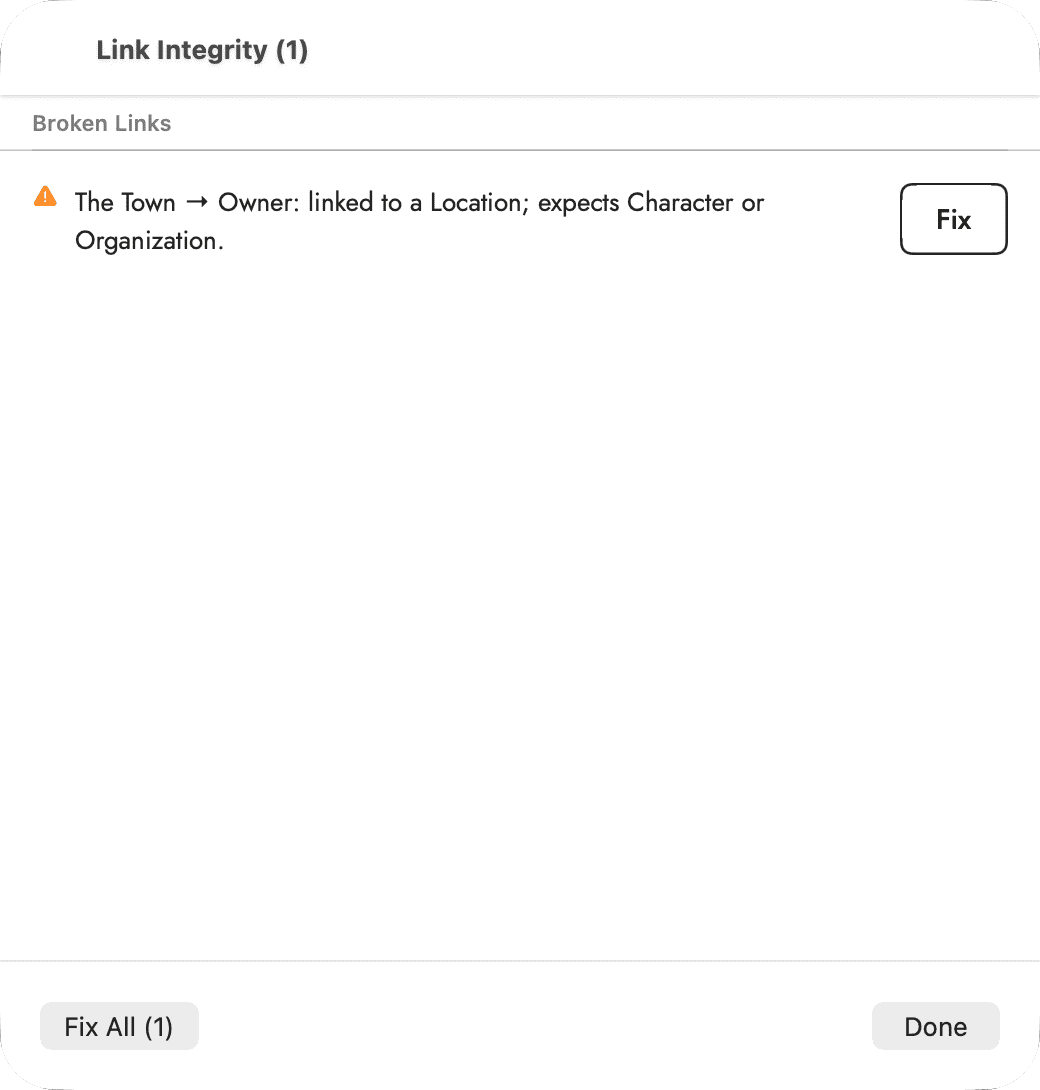 Each row names the record, the field, what it found
and what it wanted. Click the row itself — not its Fix button — to open the
record carrying the broken reference.
Each row names the record, the field, what it found
and what it wanted. Click the row itself — not its Fix button — to open the
record carrying the broken reference.
You do not have to run the report to know it would find something. When the project has broken links, a red capsule sits in the editor's top-trailing corner carrying the count, with the tooltip "N broken links — click to review." It stacks directly below Continuity Check's own badge when both have something to say, and it is absent entirely when there is nothing to report — so seeing it at all is the finding.
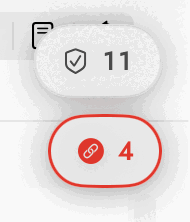 Grey above, red below. The red one is the Link
Integrity count; it only appears when the number would be more than
zero.
Grey above, red below. The red one is the Link
Integrity count; it only appears when the number would be more than
zero.
Statistics…
One dashboard, read-only, scoped by the menu at the top — All Manuscripts by default, or check off just the ones you want the numbers to cover. Everything below it follows that scope: total entities, connections and tags; word count written against target, with an Earned Value Analysis underneath it for anyone who wants to track a manuscript the way a project schedule would — a Schedule Index comparing how much of the book is actually finished against how much word-count credit that should represent, and a Writing Index comparing words written to words earned, so a chapter that's technically "on target" by word count but still mostly drafted rather than revised doesn't read as further along than it is.
Below that: every chapter's word count against its own target, scenes grouped by status, each story arc's completion percentage, a count of unresolved continuity issues by severity, upcoming Writing Reminders if you've created any, and a full breakdown of every record type in the project. Nothing here is editable — it's a single place to see the shape of the whole project at a glance, without opening each tool that tracks a piece of it separately.
An AI-Assisted Content section, when the scoped manuscript(s) have any AI marks at all, shows the same figures the AI Provenance Report is built from — total words carrying a mark, as a percentage, broken down by where each one came from — live, without exporting anything. See Writing aids in the editor for how a passage gets marked in the first place, and for the exportable report that lists the marked passages themselves rather than just totalling them.
Research Highlights…
Browses whatever's been read into the project from your Apple Books library via the Highlights app — see Research Highlights for the full path in, browsing, and inserting a quote into the manuscript or a note.
Import / Export
The five commands here — importing from Scrivener, EPUB, Plottr and a bibliography file, and exporting back to Scrivener — are covered in full at Importing and exporting, alongside the Export menu's own PDF, DOCX, RTF and EPUB commands.
Import Highlights (Apple Books)… is the sixth, covered separately at Research Highlights instead — it reads from the Highlights app's own backup file rather than a document you pick each time.
Anonymization
Apply Pseudonyms to Prose… and Restore Real Names in Prose… work from the mapping kept in the Name Registry — see The analysis tools for how the registry itself is built and edited.
Works & Data
Manage Works (add / delete)…
The general-purpose list for every manuscript in the project — rename in place, drag to reorder, add a new one, and delete. The binder toolbar's New Manuscript button is the fast path for starting one; this sheet is where you go to rename several, reorder the list, or remove one. Deleting here uses the exact same cascade as deleting a manuscript from its own context menu in the binder — see The binder — chapters and scenes exclusive to that manuscript go with it, and anything shared with another manuscript is kept and simply un-scoped.
Document Health…
Runs every check for trailing data at once and lists what each one found, with its fix beside it. Six checks: manuscript shells (manuscripts nothing points at), empty manuscripts that still hold Story Bible records, records scoped only to manuscripts that no longer exist, unused pictures, duplicated records, and broken links. A check that finds nothing says so.
Each fix asks first, writes a backup, and touches only what its own check listed, so removing shells doesn't also delete the stranded records shown further down. The commands below it, and Link Integrity Report…, still work on their own. This is the place to look when you don't yet know what to suspect.
Show Automatic Backups…
Opens the backups folder in the Finder — this command does not restore anything itself. A full project backup is written automatically immediately before every bulk rewrite or deletion in the app, the most recent twenty are kept, and File ▸ Import Project Backup… is where you actually restore one. There is no separate timed or autosave-driven backup; every one in that folder was taken right before something specific was about to change.
Compact Document…
Two housekeeping passes in one command. First, old automatic snapshots of your prose — the copies the app keeps of what a section looked like before each bulk rewrite — are trimmed to the five most recent per chapter or scene; anything you saved as a snapshot yourself is never touched. Second, the document's own database file is checkpointed and truncated at the disk level, which is where the size on disk actually shrinks. Safe to run at any time, document open or not — the worst case is that nothing was reclaimable and the command says so.
The three Story Bible reset commands
These look similar and are not. Read the scope column before choosing — none of these is undoable from the Edit menu, though a backup is written automatically first in every case.
| Command | Scope | Chapters & scenes | Manuscripts (works) |
|---|---|---|---|
| Clear One Manuscript's Story Bible… | One manuscript you choose | Untouched | Kept — only that manuscript's bible records go |
| Remove All Story Bible Data… | Every manuscript in the project | Kept | Kept, but every character, location, event and other bible record is gone from all of them |
| Empty the Story Bible Completely… | Every manuscript in the project | Deleted | Kept, but empty — this is the only one that deletes your actual prose |
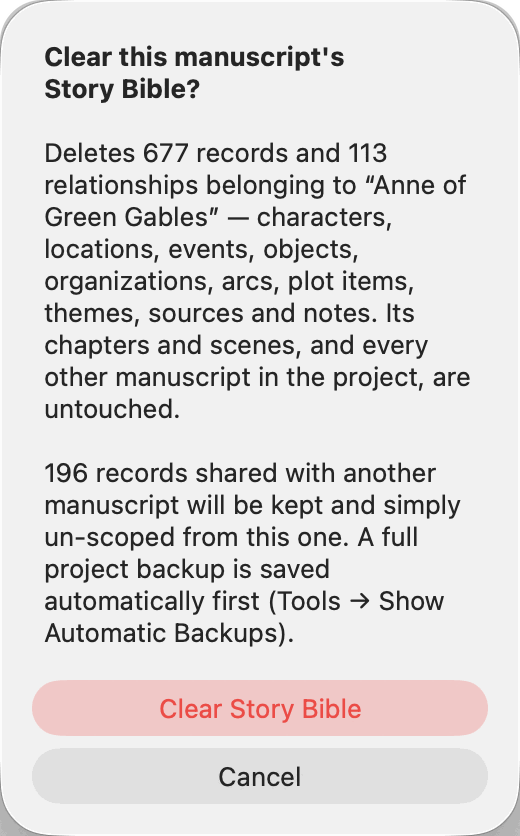 Each of the three dialogs counts what it is about to
delete before you confirm, and each names what it is not touching.
Read the second half of that sentence — it is the part that differs.
Each of the three dialogs counts what it is about to
delete before you confirm, and each names what it is not touching.
Read the second half of that sentence — it is the part that differs.
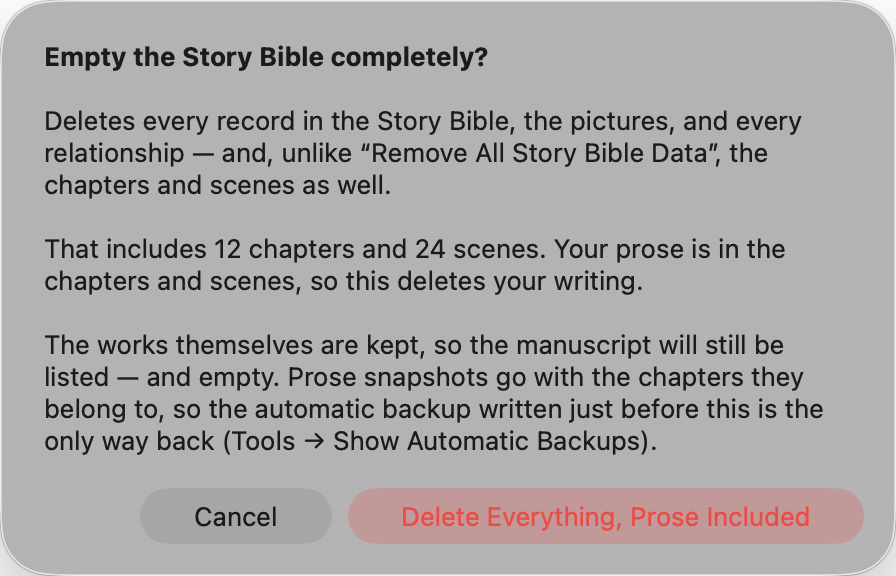 This is the one dialog on this page worth reading
slowest — it is the only one of the three reset commands that touches your
actual prose.
This is the one dialog on this page worth reading
slowest — it is the only one of the three reset commands that touches your
actual prose.
A fourth, narrower command — Remove Empty Manuscript(s)… — only appears when the project actually has one: a work with no chapters or scenes at all, left over from an import or an abandoned start. It lists each empty manuscript by name and notes that any Story Bible record appearing only in them goes too. It carries none of the risk of the three above, because by definition there is no prose to lose.
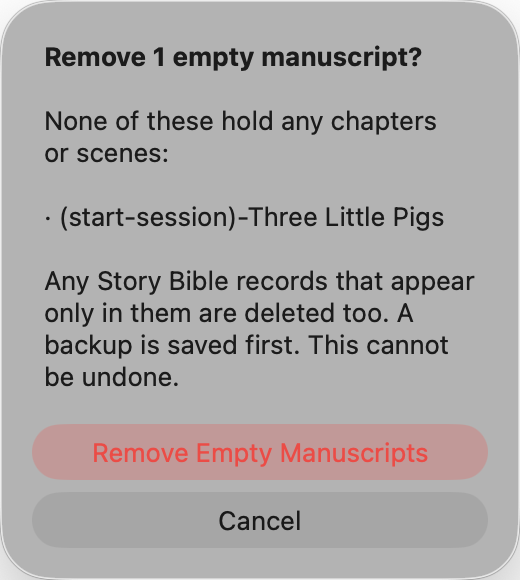 The command is absent from the menu entirely when
nothing qualifies, so seeing it at all means the project has picked up a
manuscript with nothing in it.
The command is absent from the menu entirely when
nothing qualifies, so seeing it at all means the project has picked up a
manuscript with nothing in it.