Synonyms and the thesaurus
Two tools sit beside the correction aids without correcting anything. Look Up tells you what a word means; Synonyms tells you what else you could have said. The second is Sgeulai’s own, and it is the one worth knowing properly.
Reaching them
Look Up (⌃⌘D) is macOS’s own dictionary panel. Synonyms (⌃⌘T) is the thesaurus described here. Both work on the selection, or — with nothing selected — on the word the caret happens to be sitting inside, so you do not have to select anything to use them.
Right-clicking a word offers Synonyms for “…” by name at the top of the menu. Right-clicking moves the caret to that word first, so the item always acts on the word you actually pointed at.
The popover: swap a word and get out of the way
⌃⌘T opens a small popover on the word. Sgeulai has already worked out how the word is being used in its sentence and filtered to that part of speech — but that is a guess made by a tagger, and you can see the sentence, so the part of speech is a control you can change. Click a synonym and it replaces the word immediately.
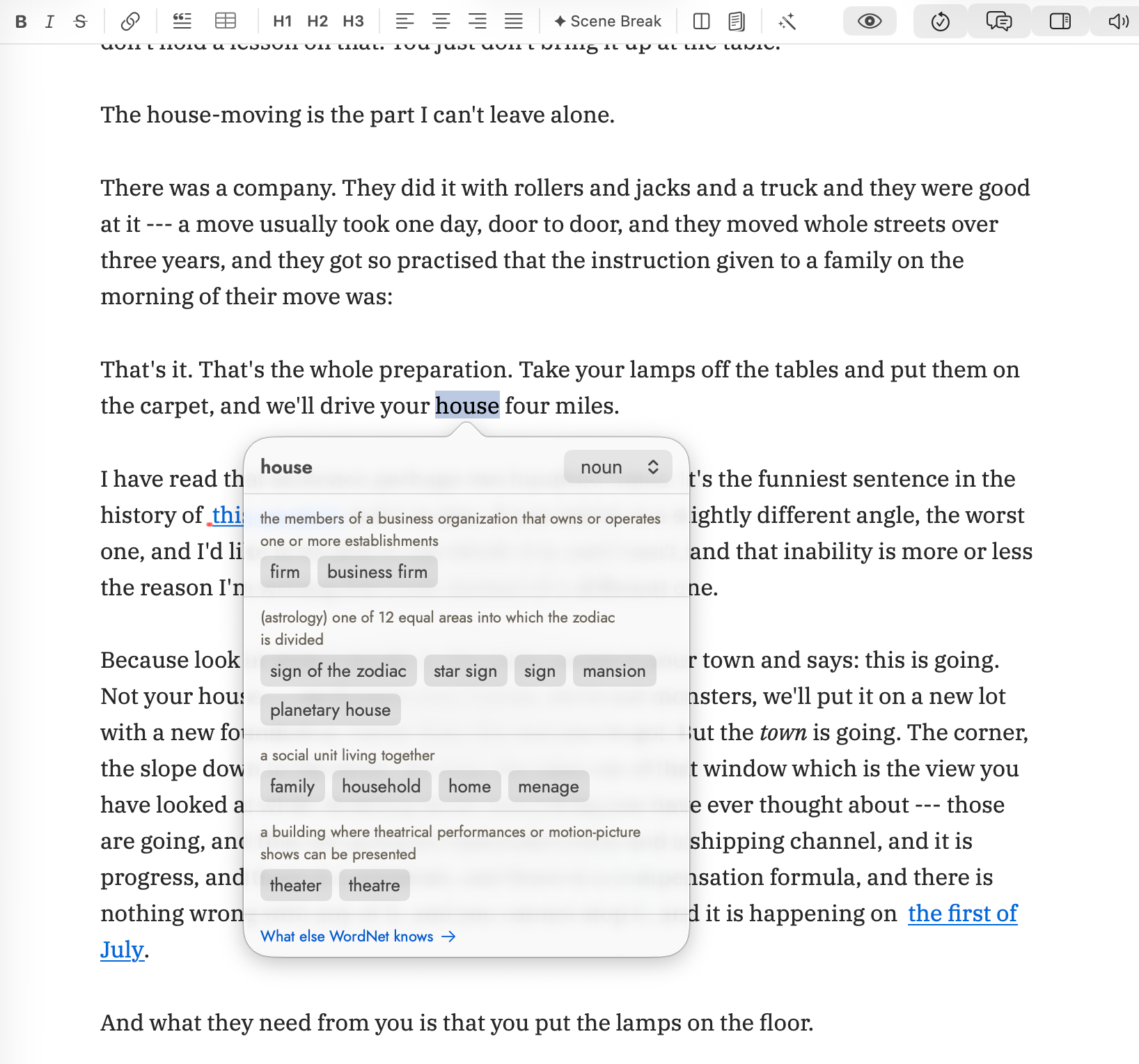 Five senses is the cap. The link at the foot is Explore
under another name, and is how you get from here to the inspector below.
Five senses is the cap. The link at the foot is Explore
under another name, and is how you get from here to the inspector below.
The popover caps at five senses and never scrolls, deliberately. A popover that scrolls covers the prose you are judging the word against, and it dismisses the moment you click the sentence you were comparing it to. Senses with nothing to offer are not shown at all: a sense with no synonym is a definition, and ⌃⌘D already exists for those.
The replacement goes through the editor as an ordinary edit, which is the important part and easy to miss. It joins the same undo machinery everything else uses, so ⌘Z takes it back, and your comment anchors and AI-edit marks all stay correct. Nothing about swapping a word here is a special case the rest of the app does not know about.
The inspector: following a word instead of replacing it
When five senses is not enough, Explore hands the word to the Writing Inspector, which takes over the right-hand column. The inspector’s own tabs step aside, and a Return to Inspector bar at the top puts them back.
This is the browsing surface: every sense, grouped by part of speech in WordNet’s own order of how commonly each is used, with full definitions and examples, a picker to filter to one part of speech, and a More disclosure on each sense holding everything else WordNet records. Twenty-six kinds of relation in all, grouped by kind, so eleven hyponyms read as one row headed “kinds of it” rather than eleven rows saying the same thing — “opposite of”, “is a kind of”, “has parts”, “causes”, “related form”, and the rest.
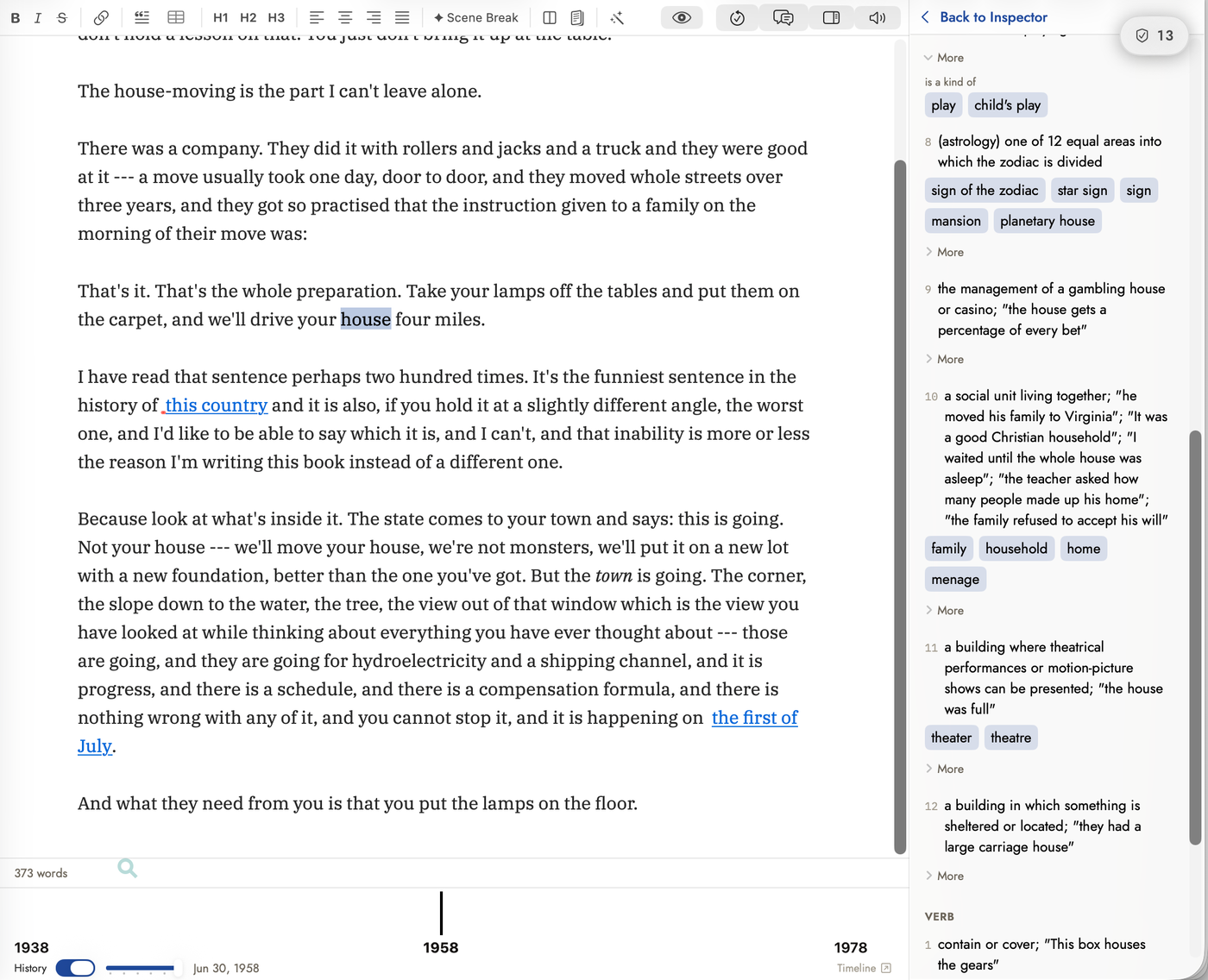 Each sense carries its own More, so the twenty-six kinds
of relation open one sense at a time rather than all at once.
Each sense carries its own More, so the twenty-six kinds
of relation open one sense at a time rather than all at once.
A click here can edit your manuscript
Every word in the panel is clickable, and what a click does depends on whether you have prose selected. With a selection, a click swaps that word into your manuscript, and the panel says so in as many words at the top: “Clicking a word replaces ‘chilly’.” Right-click instead to look that word up rather than use it.
With nothing selected, the panel says “Select a word in your prose to replace it from here” and a click follows the word instead. The panel is still a dictionary when nobody is editing.
Two kinds of nothing
The panel distinguishes two kinds of no-result, and the distinction is worth trusting:
- “‘prosecutor’ is in WordNet, but not as an adverb” means you left the part-of-speech filter somewhere it does not apply. There is a Show all senses link right there, and that is the fix — not a different word.
- “WordNet has no entry for ‘Ardnamurchan’” means the word genuinely is not in the data.
Proper nouns, most compounds, and anything newer than 2011 are not in it. The underlying data is WordNet 3.1 from Princeton, bundled with the app — offline, complete, and frozen. Your characters’ names will never be in it, and neither will “doomscroll”. That is the dataset, not a fault in the lookup.