The analysis tools
Twenty-five views on the book you have actually written, as opposed to the one you meant to. None of them grades you. Each answers one question and says which.
Every tool explains itself in the inspector on the right, in three parts: what it is, how to read it, and what to do about what it says. What follows is the same, gathered in one place.
Supported and experimental
The menu marks a tool experimental. This is a promise, not a warning about quality: a supported tool is one whose bug reports get answered; an experimental one is offered without that undertaking.
Every tool on this page is supported except one. AI Readings is the single experimental tool, and it sits there for a reason that has nothing to do with how well it works: what it reports depends on a paid third-party service Sgeulai does not control, and it disappears entirely when AI analysis is switched off. A tool that can vanish with a preference is not one the word "supported" can honestly be attached to.
That is also why Labs — the binder section and the Analysis menu's submenu that hold the experimental tools — is usually not there at all. With AI analysis off the list behind it is empty, so the heading does not appear; with it on, the heading appears holding AI Readings alone. Everything else is a plain row under Analysis.
If you remember a fuller Labs list, that is right: Family Tree, Plot Board, Thread Map and the rest carried the label until a review moved them across. Nothing was removed or renamed — they are higher up the same list than they used to be.
A rough tool you were told to expect is worth exploring. The same tool presented as finished is a defect — the difference is entirely in what it was called.
Comparing manuscripts
Seven tools share one control: Spine Report, Pacing, Five C's, Voice Check, Readability Comparison, Vocabulary Index and Series Continuity each carry a Compare Manuscripts menu in their own toolbar. Tick two or more books and the menu's label becomes Comparing N; the tool drops its single-manuscript report and redraws as one column per book.
Four is the ceiling. Once four are ticked the remaining rows grey out rather than disappearing, so the limit is visible instead of mysterious. Tick one, or none, and the tool goes back to reading whatever the toolbar's Working on picker says.
What each tool does with the extra columns differs, and the difference matters. Some genuinely align across books; some only put shapes beside each other. Spine Report says so beneath its own chart: chapter position is each book's own, so a chapter 5 in one manuscript is not the same story beat as a chapter 5 in another.
Structure and shape
Corkboard
Every scene as an index card, in reading order, with its summary and status. The board is the book at arm's length. Drag to reorder. A run of cards you cannot summarise is usually a run to cut.
Spine Report
What arrives and leaves at each chapter, one row per chapter. Front and back matter don't appear — only chapters with a place in the book's own numbering do.
A chart of threads held sits above the list, on a book with more than one chapter — climbing where more opens than closes, falling the other way, with an orange dot marking a chapter that has a scene missing a beat. Tap a point to jump straight to that chapter's row below; the chart says where to look, the list still says what's there.
Arc beats are the beats you've placed on a chapter in Plot Board — dragging a beat onto a column there is what sets the chapter this report reads. A beat that only touches a chapter through its linked scene, without ever being dropped on a column of its own, doesn't count here.
Threads opening and closing means plot items with an introduced or resolved position set — not story arcs, and not every thread Loose Ends would flag. A thread with no position anywhere is invisible to this report even though Loose Ends still finds it; that's a deliberate division of labour, not a gap, but it means a chapter that looks quiet here can still be sitting on a loose end Loose Ends already knows about. Threads held is the running total — everything opened so far minus everything closed, chapter by chapter.
Scenes missing beats counts a scene the moment it's short even one of its six narrative beats — Hook, Setup, Trigger, Argument, Action, Climax, the same six Scene Shape tracks — not only scenes with none filled in at all.
Click a chapter, an arc-beat chip, or a thread chip to open the record behind it. A chapter with a rising open count and no beats of its own is a chapter doing nothing but bookkeeping.
Structure
How this manuscript is actually shaped against the beats of the structure you've chosen for it — not a template to fill in, a ruler to measure a finished draft against.
Structure lives in the sidebar's Story Bible section now, not Analysis — its documentation stays on this page because the tool itself hasn't changed, only where you launch it from.
Choosing a structure. Structure is a setting on the manuscript, not the project — open the tool with a manuscript active in the "Working on" picker, and if none is chosen yet you'll see a chooser instead of a chart. The same chooser is offered directly in the New Manuscript sheet when you create a book, so a structure can be picked, built or imported before the manuscript even exists rather than waiting until afterward. Ten built-in shapes ship with the app, deliberately the older, common-property ones rather than named commercial systems:
| Structure | Beats |
|---|---|
| Three Acts | 9 — the familiar setup, confrontation and resolution, with an inciting incident, a midpoint and two turning points marked inside it. |
| Four Quarters | 7 — the book cut into four even stretches, each with its own milestone. |
| Five Acts | 7 — the classical dramatic shape: exposition, rising action, the turn, falling action, and a catastrophe or resolution. |
| Seven Points | 7 — built backwards from the ending: a hook, two turns, two pinches, and a midpoint between them. |
| Eight Sequences | 8 — eight roughly equal reel-length stretches, each a self-contained mini-arc. |
| The Hero's Journey | 12 — the mythic pattern, from the ordinary world through the call, the crossing, the ordeal, and the return. |
| Whole-Book Shape | 9 — the three movements of a book at full length: an opening that sets the terms, a middle that raises the pressure, and a close that pays for it, with the turns that fall inside each. |
| Fichtean Curve | 7 — no setup act: a rising series of crises, each worse than the last, breaking at a climax near the very end. |
| Problem-Solution Structure | 7 — nonfiction shape: state the problem, rule out what's already been tried, give the real answer, then spend the book making it usable. |
| Thematic / Mosaic Structure (Nonfiction) | 7 — essay-collection and braided-narrative shape: self-contained pieces arranged by theme rather than chronology, circling one question from different angles. |
Click a card to select it. Change your mind later from the ⋯ menu in the tool's own header — it can switch to a different structure, or Stop using a structure to go back to the chooser.
Building your own. Every beat is positioned as a percentage through the finished book, not a fixed word count or chapter — the same structure fits a short book and a long one without rescaling. To build a custom structure, choose New structure… from the chooser or the ⋯ menu, or start from an existing one with Duplicate…. In the editor:
- Name it, and optionally add a one-sentence summary and a words-per-page figure — used only to turn word targets into page targets.
- Add a beat with Add a beat: give it a name, an optional note describing what happens there, and a Starts at __% position.
- Turn on Spans to if the beat covers a stretch of the book rather than a single moment, and set where it ends.
- Repeat for as many beats as the structure needs. Beats always sort by their percentage, not by the order you added them — there's no drag-to-reorder, because there's nothing to reorder: move a beat by changing its percentage.
Built-in structures are editable in place too — disagreeing with a shipped structure is usually a correct read of your own book, not a mistake. Only a structure you created yourself can be deleted; editing a built-in just changes your own copy of it.
Exporting and importing. Any structure — built-in or
your own — can be shared as a .beatsheet file: Export
Structure… from the ⋯ menu writes one, and Import
Structure…, from the same menu or the New Manuscript sheet, reads
one back in. An imported structure is saved into this Mac's own structure
library the same way a hand-built one is, so it shows up in the chooser for
every project afterward, not just the one it was imported into.
Reading the chart. Each beat gets a dashed line at the word count the structure expects it, labelled with the beat's name — word and page targets come from the manuscript's target word count (set right in the tool's header) times the beat's percentage. Tell Sgeulai where a beat actually landed with Set actual… on that beat's row, and a line is drawn from the target back to your real chapter: orange running right means the beat arrived late, purple running left means it arrived early, green means it's within the two-thousand-word tolerance either way, and grey means you haven't placed it yet. Three beats late by the same amount means a front-heavy book, not three misplaced beats.
Beats the draft hasn't reached yet simply have nowhere to land — that isn't a finding, just a book still being written. The same ⋯ menu's Build chapters from "…"… runs the opposite direction, turning a structure's own beats into an outline of scenes and chapters, for starting a book from the shape rather than measuring one already written.
Pacing
Chapter and scene lengths against this book's own usual range. The green band is normal for this book; bars outside it are the unusual ones. Long is not wrong — it only says which ones differ.
This is about length, not difficulty — how long a section runs next to the rest of the book. For how a passage actually reads, sentence by sentence, see Readability in The writing inspector instead.
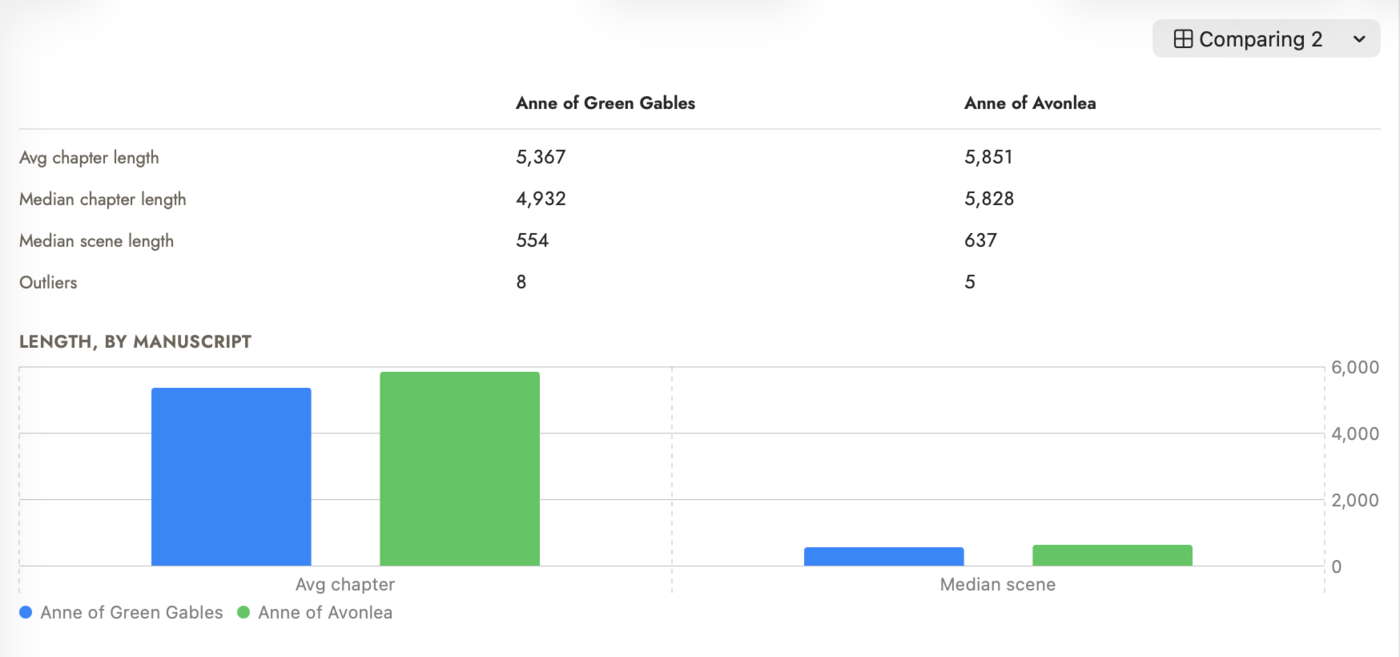 Two books by the same author, and much the same
shape — scenes a hundred words apart at the median, chapters within a
thousand.
Two books by the same author, and much the same
shape — scenes a hundred words apart at the median, chapters within a
thousand.
Paragraph Profile
How broken up each chapter and scene is, rather than how long. A three-thousand-word chapter written in nine paragraphs and one written in sixty are the same bar on Pacing's chart and opposite experiences to read — the first is a wall, the second a sprint — and no word count tells them apart.
Two measures on a switch, because the problem comes in two shapes. Paragraphs counts them, and finds the undivided chapter. Words per paragraph averages them, and finds the chapter the count alone calls normal: an ordinary number of paragraphs, each one twice everyone else's length. The summary line carries the longest single paragraph in the book beside the typical one, and flags it when it runs past six times typical — an average hides exactly that paragraph, and it is the one a reader stalls in.
It walks the same spine on the same axis as Pacing, so a scene sits under the chapter that holds it and the two can be read against each other. A chapter's own count includes the prose of the scenes inside it. The band, the typical line and the five-unit minimum are Pacing's, unchanged.
A paragraph is a block of prose with a blank line either side. Scene breaks, headings and horizontal rules are punctuation between paragraphs rather than paragraphs; a list or a block quotation counts as one, not one per line.
Plot and threads
Plot Board
A grid of plot lines against chapters. Each row is a plot line, each column a chapter, each card a beat. Drag beats between chapters. Turn on Compact to see the whole book at once, and Tension for the intensity curve. Gaps in a row are chapters where that thread goes quiet.
See Plot Board for the full walkthrough — what Auto-Populate actually places and why it's safe to run twice, what Highlight and the crossover diamond mark, and a nuance worth knowing before it surprises you: the board shows a beat under its scene's chapter before Spine Report will.
Loose Ends
Setups with no payoff: every plot item introduced at a chapter but never resolved, plus arcs with no climax and items waiting on something still open. Answer each row where it sits — say which chapter pays it off, mark it deliberately open, or open the record.
Marking something intentionally open is a real answer, not a way of silencing the report. A thread you left open on purpose stops being a finding.
Cast Grid
Every character's line through the book, side by side. Rows are characters, columns are this manuscript's structure beats, and each square is what that character is doing at that point. Add Storyline gives a character a row; in a project with several manuscripts, the filter beside it narrows which manuscript's characters that menu offers, so a series doesn't bury the book you're working on under every other book's cast. Fill In writes the top scene-derived suggestion into every empty square at once — the same text a square already offers when you click it, without a click per square. Read across the protagonist's row for the plot; read down a column to see who is doing nothing while it happens. A row that is blank until the climax is a character the book forgot.
Thread Map
The book as a storyline chart: threads as routes, chapters as stops. Each line is a story arc or a character, running left to right across the chapters a beat of theirs is placed on. Where two or more lines share a chapter, they bend together to the same point and drift back apart after, marked with a grey ring — the shape of the lines says who was together, rather than a note beside them.
Arcs and characters are two groups you can switch off independently, each with its own Choose Arcs / Choose Characters filter for narrowing a large project down to a legible handful, and a Main / Secondary menu that filters characters by their own Importance field. A character only gets a route once a beat that already has a chapter also names who's in it — a field nothing sets on its own until you either tick it by hand on the Plot Board, or use Fill In Characters here to read each beat's own chapter or scene for names and wikilinks instead.
Read the gaps rather than the dots — a long stretch of unbroken line is a thread the book has forgotten, and two routes whose lines never bend together are two threads that never meet. Route names stay in their own column at the left while the chapters scroll underneath them, and a short route list opens at the top of the window rather than centred in the middle.
See Thread Map for the full walkthrough, with screenshots — what a click on a dot, a line and a route's own name each do, exactly what "N of M" counts in the picker, and a couple of behaviours worth knowing before they surprise you (Select All in the picker ignores whatever the search box is currently hiding, and the Main / Secondary menu's own label never changes to show which filter is on).
Scenes
Five C's
Whether each scene and arc answers the five questions — characters, circumstances, conflict, choices, consequences. A filled mark means recorded, hollow means missing, and the emptiest records sort to the top. Records that already answer all five are hidden by default, since this is an audit of what's left to do; Show Completed brings them back.
The useful reading is negative: conflict and consequences but no choice means things happen to someone. Fill in… opens the five questions directly.
Characters only asks whether somebody is named, so when a scene's point-of-view character — or an arc's owner — has neither an External Goal nor an Internal Need of their own recorded, the row says so in a line underneath; click that line to open their record, since it's a gap the scene has no field to answer.
Scene Grid
Every scene as one row, one column per attribute — a straight, sortless read through the manuscript in reading order, not a diagnostic tool. Simple shows number, title, word count, story event, value, turning point, POV, location, duration and onstage characters; Expanded adds charge, in-story date, offstage characters and dramatic situation. Every cell is read-only from the grid itself — double-click a row to open the full scene record instead.
Scene Shape
The book's value shifts, drawn rather than tabulated — a cumulative line for the manuscript as a whole and a bar per scene, green for a positive shift, orange for negative, grey for flat — with a diagnostic card per scene underneath, not a spreadsheet: whichever of goal, conflict, the turning point, crisis choice or outcome is still blank opens a small editor right there. These are the same fields Five C's asks about, phrased as different questions — fill one in and the other sees it too. Five C's counts the turning point or the crisis choice, so one of the two filled clears its Choices mark. A filled field is read-only from here — open the full scene record to change it.
The six narrative beats — Hook, Setup, Trigger, Argument, Action, Climax — are a separate set of blanks, filled the same inline way, and are what Spine Report's "missing beats" count reads.
Value shift is two things: the scene's emotional value before and after, in your own words, and a numeric charge — before and after, -2 to +2 — the two charts at the top are built from. Both live on the scene's own record, in its Emotional Arc section; the same charge fields, for the story's own line rather than the character's, are in Story Value right below it — see Scene in The Story Bible. A scene with neither charge set simply reads as flat, not broken. A blank goal, conflict or outcome is still worth filling in — that reading doesn't depend on the charts.
Infer Value Shifts (AI)…, beside the chart, reads each scene's own prose and fills in whichever of the four charge numbers is still blank — never one you or an earlier run already answered. The character's and the story's shift are judged independently, so a scene that moves one and not the other gets a real answer on the axis its prose actually supports, rather than a guessed zero on the one it doesn't. A small per-scene reading charge on Anthropic's cheapest model; see The Claude API key.
Who, where and when
Character Arc
Which characters appear in which scenes. Rows are characters, columns are scenes; a dot is present, a star is point of view. Detect Appearances fills the grid from your prose. Look for a character who vanishes for forty scenes, or two who never share one.
Relationship Graph
Who and what is connected to who and what. Nodes are records; lines are relationships you drew, wikilinks in your prose, and the links events and objects already carry — participants, places, causes, owners. Drag nodes to arrange them and the layout is remembered.
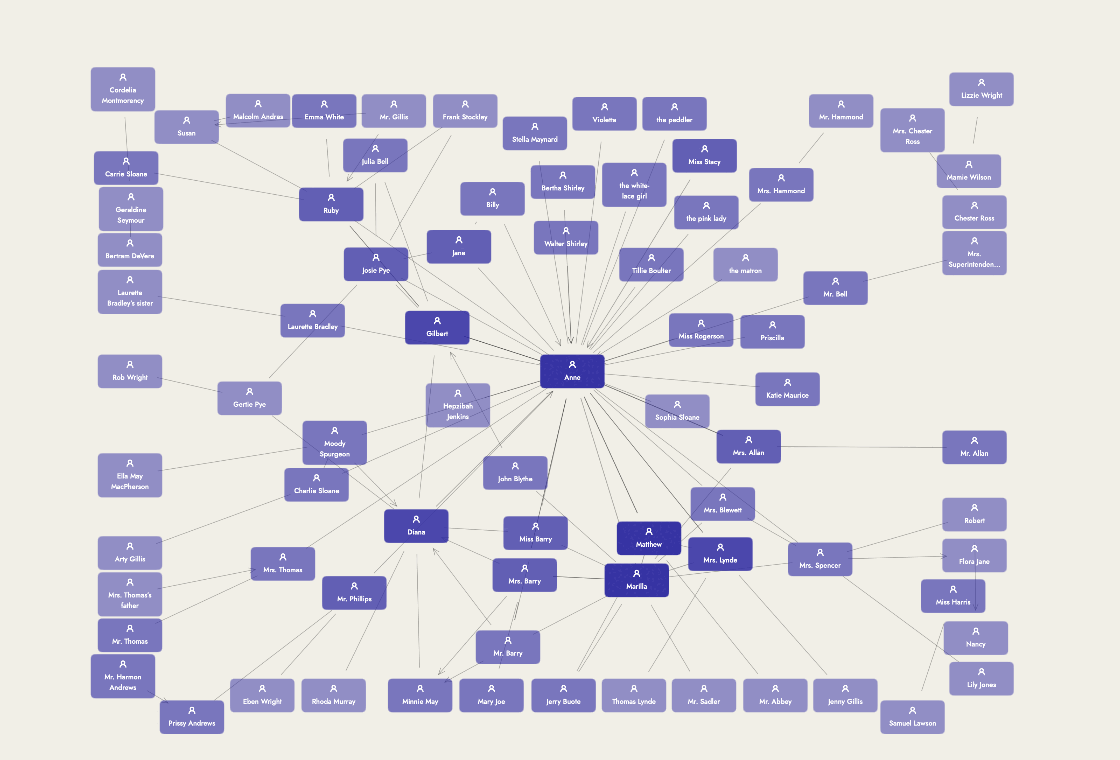 Every line is a real connection somewhere in the
Bible — none of them are drawn just to fill space.
Every line is a real connection somewhere in the
Bible — none of them are drawn just to fill space.
Family Tree
A generational chart, not another Relationship Graph — rows are generations, parents above children, spouses and siblings side by side in the same row. It reads only three relationship types: directional parent, plus sibling and spouse; the older, symmetric family type still exists for a looser connection but carries no direction, so it can't place anyone on the chart. A dashed connector flags a relationship the surrounding data doesn't agree with — a cycle, or two different paths implying two different generations — rather than drawing it as if the data formed a clean tree. Background- and minor-tier entities (the same Importance field every record carries) draw small by default, with a toggle to hide them outright — built for a large, imported-feeling family where most of the cast is there for context, not the page.
See Family Tree for the full walkthrough — setting up the three relationship types correctly from either person's own record, including the swap control a directional connection needs.
Timeline
The same events on two clocks: story time and reading order. Detect Dates reads dates out of the prose. Where the two clocks disagree you have a flashback — deliberate or not.
Its Braid tab plots the same idea for a braided structure specifically: each chapter's real date against its place in the book, connected in reading order. The line zigzags backward exactly where the manuscript flashes back — the shape of your own braid, at a glance.
Its Visual tab can also draw a band of real-world events beneath the story's own ruler — a research timeline you import, type in by hand, or have an AI help you build. See History.
See Timeline for the full walkthrough, with screenshots — every control across the Visual tab's toolbar, what a smaller dot on the Braid chart means, and what the other five tabs are for.
History
Real-world events, drawn on the same axis as Timeline's own clock — a research timeline you import from a spreadsheet, type in by hand, or have an AI help build, so a scene set in October 1970 sits directly above what was actually going on in October 1970. A History record is furniture, not a Story Bible Event — it never appears in the Name Registry, the continuity scan, or the relationship graph, only on the timeline.
See History for the full walkthrough — importing a spreadsheet, building one with an AI's help, and where it shows up beside a scene or chapter.
Series Continuity
One character's last recorded state, laid out side by side across every book they appear in — occupation, condition, residence, a short summary, one column per book, read for your own eye rather than judged. Reachable only once a project has two or more manuscripts, and only shows characters who actually span two or more of the books currently being compared; narrow or widen that with the same manuscript-compare menu Voice Check and the other comparison tools use.
If the selected character has an open alive-again finding — recorded dead at the end of one book, alive again at the start of the next — a banner above the table names it, with a link straight to the record. See Continuity Check… in The Tools menu for how that finding gets made in the first place, including why it needs a Character State tagged to a book before it can fire at all.
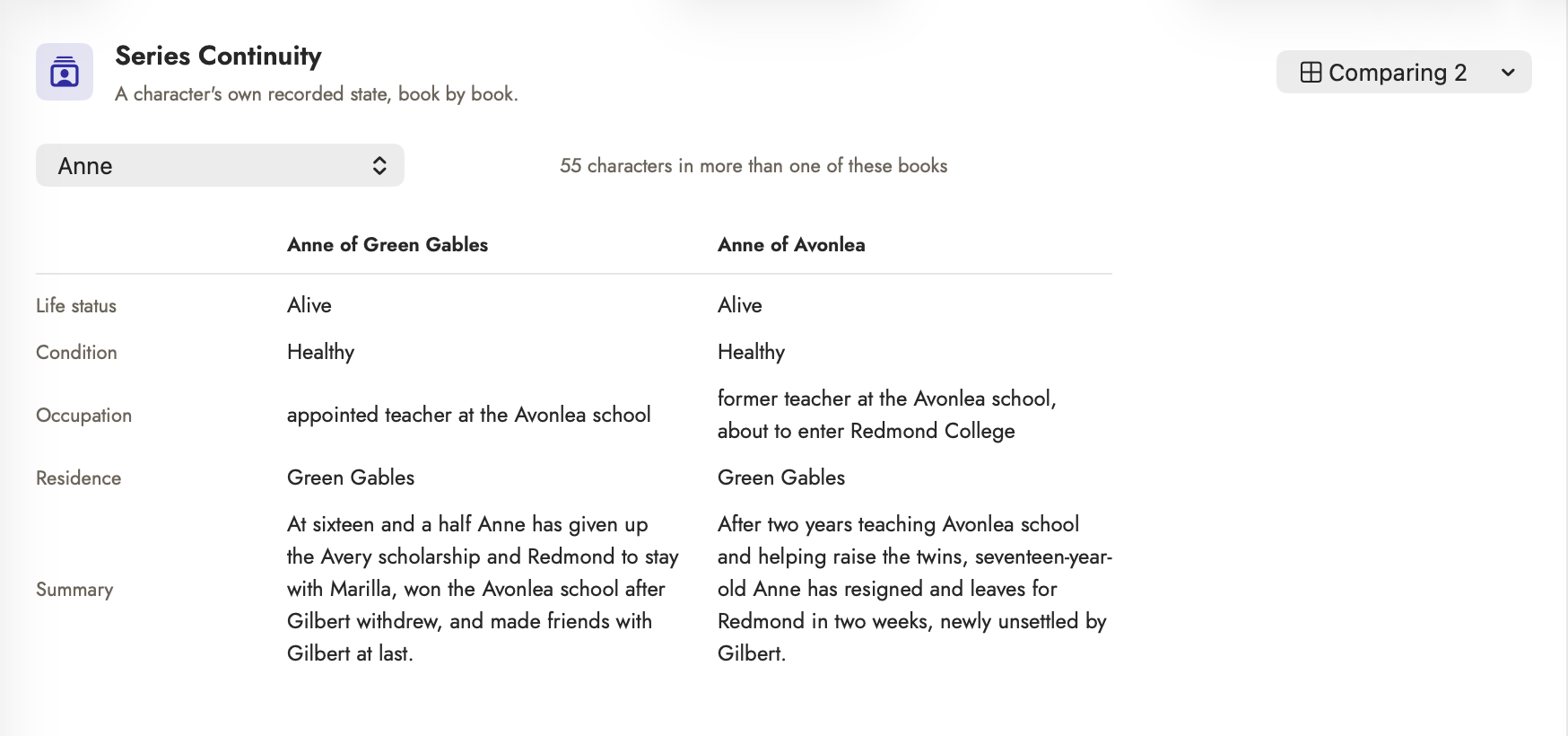 Alive in both books, so no banner. The occupation
changed, which is what a series does — that is shown for your own reading,
not flagged.
Alive in both books, so no banner. The occupation
changed, which is what a series does — that is shown for your own reading,
not flagged.
Prose and process
Voice Check
Whether the prose still sounds like you. Sentence length, rhythm and word habits measured against your own baseline; outliers are passages that drift from it. A drift after an AI edit is the thing this exists to catch.
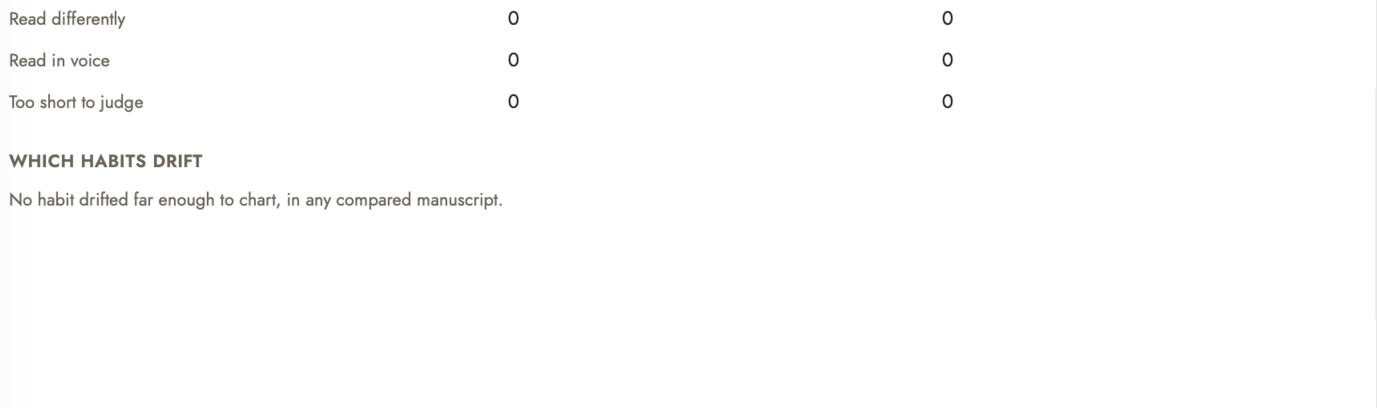 Neither book has an AI-written passage, so every count
is 0. "Guessed, unchecked" gets a row of its own only when there is something
to count — and it is not the same as a clean pass.
Neither book has an AI-written passage, so every count
is 0. "Guessed, unchecked" gets a row of its own only when there is something
to count — and it is not the same as a clean pass.
Readability Comparison
The same reading-ease, grade-level and word/sentence/paragraph stats the writing inspector's own Readability tab computes, shown here as its own panel: a bar chart of Flesch reading ease sits above a full table of word, sentence and paragraph counts, both grade-level formulas, syllables per word, and the percentage of complex (three-syllable-or-longer) words. On its own it follows the "Working on" picker and reads one manuscript; tick books in its Compare Manuscripts menu (see Comparing manuscripts above) to put up to four side by side instead. A manuscript under thirty words reads as a dash rather than a stat — there isn't enough there yet to measure. An orange triangle beside a value marks it outside a comfortable general- fiction range — reading ease under 30 or over 90, a grade level above 12, sentences averaging under 8 or over 25 words, paragraphs averaging over 150 words, or complex words over a fifth of the total — hover it for the exact reason. These are flags worth a second look, not rules; genre and voice can justify any one of them on purpose.
Below the table sits a second chart, Reading Ease by Chapter: one line per manuscript, one point per chapter in reading order. An average can sit comfortably in range while one chapter is far harder than the rest, and this is where that shows. The table's last row, Chapter reading ease range, gives the lowest and highest chapter score, flagged when they're 30 or more points apart; hover the flag for the hardest chapter's name. Chapters under thirty words are left out of both.
Vocabulary Index
Every non-stopword word in a manuscript and how often it appears — the same frequency table Top Repeated Words on the writing inspector's Readability tab already builds, without the cutoff at 15, with its own place to search and sort it rather than reading it off one chapter or scene at a time. Common function words — "the," "and," "of" — are filtered out from the entry list before you ever see it, so what's left is the vocabulary actually doing the work.
A type-token ratio at the top — distinct words divided by total words — is the one-number answer to how varied the vocabulary is overall; unlike the entry list, it's counted over every word, function words included, since that's what the ratio actually means. Toggle Used once only to see just the hapax legomena — words that appear exactly once — a different and narrower list than "uncommon," useful for finding the one-off word a passage leans on for effect, or the near-miss that should probably have been used twice. Scoped to whichever manuscript is active, or every manuscript in the project combined when none is.
Every entry carries its own syllable count, and a small orange flame marks words at three or more syllables — the same "complex word" floor Readability Comparison uses, so "difficult" means the same thing in both places. A Words by Syllable Count chart above the search bar counts distinct index words per bucket (1 through 6+), not weighted by how often each appears — it answers how syllable-varied the working vocabulary is, not how much of the prose reads long, which is what the Writing Inspector's own syllable-distribution chart already covers.
Style Report
The inspector's style check, run over every chapter at once, to answer the question the Style tab can't: which chapters need the most work. A bar per chapter shows its findings per 1,000 words against a dashed line for the whole book; Weakest chapters names up to five that sit above it, each with its three commonest kinds of finding and its scenes, and every row opens that section. A menu at the top narrows the whole report to one category, or switches it to a count: adverbs, -ly adverbs, adjectives, or the share of the words that is dialogue. It uses the Style tab's settings, your word lists and the findings you ignored, so a chapter's figure here is what its Style tab adds up to. More on The style check.
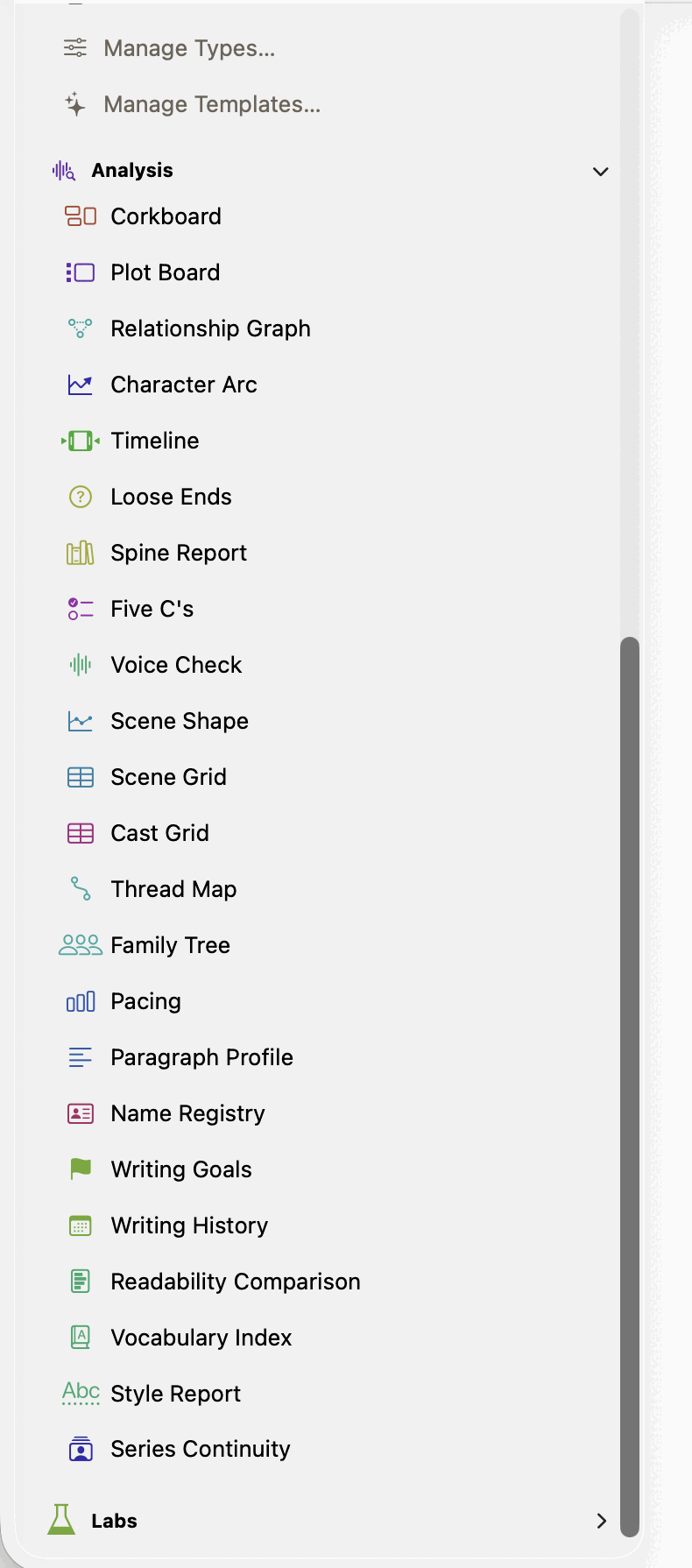 Style Report sits between Vocabulary Index and Series
Continuity, at the foot of Analysis.
Style Report sits between Vocabulary Index and Series
Continuity, at the foot of Analysis.
AI Readings
Things the analysis thinks about your book, waiting for a yes or no. See Reading the manuscript with AI. It follows the Working on picker unless its own manuscript menu is set otherwise — see Which book the Story Bible shows.
Name Registry
Real names against the names in the manuscript, one row per person, with what they are called in each book. Keeps a memoir's anonymisation consistent, and catches the same person named two ways.
The registry is the mapping; Apply Pseudonyms to Prose… and Restore Real Names in Prose… (in the manuscript's own menu) are what actually rewrite the manuscript text from one side to the other, so you can draft under real names and swap to pseudonyms only when you're ready to send it out — and swap back just as cleanly.
Writing Goals
Two kinds of target, kept in different places. A daily word goal and, if you set one, a deadline, belong to the project: each book has its own, and they travel with the file to the iPad. (The first project you open after updating takes over the goal and deadline you had set before, when they applied to every project.) A target word count and target date per chapter, and a target word count per scene, belong to that chapter or scene: set them inline in a chapter's own row here, in bulk with Set Targets…, or for a scene, in its own Metadata tab in the writing inspector.
Today shows the words you've added today against the daily goal, and how many days in a row you've met it. It counts sessions as the writing log records them, when you leave a section, plus the section open now, so it moves as you write. Words added means what you typed, not the net change: a morning of rewriting counts.
The finish estimate comes two ways. At your goal divides everything still owed across chapters with a target by the daily goal. At your pace divides it by what you've actually averaged over the last two weeks, counting days off, and appears once you've written on three of them. With a deadline set, the line under it says what the deadline needs: "4,200 words left, 6 writing days: 700 a day," counting today and the deadline day. Once every chapter with a target has met it, the tool says the manuscript's complete rather than estimating a date that no longer means anything.
Colour doesn't mean quite the same thing everywhere in the app, so it's worth knowing which scheme you're looking at. Most progress bars — the manuscript-wide bar at the top of this tool, a scene's bar in the writing inspector's Metadata tab, and the live count in the editor's own status bar — are simple: blue while short, green once you've met the target. Chapter rows here, and the "Chapter Progress" box on the writing inspector's Readability tab, use a four-stage ramp instead: red under 40%, yellow 40–74%, blue 75–99%, green at 100% or over. Either scheme adds a diagonal stripe across the bar once you go over target, since a full bar alone can't tell 100% from 140%.
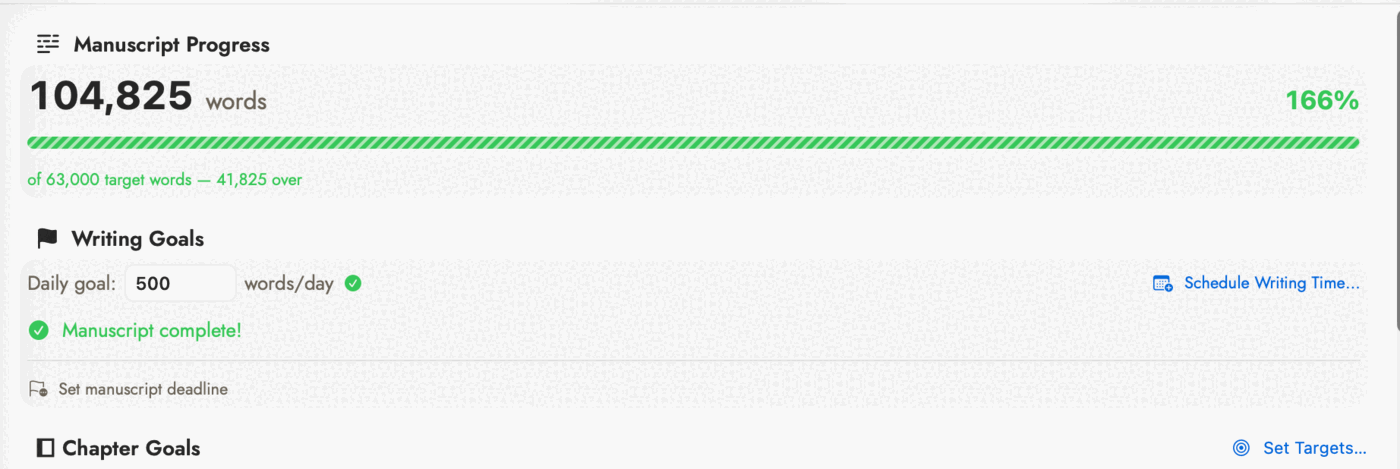 166% and a striped bar, but "Manuscript complete!"
underneath it — the deadline row at the very bottom is still unset, which
is its own kind of unfinished.
166% and a striped bar, but "Manuscript complete!"
underneath it — the deadline row at the very bottom is still unset, which
is its own kind of unfinished.
Red also means "empty" outside of progress bars — an unset chapter target, or a deadline you haven't set, shows in red until you fill it in. Once a deadline is set it turns green, then orange once the date has passed.
There is no celebration for hitting a goal, and nothing here tracks day to day — the daily goal exists for exactly one purpose: turning "words remaining" into an estimated finish date. Day-to-day tracking, including an actual streak, lives in a separate tool: see Writing History, right after this one.
Schedule Writing Time…, beside the daily goal field, hands that goal off to the Mac itself rather than adding tracking of its own. Choose a Reminder — a due-date nudge in the Reminders app, in its own "Sgeulai" list, optionally repeating every day — or a Calendar Block — an actual span of time on the calendar, in its own "Sgeulai" calendar, with a start time, a duration, and an optional daily or weekday repeat. The first use of either asks separately for Reminders or Calendar access in System Settings; declining just leaves that option unavailable; the goal itself still works without either.
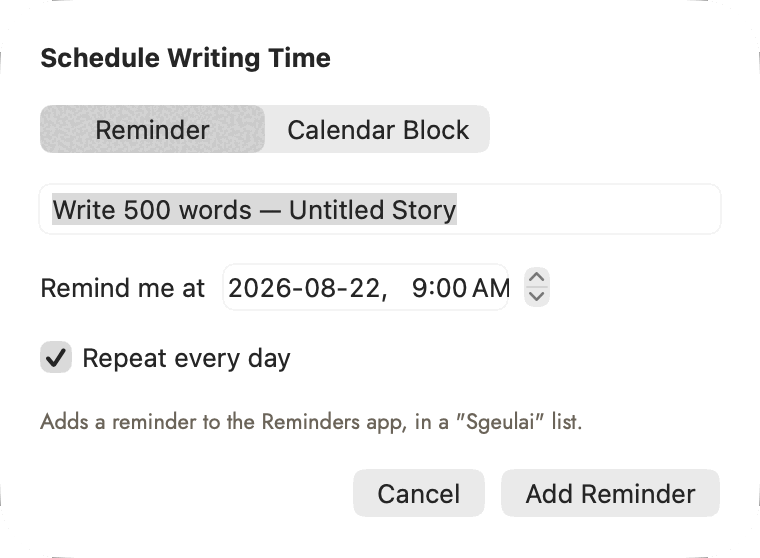 Reminder or Calendar Block changes which fields sit
below the picker — the title above them doesn't reset when you switch.
Reminder or Calendar Block changes which fields sit
below the picker — the title above them doesn't reset when you switch.
A bell icon beside the manuscript deadline and beside each chapter's own target date opens the same idea for a single date rather than a recurring one: Remind Me. Choose how far ahead of the actual date to be nudged — on the day, or one, three or seven days before — a time of day, and which Reminders list to file it in, rather than always the app's own "Sgeulai" list; every list already on the Mac is offered. Nothing about the deadline itself changes — this only ever adds a reminder, once, on request; moving or clearing the date afterward doesn't touch a reminder already created from it.
Pressing either button again with the same time doesn't add a second copy: the sheet says the reminder or block is already there, and in which list. A different time is a different reminder, so a week's warning and a day's warning can sit side by side.
 The bell sits right beside Clear — reaching it never
costs more than the click that clears the date does.
The bell sits right beside Clear — reaching it never
costs more than the click that clears the date does.
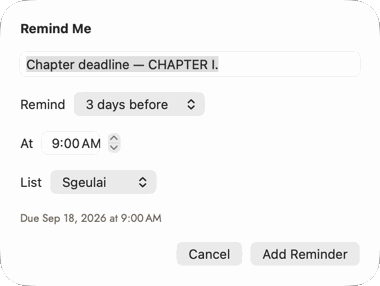 The due line at the bottom is the one honest summary
in the sheet — everything above it is inputs, this is the actual reminder
that gets created.
The due line at the bottom is the one honest summary
in the sheet — everything above it is inputs, this is the actual reminder
that gets created.
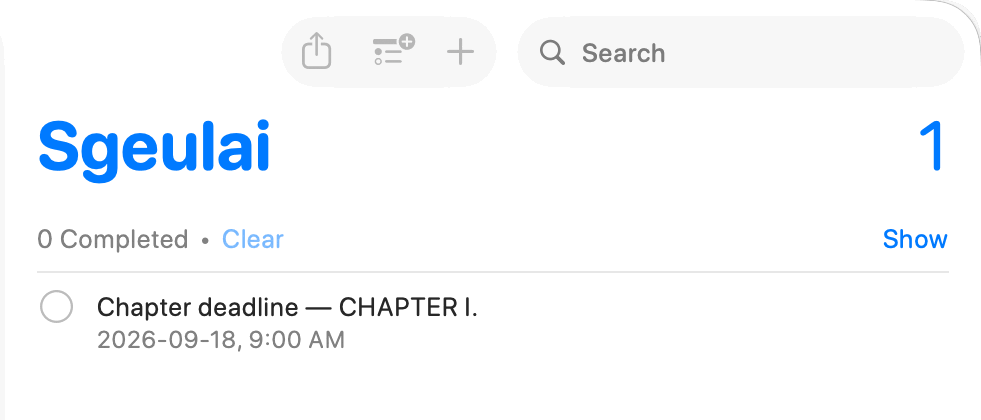 What Add Reminder actually produces — an ordinary
entry in Reminders' own Sgeulai list, no different from one typed there by
hand.
What Add Reminder actually produces — an ordinary
entry in Reminders' own Sgeulai list, no different from one typed there by
hand.
Keeping Reminders and Calendar in step
The Calendar & Reminders box at the bottom of Writing Goals follows what the tool made for this project: the daily writing reminder, the writing block, and the manuscript deadline's reminder.
- Kept up to date. Change the daily goal and the reminder and block are retitled ("Write 750 words — …"), unless you've renamed them yourself. Move the deadline and its reminder moves by the same amount, keeping its lead time.
- Deletion is noticed. Delete one in Reminders or Calendar and the box says so, and nothing adds it back unless you schedule it again.
- Complete today's reminder when the goal is met (on by default) ticks the daily reminder once today's words reach the goal.
- Log writing sessions adds one event per editing session to a separate Sgeulai Log calendar: when it started and ended, words added and removed, and the manuscript. Hide that calendar without losing your planned blocks.
- Leave busy calendar days out of deadline pacing reads your calendars, on this Mac only, and doesn't count days with a set number of hours of timed events (4 by default) as writing days. All-day events such as birthdays don't count toward busy.
Neither macOS nor iPadOS lets an app change Reminders or Calendar while it's closed, so the reminder is ticked and the session logged when you next leave a section or open Writing Goals, not the moment you pass the goal.
Writing History
Writing Goals looks forward; this looks back. A calendar heatmap shades each day of the selected month by how much writing happened — darker means more — next to a bar chart with two series per day, words added and words removed (drawn as a negative bar, mirroring below the line), plus a Writing days count and current/longest streak. History starts the moment you first close a scene or chapter you've edited; nothing earlier is reconstructed.
The point of tracking added and removed, not just net, is right there in the numbers on a heavy revision day: a rewrite that nets to zero new words still shows real activity on both bars, rather than reading as a day nothing happened. Logging only happens at a real stopping point — closing a scene or switching what you're working on — never on every keystroke while you're still mid-sentence.
From the browsers
Two more planning tools, reached from a Story Bible browser's own toolbar rather than the tool palette above — not counted in the twenty-five, but answering the same kind of question.
Character Balance Sheet
Fifteen positive traits on the left, fifteen negative on the right, and between them a reading for each character on the page — as many as the window holds side by side, up to six, most important first. The arrows at the top, or ⌘← and ⌘→, page through the rest. It opens on whatever the Characters browser was showing, or on just the characters selected there. Reached from Character Balance… in the Characters browser.
A reading draws negative traits left of zero in red and positive traits right of it in blue, so a character with none ticked says Not rated rather than "perfectly balanced". The shaded zone is what the character's importance asks for — within two of zero for a Critical character, five for a Major one, no limit below — and a character outside it is flagged Leans (ochre) or Too strong or weak (red). Click a reading, or a column's name, to work on that character alone. Below the lists, Across this page names traits most of the page shares and traits nobody on it holds.
Evidence Board
Which events are backed by a citation, and which are thin or unsourced — this app's usual gap-flagging idiom applied to fact-checking, for memoir and history work with real sources behind them. Reached from Evidence Board… in the Events browser.